
History
The workspace for reviewing an asset's branches, selecting entries, and continuing work from a specific image or video result.
Image history
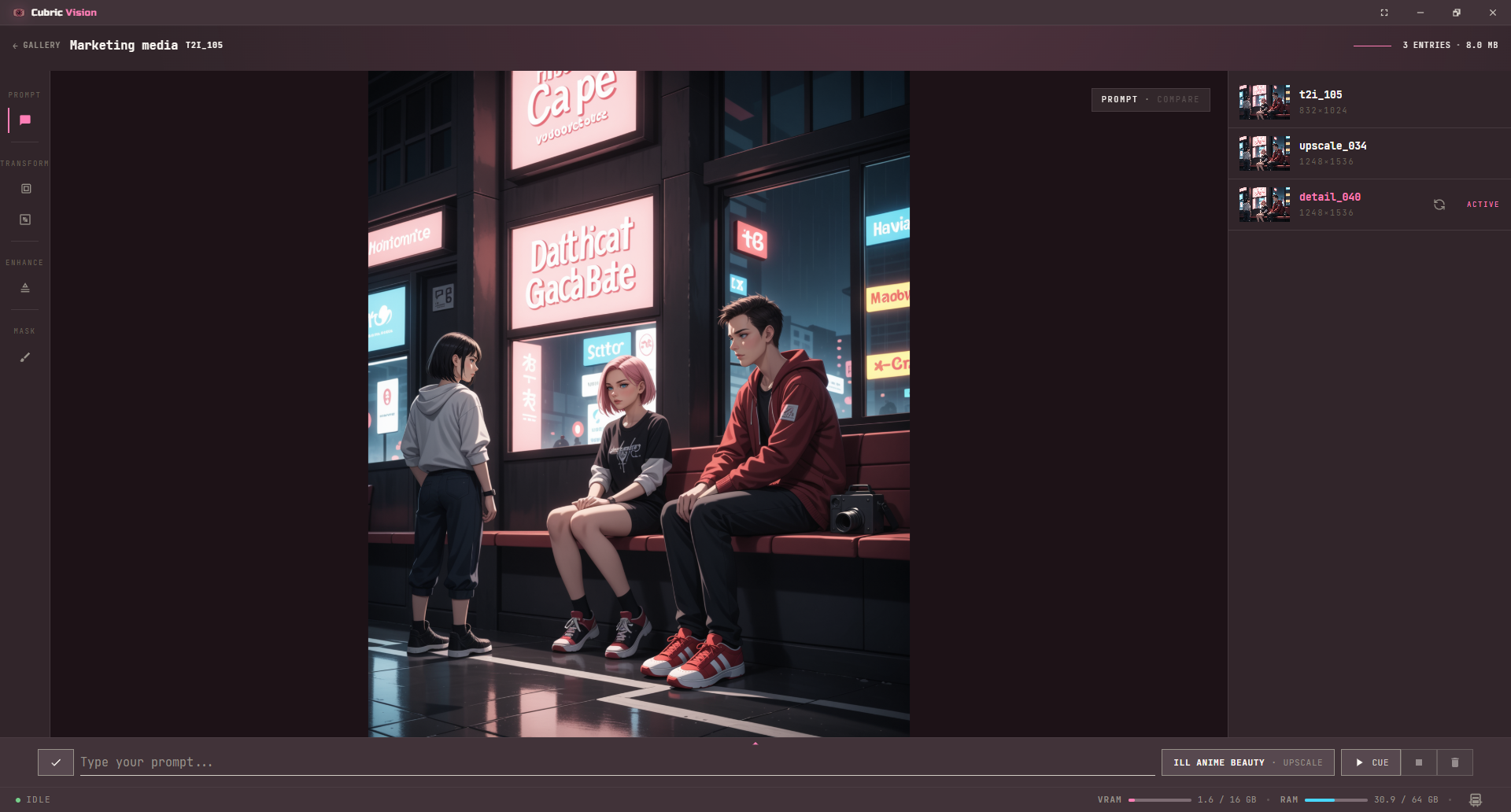
Open a Gallery card to enter History. Image history opens with the selected image in the center canvas, the tool rail on the left, operation settings on the right, and the entry list below the settings panel.
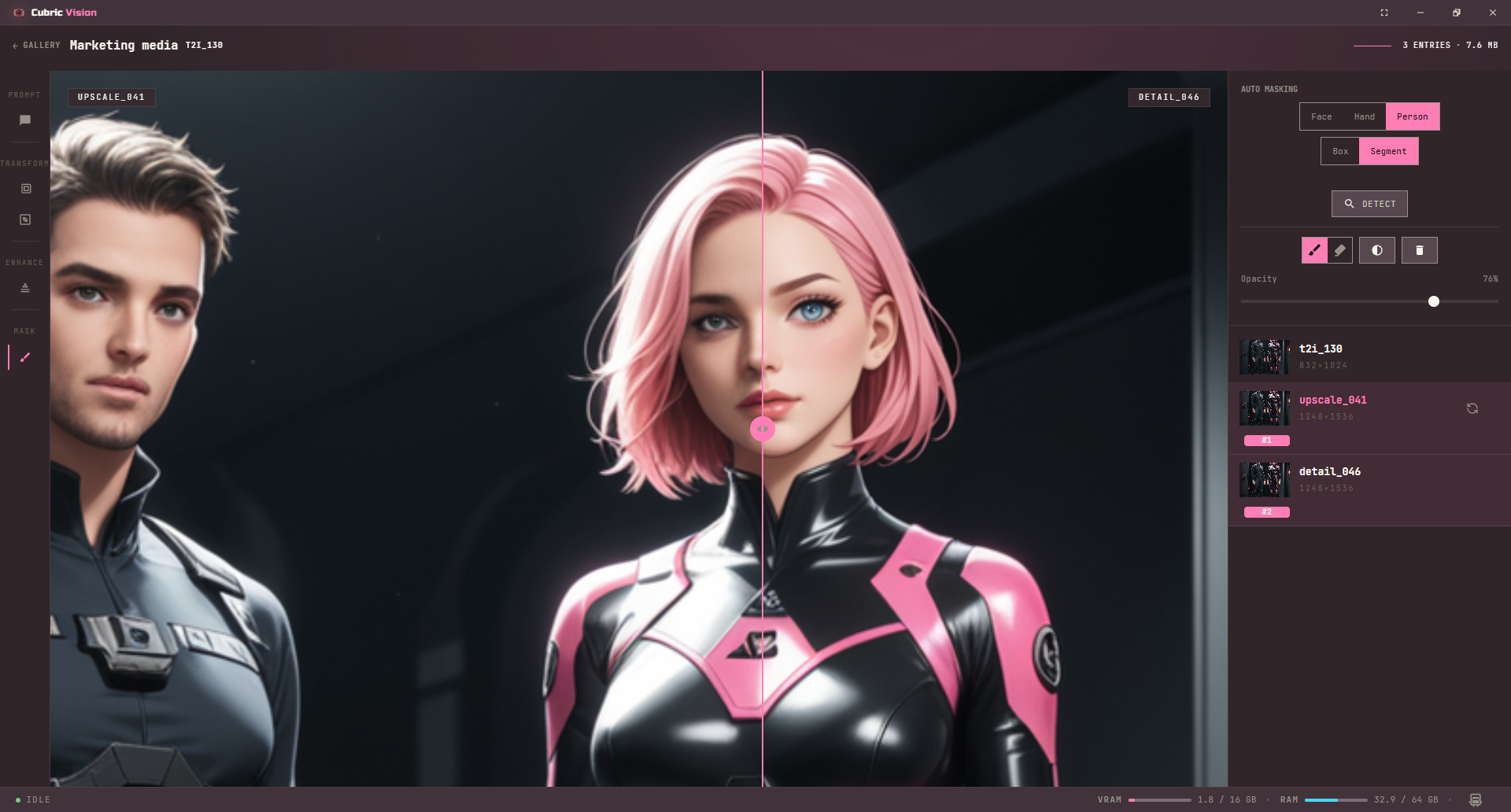
Every applied image tool creates a new entry instead of changing the selected one in place. Use History to return to an earlier result, compare two branches, or start the next operation from a different entry.
Select and compare entries
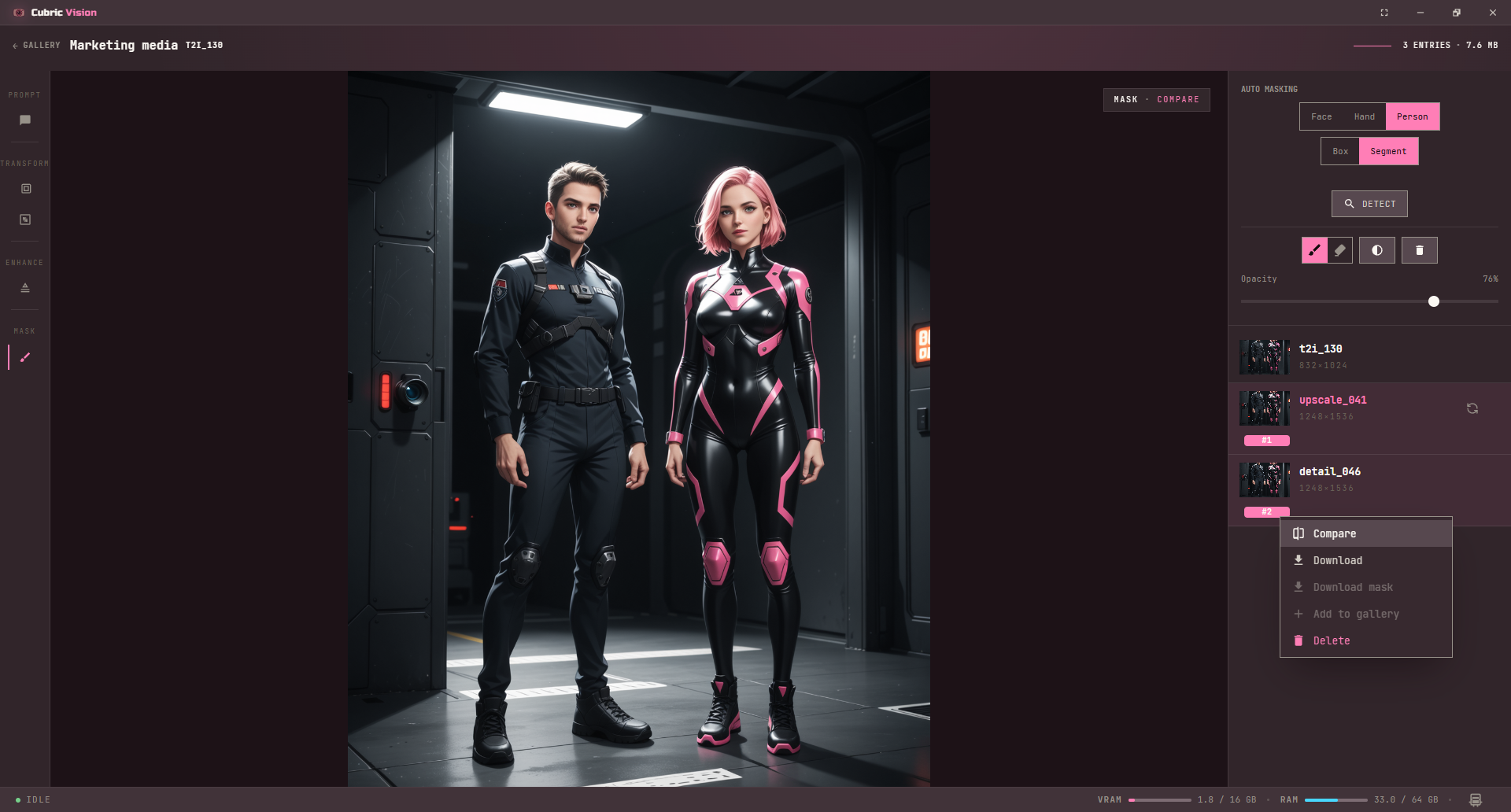
History selection works like Gallery selection. Hold Ctrl or Cmd and click an entry to enter selection mode. The first selected entry is marked #1, and later selections keep their order.
Click additional entries, Ctrl/Cmd-click entries, or use Shift with Ctrl/Cmd to continue selecting. When exactly two entries are selected, the compare action is available in the entry context menu.
Entry context menu
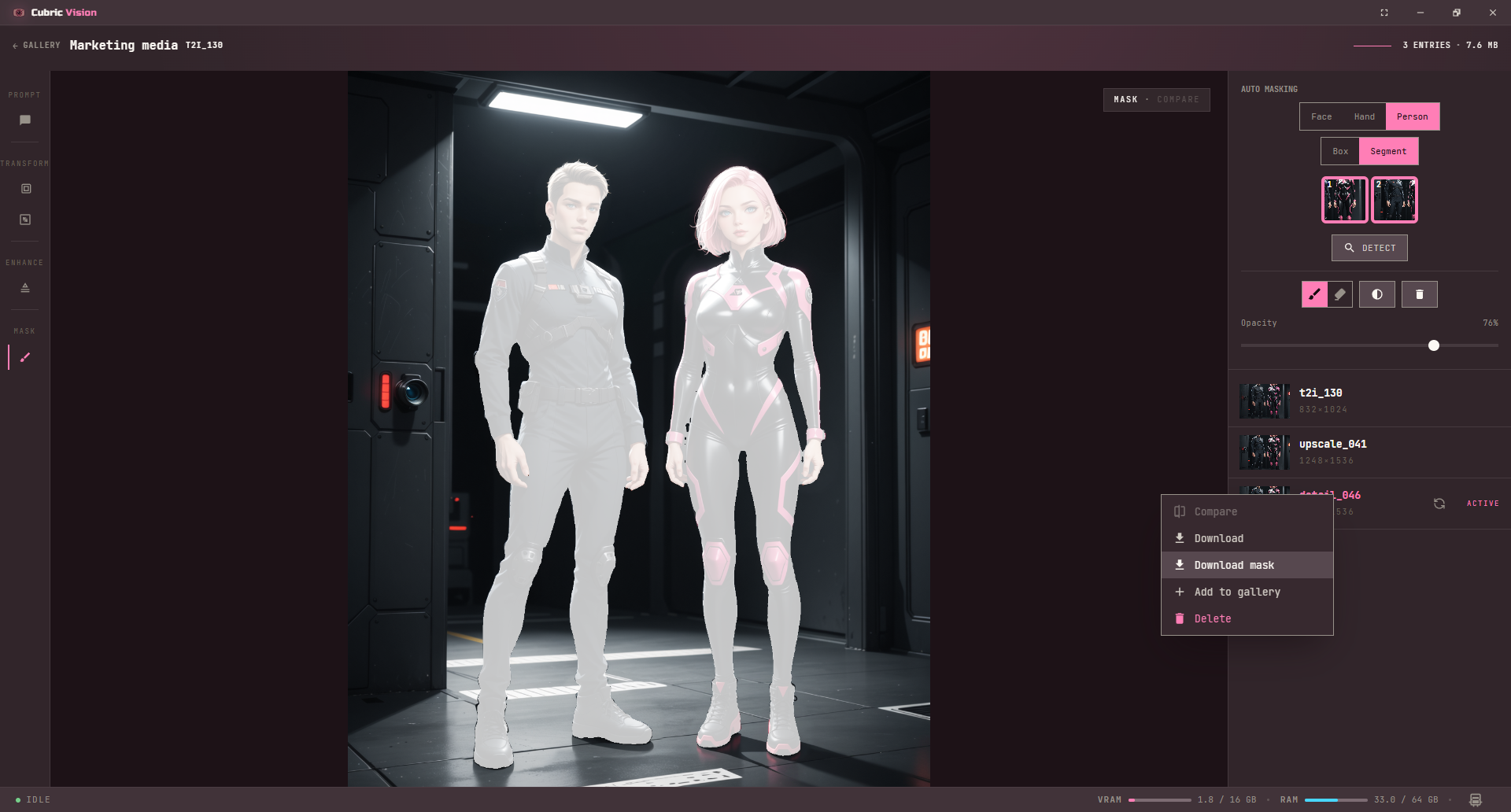
Right-click a history entry, or press the context-menu key while an entry is selected, to open entry actions. The menu can compare two selected entries, download selected entries, download an available mask, add an entry back to the Gallery as a new card, or delete selected entries.
Download mask is available when the selected entry has a painted or detected mask associated with it.
Video history
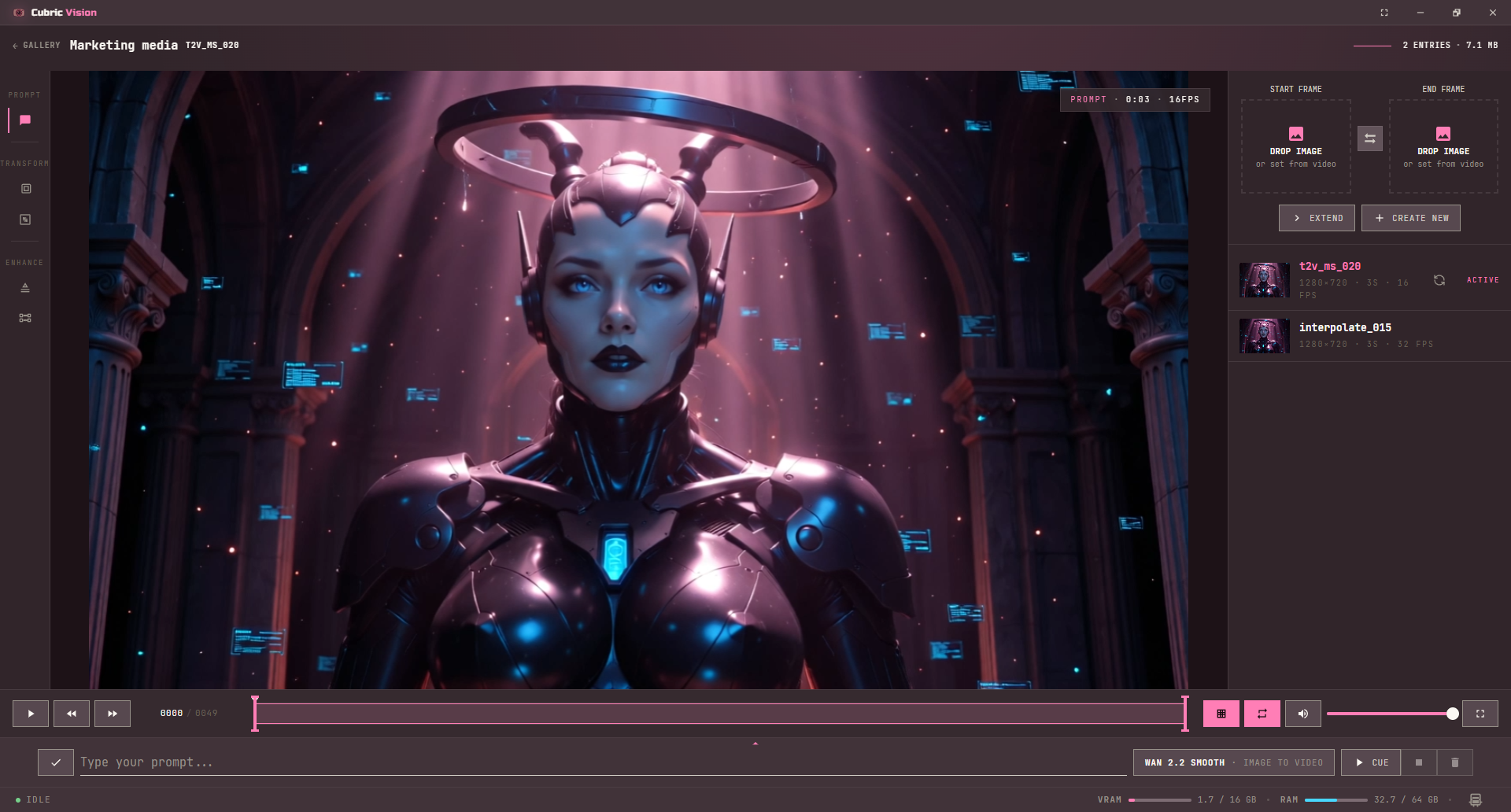
Video History uses the same workspace structure, but the center viewer adds video playback controls and a trim range. The bottom controls include play, previous frame, next frame, a frames/seconds display toggle, loop, audio, and fullscreen.
The trim range can be dragged, or set from the keyboard with I for the in point and O for the out point. Playback, loop, crop, resize, upscale, interpolate, and prompt operations respect that range.
Video context menus
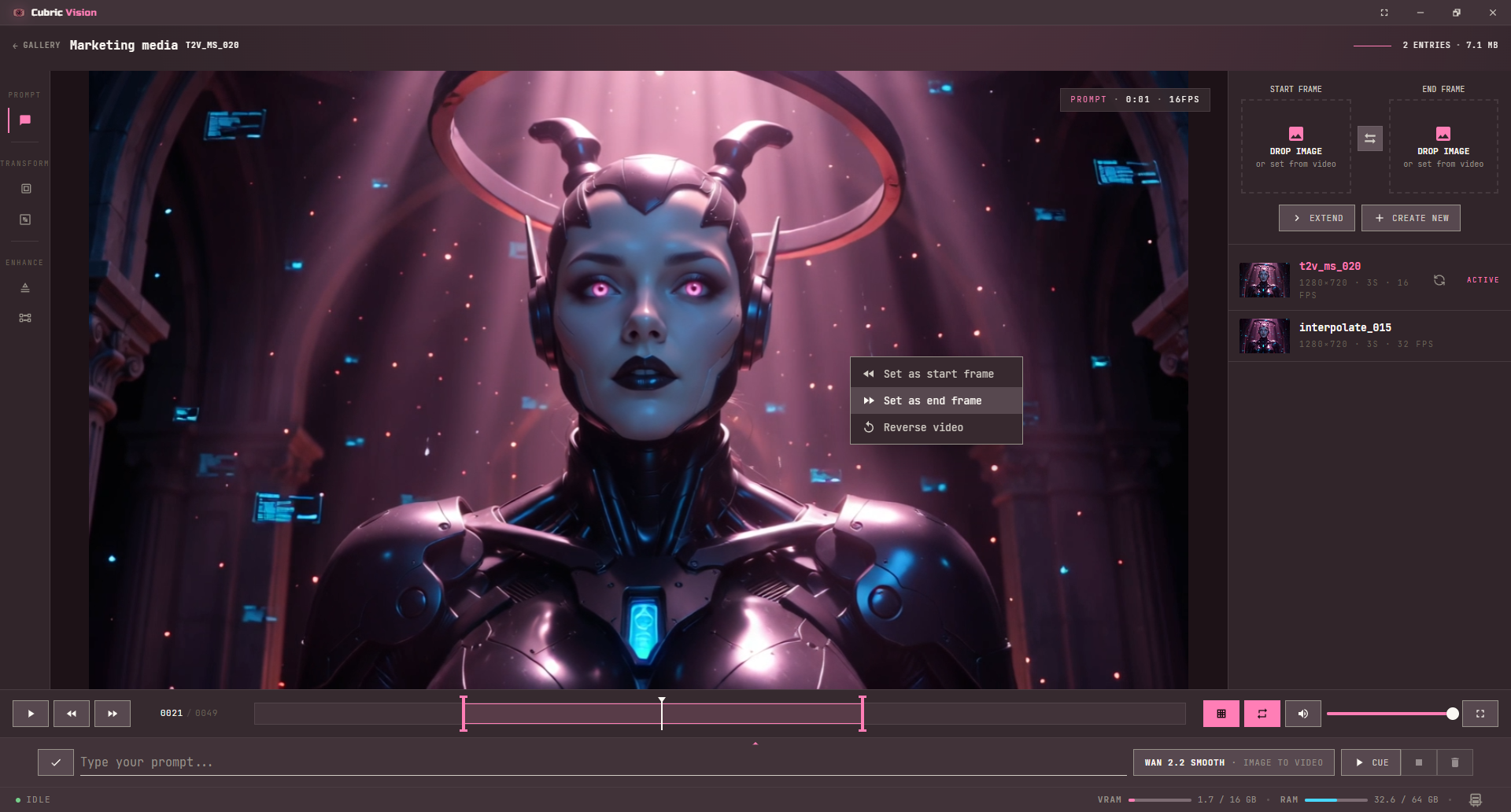
Video History has two context menus. Right-click the video viewer to set the current frame as a start frame, set it as an end frame, or reverse the current video. Start and end frame boxes are available in prompt mode, and you can also drag an image into those boxes.
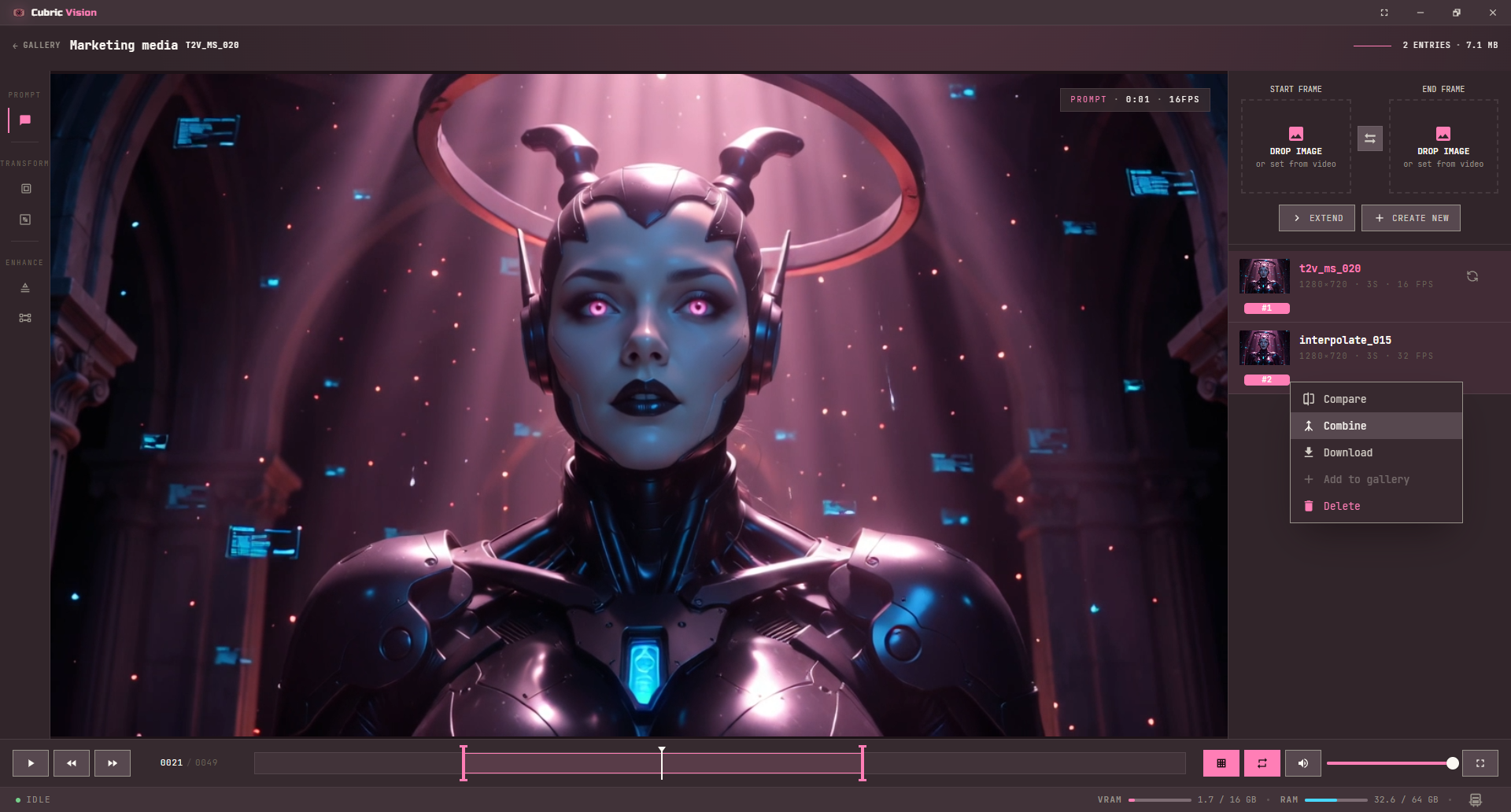
Right-click selected video entries to compare, download, combine selected videos, add an entry to the Gallery, or delete selected entries. Combine uses the selection order.
Focus mode
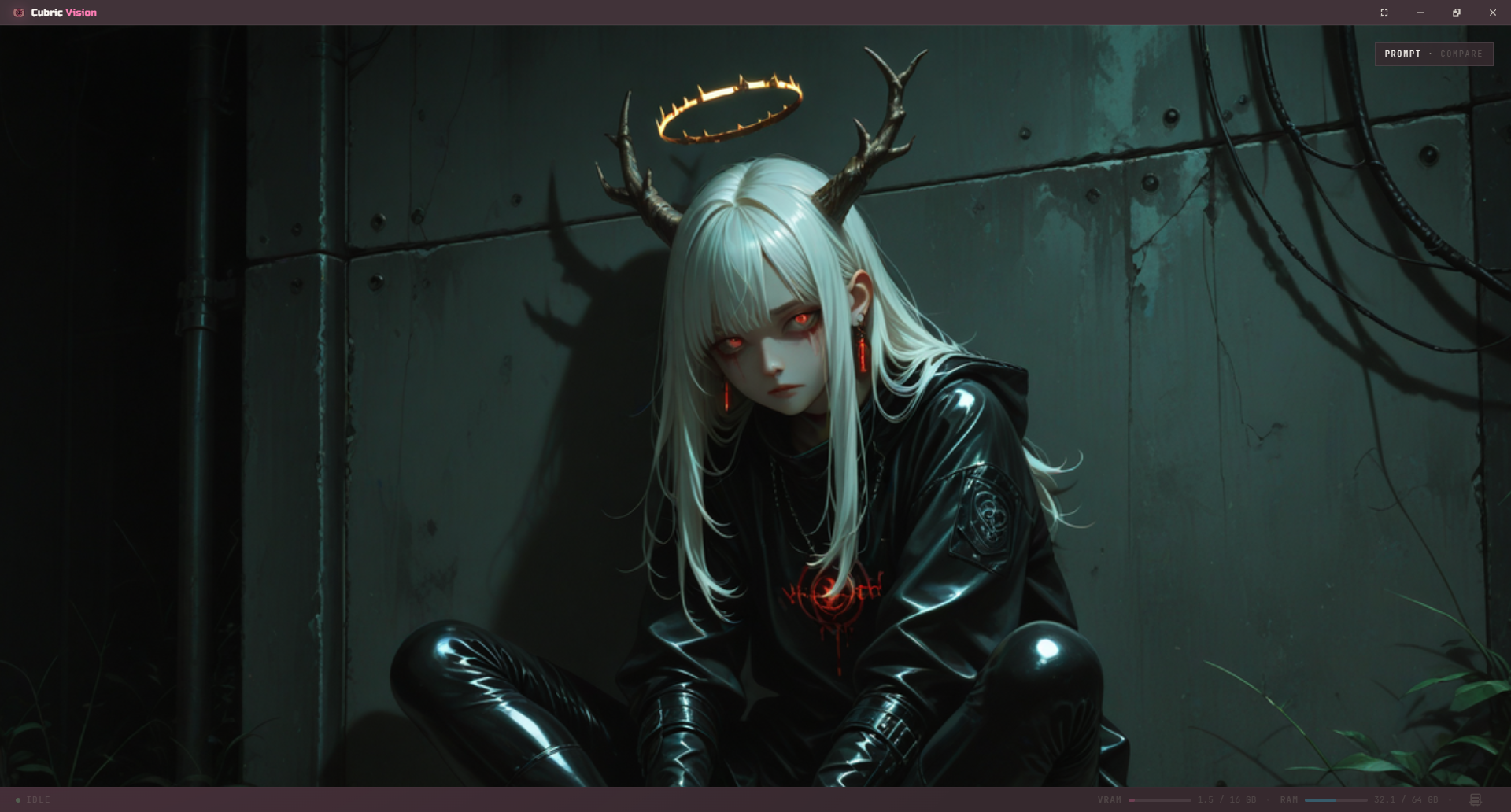
Press F to toggle focus mode in either image or video History. Focus mode gives the current canvas or video viewer more room while keeping the current tool state intact.
Press Esc to exit focus mode, the same way you close pop-ups and other overlays in the app.
Tool handoff
Use Image Tools and Video Tools for operation-specific controls. History is the workspace that keeps the selected asset, its entries, its compare actions, and the current branch visible while those tools create new outputs.