Power-user shortcuts from the in-app Help panel, now documented for Cubric Vision workflows.
The radial menu
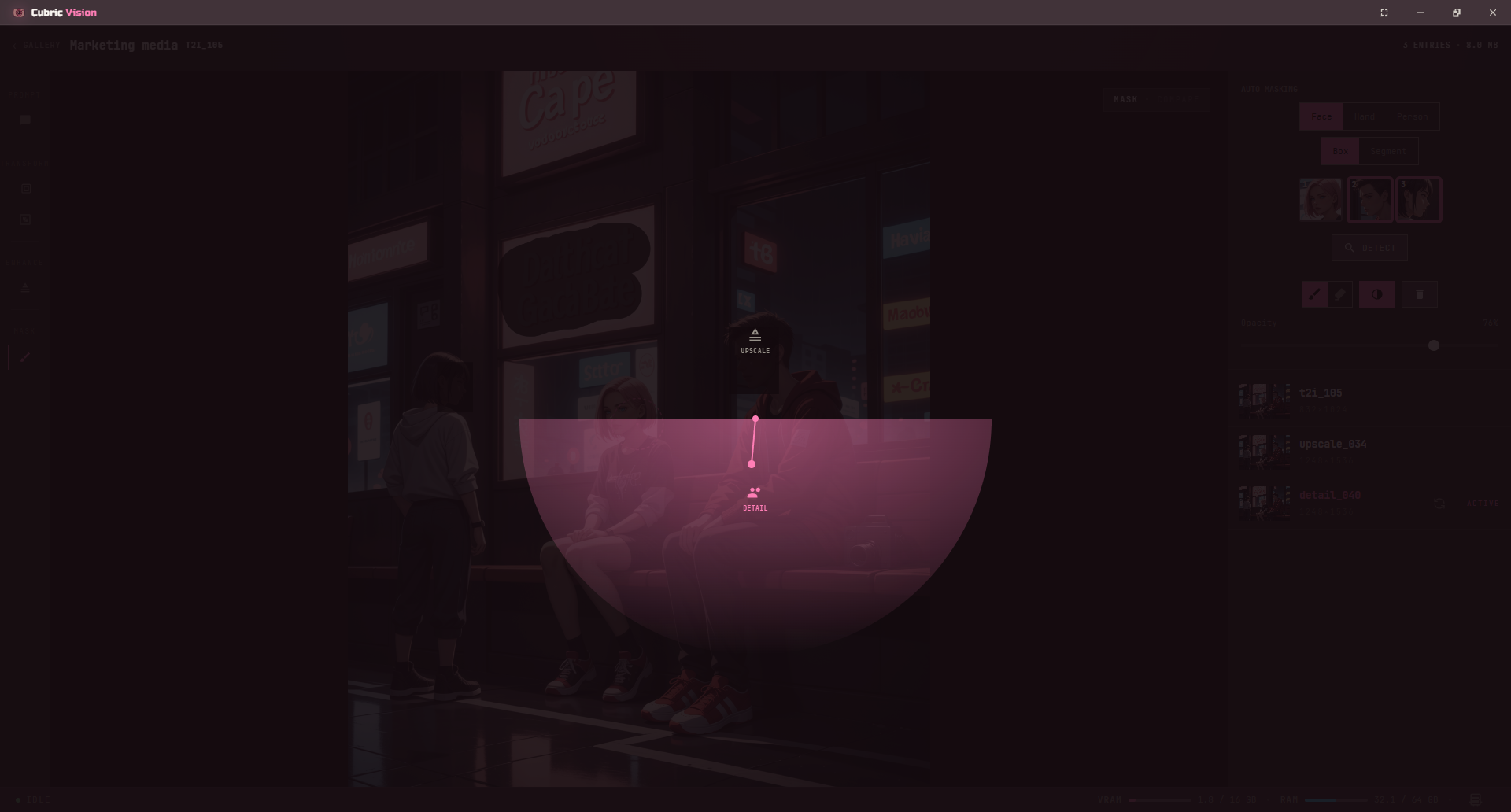
The radial menu is a fast operation picker for the current workspace. It uses the same model, media, and mask context as the Prompt Box, so the choices it shows are the operations that can run from the state you are already in.
Hold Tab to open the radial menu, move toward the operation you want, then release Tab to select it. Release Tab in the center to close the menu without changing the selected operation.
In History, this is especially useful after preparing a mask: paint or auto-detect the mask, open the radial menu, choose a masked operation such as Detail, and continue from the Prompt Box without leaving the canvas.
The radial menu only shows operations that match the current model and workspace context.
Keyboard shortcuts
For keys not listed as Cmd in the macOS column, the Windows/Linux keys are identical on Mac unless noted.
Dialogue and overlay
Hold Tab, move to a desired operation, and release Tab to select it.
Releasing Tab in the center closes the radial menu with no selection.
Action
Windows / Linux
macOS
Accept
Enter
Enter
Close / cancel
Esc
Esc
Open radial menu
Tab (hold)
Tab (hold)
Toggle radial menu
Tab
Tab
Open context menu
Menu or Shift + F10
Menu or Shift + F10
Toggle fullscreen
F11
F11
Change UI size
Ctrl + Mouse Wheel or Ctrl + + / -
Cmd + Mouse Wheel or Cmd + + / -
Workspace modes
Action
Windows / Linux
macOS
Toggle focus mode
F
F
Exit focus mode
Esc
Esc
Release memory
F5
F5
Release memory + cache
Ctrl + F5
Cmd + F5
Image canvas and pointer interaction
Action
Windows / Linux
macOS
Zoom
Mouse Wheel
Mouse Wheel
Pan
Mouse Click + Drag
Mouse Click + Drag
Reset view
Double Click
Double Click
Zoom (while holding SPACE)
Mouse Wheel
Mouse Wheel
Pan (while holding SPACE)
Mouse Click + Drag
Mouse Click + Drag
Reset view (while holding SPACE)
Double Click
Double Click
Mask mode
Action
Windows / Linux
macOS
Brush size
Mouse Wheel
Mouse Wheel
Paint brush
B
B
Eraser
E
E
Gallery
Action
Windows / Linux
macOS
Grid size
+ / -
+ / -
Toggle cue panel
Q
Q
Toggle card info mode
I
I
Multi-select items
Shift + Click
Shift + Click
Single select items
Ctrl + Click
Cmd + Click
Item context menu
Right + Click
Right + Click
Deselect all
Esc
Esc
Delete selected cards
Delete
Delete
Drag to prompt box
Mouse Click + Drag
Mouse Click + Drag
When exactly two items are selected, compare overlay is available.