Queue
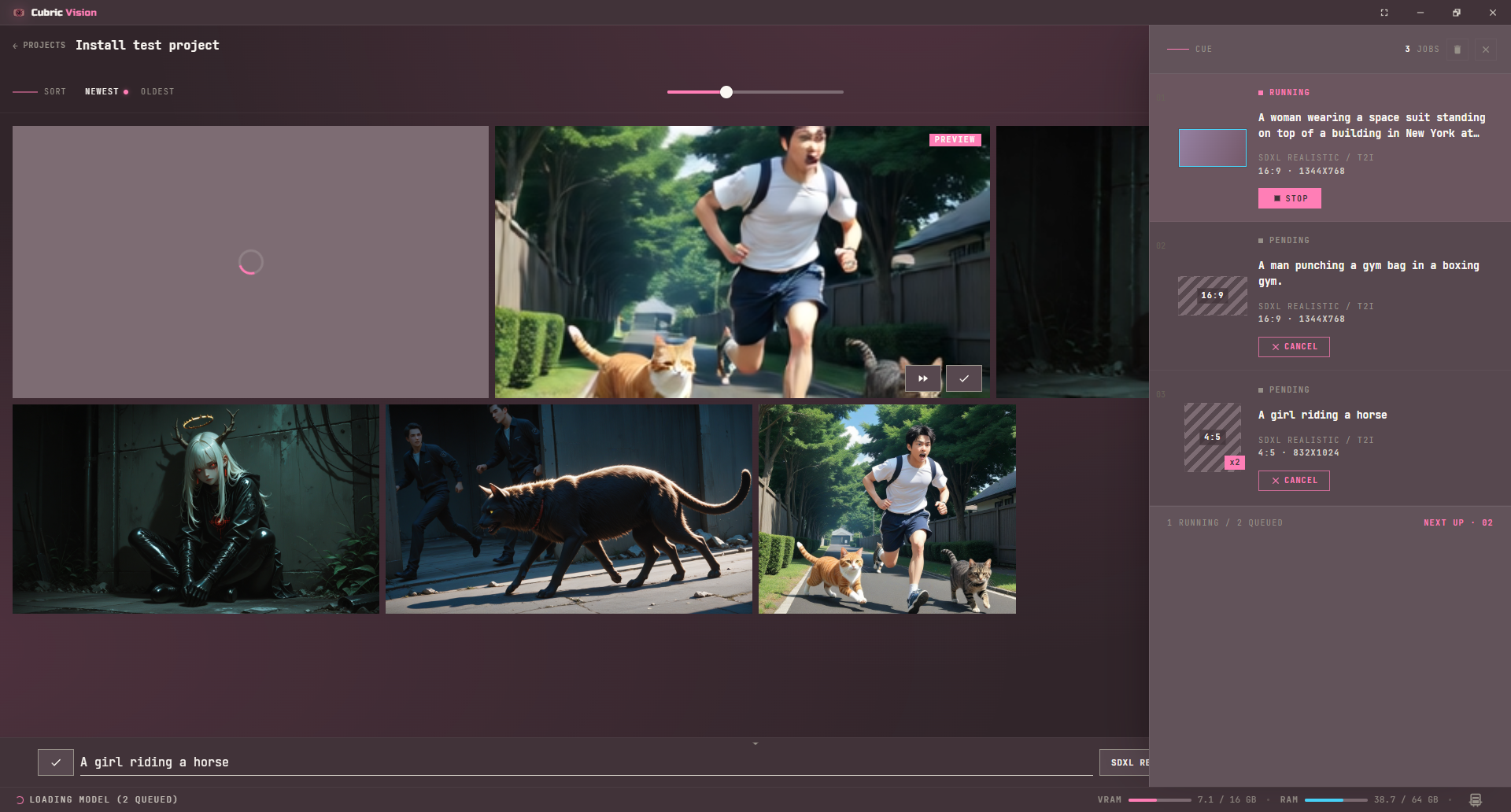
Cue is Cubric Vision's in-app generation queue. It lets one job run while the next Prompt Box jobs wait behind it.
Open Cue
Press Q from the Gallery to open the Cue side panel. Press Q again, press Escape, or use the close control to dismiss it.
The panel is for reviewing queued work. Cue itself is still created from the Prompt Box: set the prompt, model, operation, media inputs, and controls, then press Cue.
Read the queue
Each queue item shows its status, prompt excerpt when available, operation, model, output ratio or dimensions, and a thumbnail or placeholder. Batch jobs show an xN badge so you can see how many outputs one queued item will create.
Loop jobs are marked separately from normal Cue jobs. Resumable video final-stage jobs are labeled as stage-two work when they are waiting or running.
Cancel, stop, and clear
Cancel removes a pending queue item before it starts. Stop interrupts the currently running Cue job. The trash control clears pending jobs from Cubric Vision's in-app queue, but it does not interrupt the job already running.
How Cue runs jobs
Cue is single-dispatch: Cubric Vision sends one generation to the local engine at a time. Pending jobs wait inside Cubric Vision, then move forward when the active generation completes, stops, or errors.
This also means you can keep composing the next prompt while a job runs. Each Cue captures the Prompt Box state at the moment you add it, so later prompt edits only affect future Cues or Loop refires.