
Projects
The Projects page is the landing page for Cubric Vision. Create new work here, reopen existing projects, or drop a project folder back into the app.
Project folders
A project folder carries the project settings, generation history, media records, and image or video assets for that workspace. You can use projects as reusable templates or share them with another Cubric Vision user.
Installed models live separately from the project folder. Sharing a project gives another user the project structure and saved work, but they still need the required models installed on their own machine.
Creating a project
Click + New project, enter a project name, and optionally choose a project location. If you leave the location blank, Cubric Vision creates the project in your Documents folder under Cubric Vision/Projects.
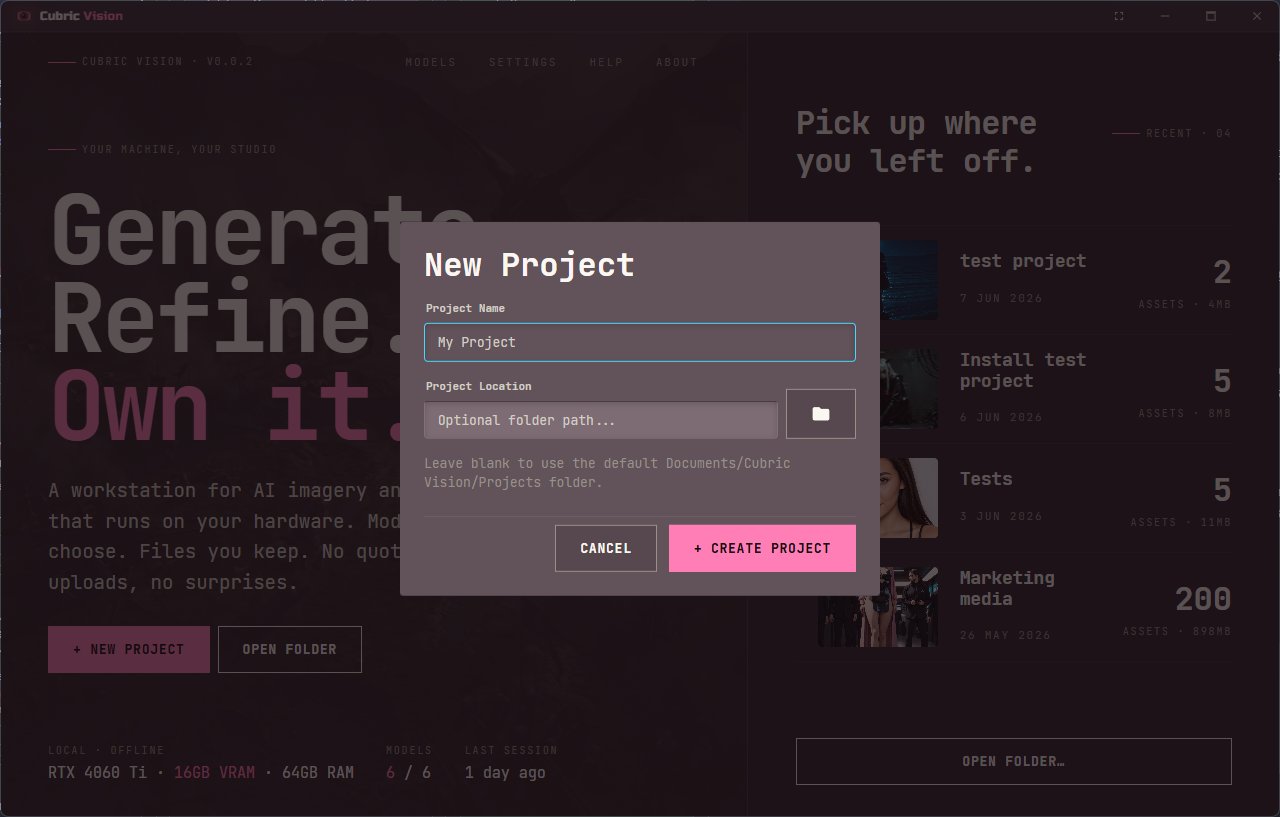
When you press Create Project, Cubric Vision creates the project folder and opens the new project in the Gallery workspace.
Loading a project
Click a project row to open it. You can also drag a project folder onto the Projects page, or click Open folder to choose an existing project folder from disk.
Deleting projects
Right-click a project row to open its context menu, then choose Delete project. Cubric Vision asks for confirmation and includes an Also delete files from disk option so you can decide whether the project folder should be removed from your drive.