
Video Tools
Video operations for trimming, cropping, resizing, upscaling, interpolating, and extending clips from History.
Video workspace
Video tools run from the History workspace after you open a video card. The center viewer shows the selected clip, the bottom controls handle playback and trim range, and the right panel changes to match the selected video tool.
Most video tools respect the current trim range. Set the range by dragging the handles or by pressing I and O at the playhead.
Playback and range
The transport controls are Play, Previous Frame, and Next Frame. The time readout can display frames or seconds, depending on the frames toggle beside the scrub bar.
Loop is on by default and loops only inside the selected range. Audio and fullscreen controls sit with the same transport row, and fullscreen can also be toggled with F.
Prompt start and end frames
In prompt mode, the start-frame and end-frame boxes can be set from the video viewer context menu or by dragging an image into the boxes. Extend uses the last frame of the selected video as the start for a new prompted clip, then combines the current video with the new clip. Create New creates a new video from the last frame without combining it with the source clip.
Crop tool
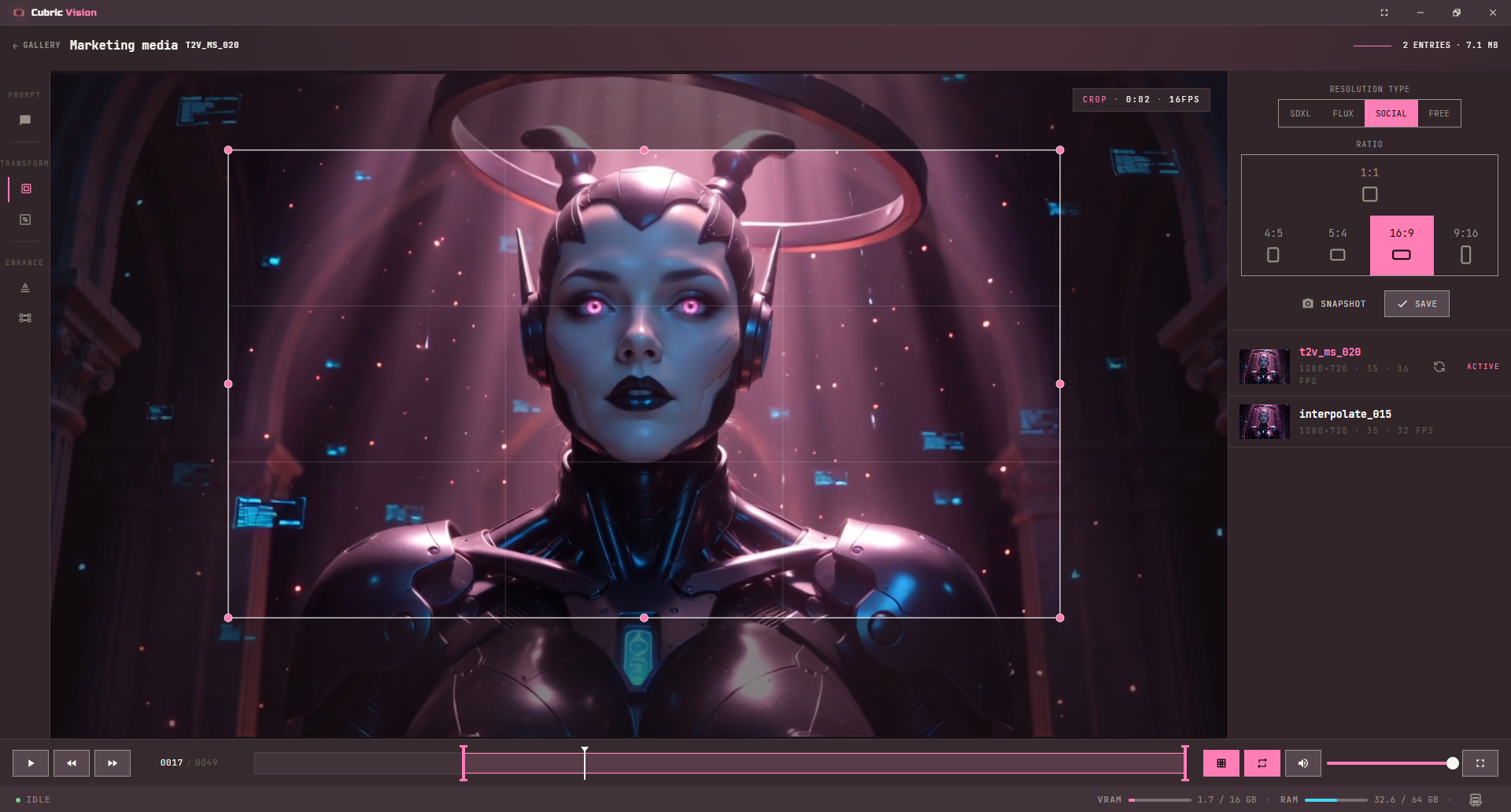
Video Crop works like image Crop, with one extra control: Snapshot creates a still image from the current frame and respects the crop area. The crop save action creates a new cropped video and respects the current trim range.
Resize tool
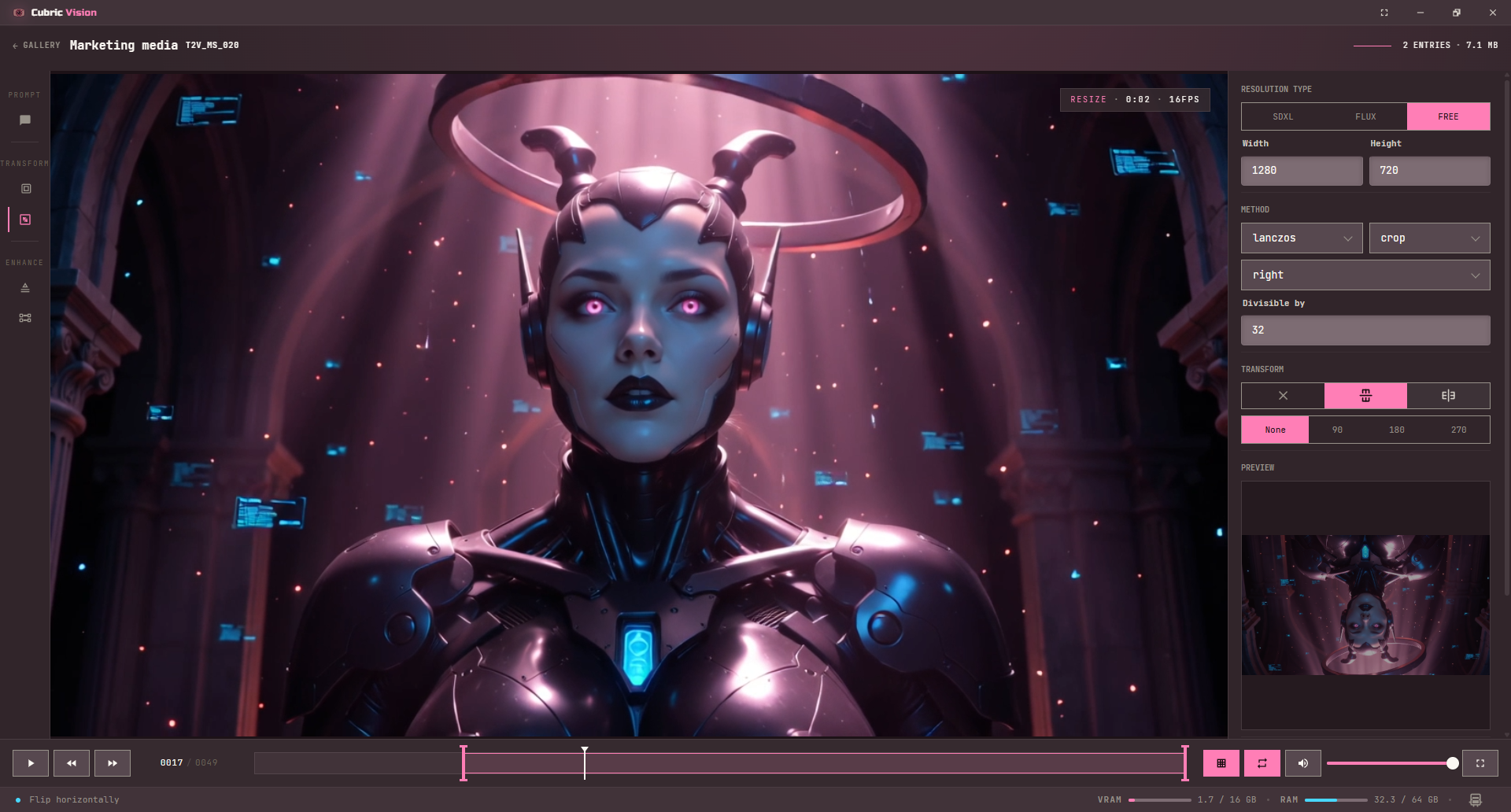
Use Video Resize to create a new clip at a different size. Like image Resize, the tool provides a live preview while you change settings. Applying the resize creates a new video entry and respects the selected range.
Upscale tool
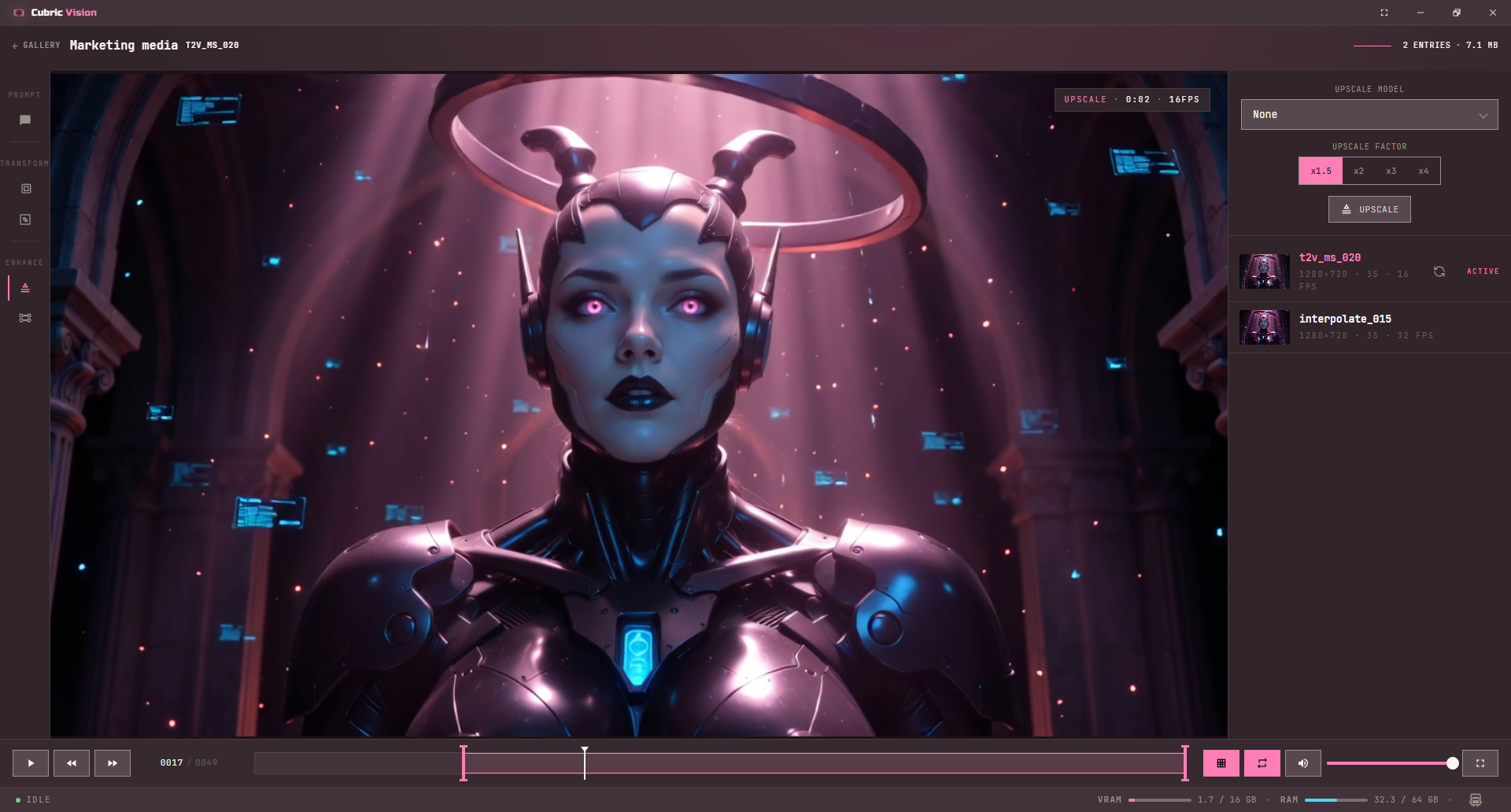
Use Video Upscale to enlarge the selected video. With no upscale model selected, the tool performs a simple enlargement. With a selected upscale model, Cubric Vision uses that model for the upscale pass when available.
Interpolate tool
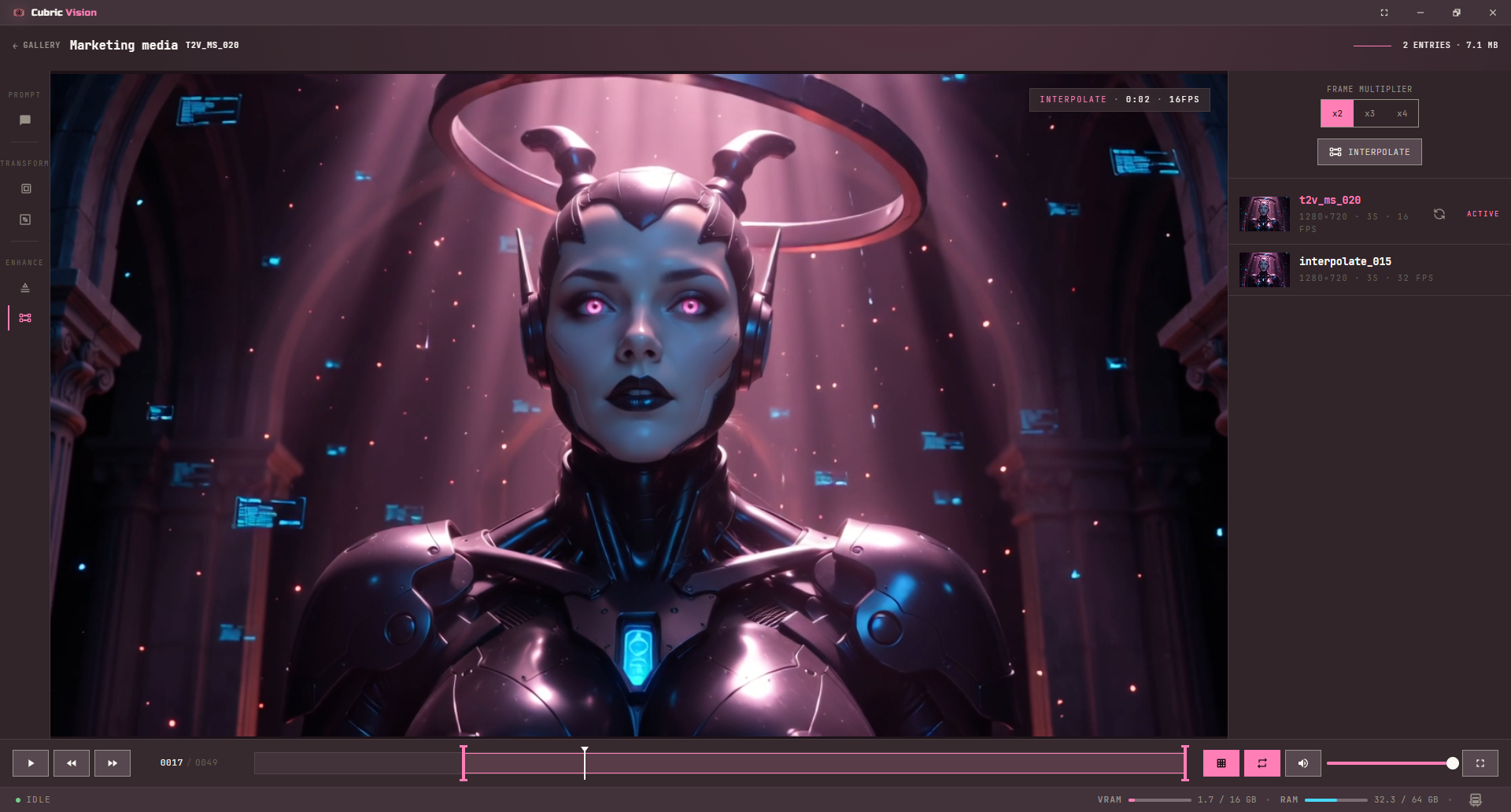
Use Interpolate when you want to create smoother motion by generating additional frames between existing frames. Choose the interpolation amount, then apply the tool to create a new video entry.
Common video operations
- Text-to-video. Create a short clip from a prompt.
- Image-to-video. Animate a still image into motion.
- Extend. Continue from the current video's last frame and combine the continuation with the source clip.
- Combine. Merge selected videos from Gallery or History context menus in selection order.