
Agent
Ask the in-app agent in plain words to pick models, run generations and Flows, and review results, or connect Claude, Codex, or Google Antigravity to drive Cubric Studio.
Opening the agent
Click Agent in the top bar of a project, next to Flows, or press A. Either one opens a chat panel down the left side of the workspace. The agent's name is Cosmo, shown with a small mascot beside the chat.

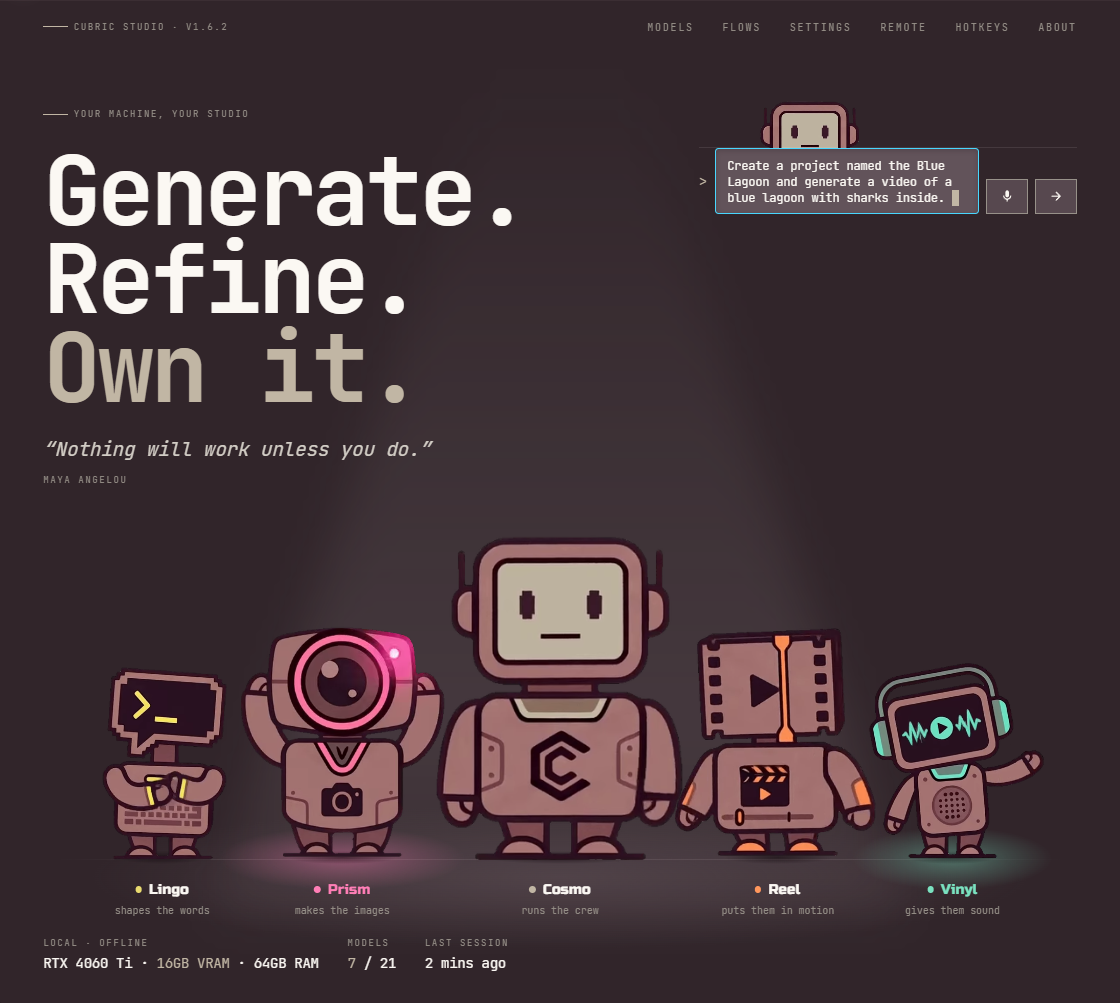
You can also start before any project is open, from the Ask the agent box on the Projects landing page, next to Cosmo. It has the same mic and send button as the panel. Ask it for something new there, such as "Create a project named Blue Lagoon and generate a video of a lagoon with sharks", and Cosmo creates the project, opens it with the Agent panel showing, and brings the conversation along. A file dropped on the landing box needs a project first, because whatever you drop becomes a card in a project.
What you can ask it
Cosmo talks in plain language and carries out the request itself, rather than pointing you at the right button:
- Pick and install models. It chooses the right model or Flow for what you asked, and if a model is not on your machine, it offers to install it with a Yes/No card naming the download size. It does not install Flows: when one is missing, add it from the Flow Library (its tile says Get models, or Get it for a paid Flow), then ask again.
- Run generations and Flows. Describe what you want and it fills in the model, operation and settings, or runs a whole Flow such as Outpaint.
- Open a Flow for you to finish. Draw It In and Scribble need your drawing, and Object Stamp needs you to place the object, so Cosmo opens those filled in at the step that is yours, and nothing runs until you press Generate. For a Song it asks first: Review lyrics opens the Flow on its lyrics, Just do it runs it. It also offers to open any Flow that is missing something only you can give, such as a voice sample.
- Look at what it made. It can look at a result, or any card in the conversation, and describe or judge it before deciding what to do next.
- Use a mask you painted. It never paints a mask itself and never picks the area for you, but once you have painted one on a card, it writes the edit for that area and tells you it is using your mask.
- Grow a picture's frame. It can outpaint a picture into a bigger frame with the Outpaint Flow.
- Make GIFs. It can build a GIF from still cards or a video clip, and retime, trim or cut one out afterward.
- Save and run routines. It saves a chain of steps once, and runs it on any cards in one go. See Routines.
It only works with cards and images that are part of the current conversation: something you attached, or something it made. Point it at a card by name or description ("the duck video", "the last one") and it looks the project up rather than guessing.
Who picks the model depends on the Prompt Box. With its settings popup (the cog) open, the model selected there and every setting in it (ratio, quality, turbo, style) are yours for that request: Cosmo still writes the prompt, chooses the operation and names the card, but never switches the model. If that model cannot do what you asked, it says so and asks you to select another or close the popup. With the popup closed, Cosmo picks the model itself, and a new clip starts at that model's defaults with the lowest quality tier; a setting goes up only when you ask for it. That is why the price on its confirm card can differ from the one beside Cue.
To hand it cards from the Gallery, drag them onto the panel. Drag one of several selected cards and the whole selection goes along, in the order you clicked, as one N cards chip in the message box; a stack hands over the cards inside it. Click the chip to take it off again.
Before it spends your money
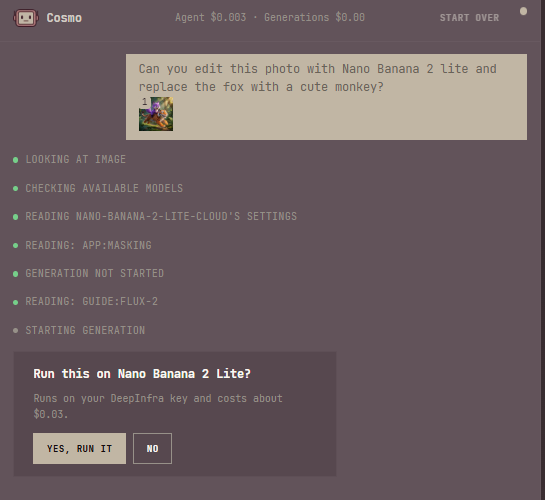
Cosmo never runs a paid cloud model without asking first, every single time, with no setting that skips the question. Before a billed generation it shows a card: Run this on <model>?, with a line saying Runs on your DeepInfra key and costs <price>, and two buttons, Yes, run it and No. For several billed generations at once, the card asks Run this N times on <model>? and the button reads Yes, run all N. Nothing is sent to DeepInfra until you click Yes. An install works the same way: Install <model>?, with the download size, before anything downloads.
Routines
A routine is a chain of steps saved once under a name, then run on any cards in one go. Ask Cosmo for one in plain words, for example "create a routine that edits with FLUX.2 Klein 9B in the Anime style, upscales with Krea 2 on turbo, then crops to 9:16". It reads the models' settings, saves the chain, and tells you what each step does and how to run it. If you repeat the same steps on a second card, it offers to save them as a routine.
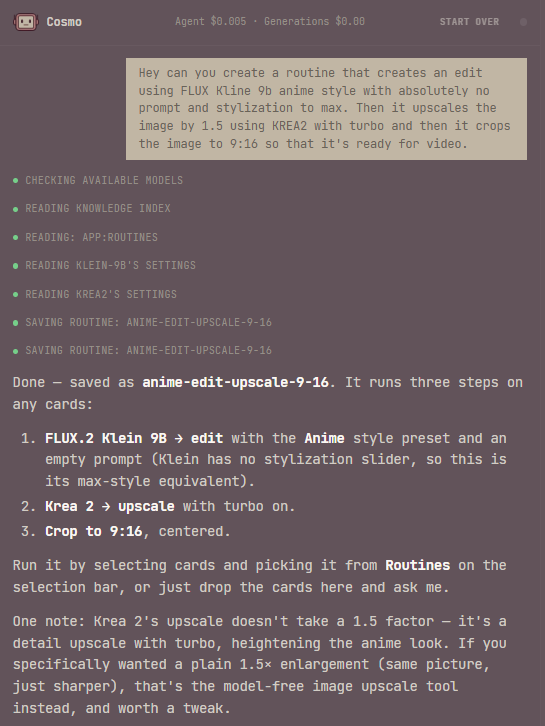
Each step is a model operation, a Flow, or one of the tools that need no model: upscale, remove background, crop, and downscale. Every step works on exactly one picture, video or sound (the card, or the result of the step before), and hands the next step the kind it expects. So a routine cannot start from text alone, or combine two cards in one step. A routine holds up to 10 steps, and you can keep up to 50.
A routine can also ask for something each time it runs, such as a reference picture or a few words for the prompt. You give it to Cosmo when you ask for the run.
Routines belong to the app, not to a project: one you save is there in every project, and a run lands in the project you have open.
Running a routine
- Ask Cosmo. Drag the cards onto the panel, or name them, and ask it to run the routine. If any step uses a paid cloud model, it shows the spend card once, priced for every paid step on every card, before anything starts. It tells you once, when every card has finished.
- From the Gallery. Select the cards and pick the routine from Routines, beside Stack on the selection bar. It runs as soon as you pick it. A paid routine shows the whole run's price beside its name, and picking it is your yes, the same as pressing Cue. A routine that cannot run on these cards is greyed out; point at it and the status bar says why: the cards are the wrong kind, a model or Flow it needs is not ready, or it needs something each run, which only Cosmo can fill in. With no routines saved, the dropdown is not there.
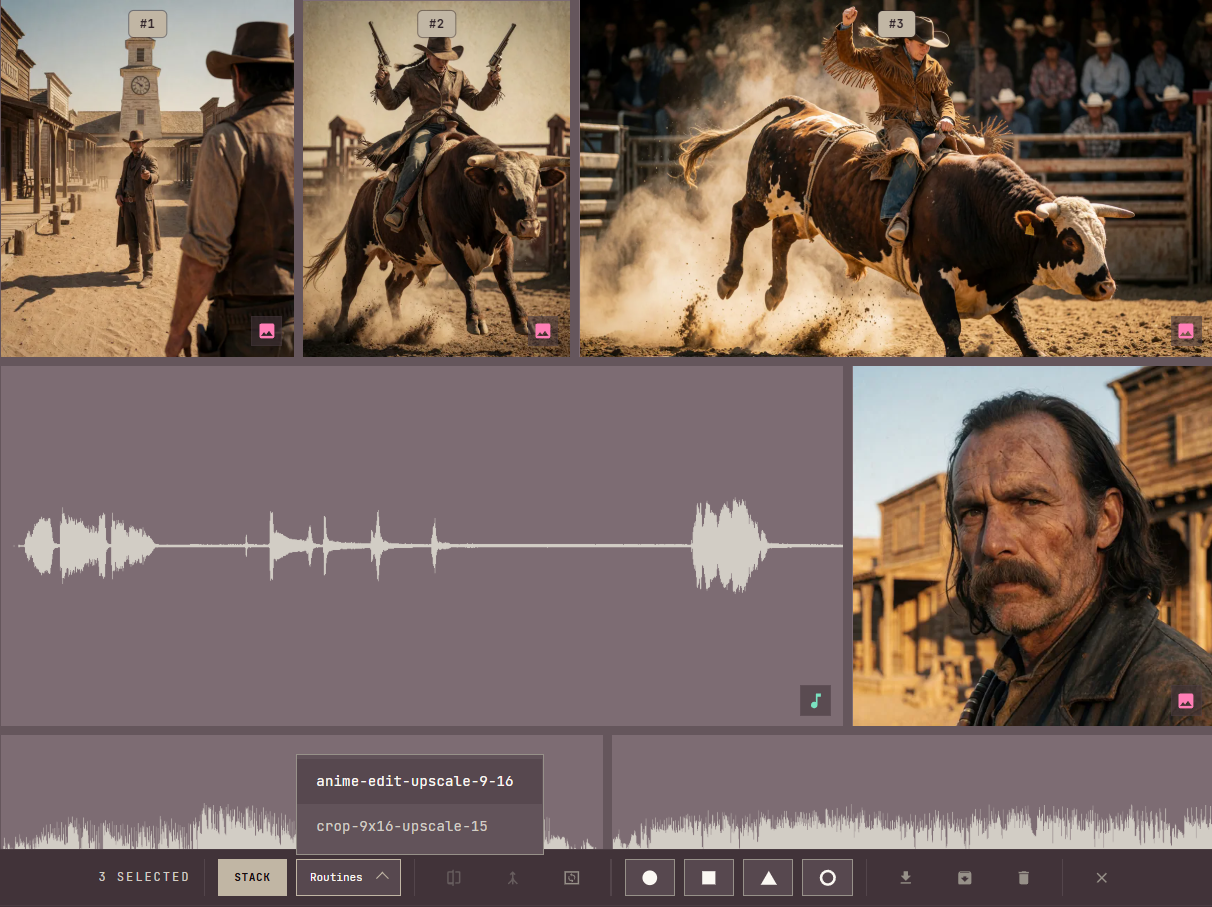
What a routine makes
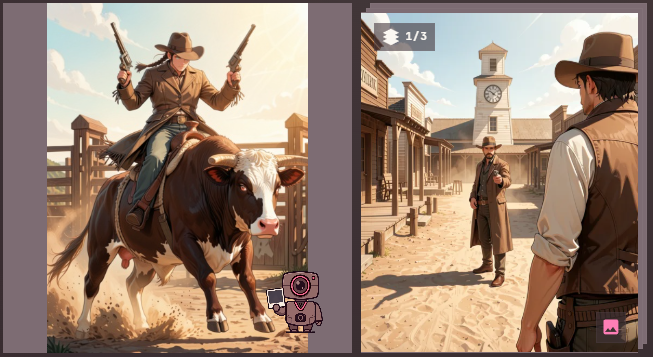
- Your cards are never changed. The first step makes a new card for each card it runs on, and every later step lands as the next version in that new card's History, so you can step back through the chain.
- Run on several cards, the new cards all go into one new stack named after the routine. The stack appears as soon as the run starts, and each new card joins it when its first step finishes. While the routine runs, the stack's badge counts them in (1/3), and it becomes an ordinary stack when the last step of the last card is done. Run on one card, you get one new card. Sound results stay as separate cards. A selected stack counts as the cards inside it.
- If a step fails or is cancelled, that card stops there and keeps the versions it already made; the other cards carry on.
- A step with nothing to do on a card, such as a downscale on a picture that is already small enough, is skipped for that card and the chain carries on.
Renaming and deleting
Only an agent makes, renames and deletes routines; the app has no screen for them. Ask Cosmo to list your routines, rename one, or delete one. Saving under a name that already exists replaces that routine. Routines are the one thing Cosmo deletes.
An agent you connect from outside, such as Claude Code or Codex, works with the same routines: it can list, save, rename, delete and run them, and a routine it saves shows up for Cosmo and on the selection bar too. Before a run with a paid step, it tells you the price and waits for your yes. Once a routine it started is running, the outside agent cannot cancel it.
Providers
The agent always talks to the Remote connection, the one provider and API key every remote language-model job in Cubric Studio shares. It never runs on your local ComfyUI engine. Pick one:
- DeepInfra. The recommended provider: off your machine, so it costs no VRAM. It is also the provider that runs every paid cloud model, so most people set up one DeepInfra key for both.
- OpenRouter. A gateway to many providers' models. Needs an OpenRouter API key.
- OpenAI. OpenAI's own endpoint. Needs an OpenAI API key.
- Ollama, on your own computer, for free. No key and no per-message bill, but it holds its own VRAM alongside anything else generating, and local models score well below the hosted ones on the agent's own tests.
- Custom. Any OpenAI-compatible endpoint: enter its base URL.
Set this up from Remote, next to Settings at the top of the Projects screen, under Language Models > Remote connection: pick a provider, paste its API key, then pick a model for the Agent row lower on the same panel. Test tool use sends one small request to check the model can actually call tools before you rely on it.
The panel
The Agent panel docks along the left edge of the workspace and can be resized: drag its right edge wider or narrower, up to half the work area. Cubric Studio remembers the width you leave it at.
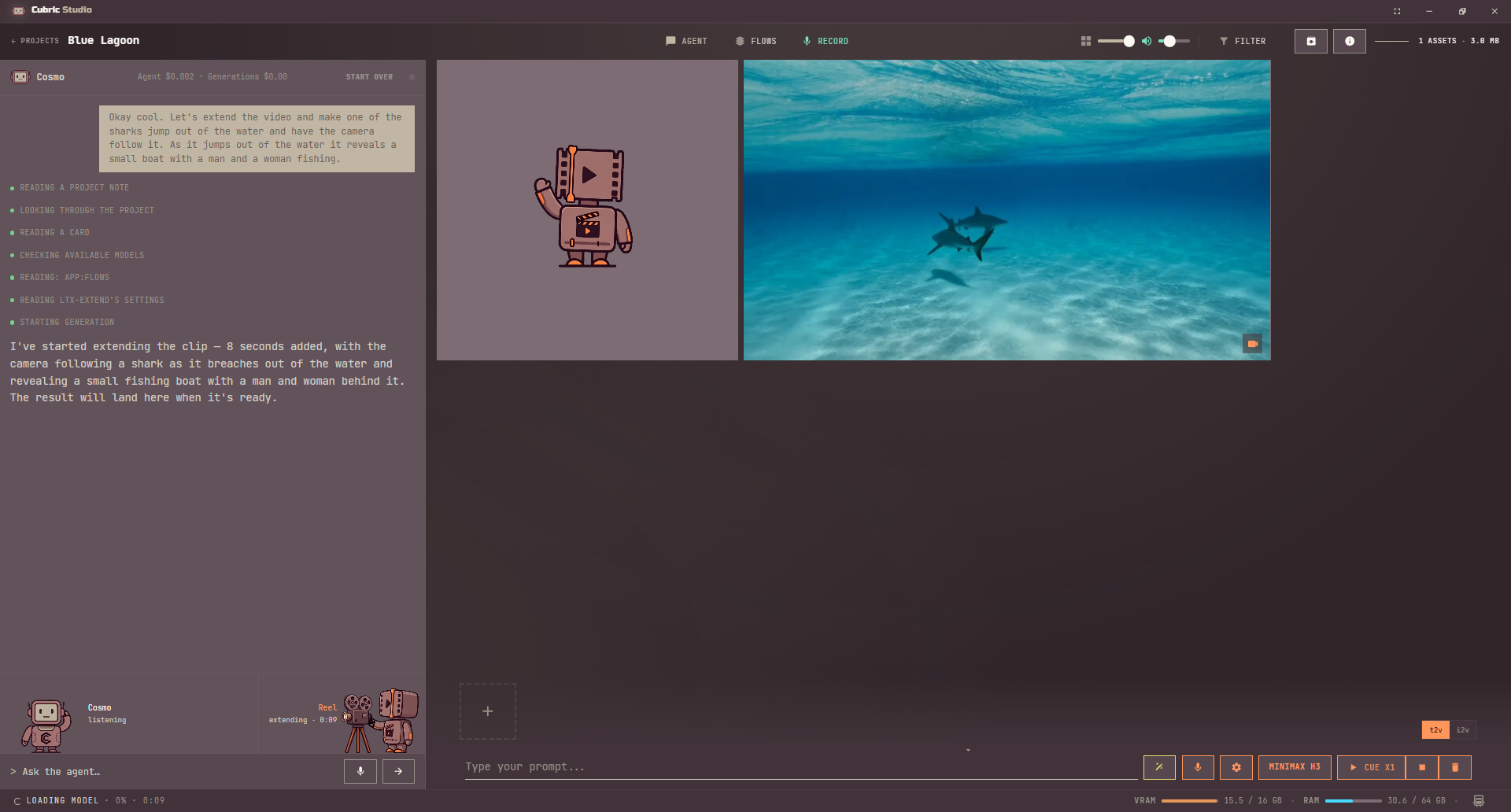
Under each message you send, a line per step shows what Cosmo is doing, such as Checking available models or Looking at image: grey while it runs, green once done. Anything it makes shows as a thumbnail in its reply; click one to open the card.
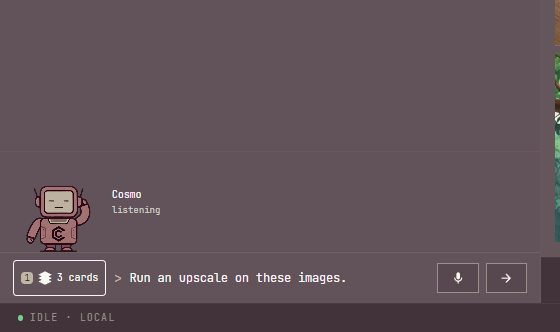
At the bottom, above the message box, the crew shows who is working. Cosmo reads listening when idle and holding the thread while it works. When a job runs, the mascot for that job joins with a running timer: Prism for images, Reel for video, Vinyl for audio, Lingo while a prompt is being written, and Prism again when Cosmo looks closely at a picture. The crew follows jobs you start from the Prompt Box too.
Along the top, a readout shows what this conversation has spent on your DeepInfra key: Agent for the chat itself and Generations for the paid cloud runs it started. It stays hidden until something costs money, covers this project's conversation only, and starts again from zero when you restart the app or start over.
Start over clears the conversation. Click it, then click Sure? to confirm; clicking anywhere else in the chat backs out. It clears the transcript, what Cosmo remembers of it, the spend readout, and any Yes/No card still waiting, which counts as No. Your cards, media and project notes stay.
Dictating to it
Hold Ctrl+Space to speak into the Agent panel's message box and release to write out what you said, the same dictation used everywhere else in the app.
What it will not do
When you ask Cosmo something about the app itself that it cannot answer from what it can see, it says so and links the documentation rather than guessing how Cubric Studio works. Image and video advice is its own to give; claims about the app are not.
A few things it never does, in any mode: delete a card, a project or your media, paint a mask or pick which area to edit, or install anything without a Yes/No card first. The only thing it deletes is a routine, when you ask.
Connect an agent
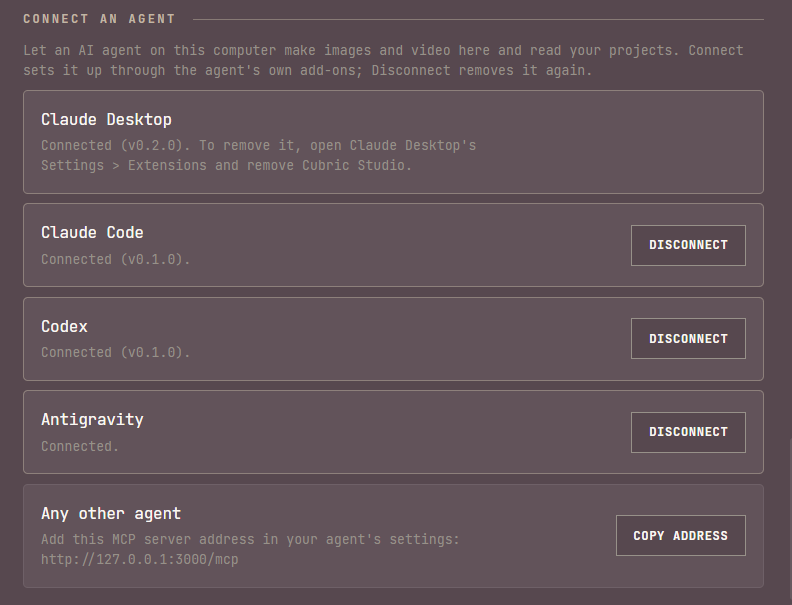
An outside coding agent on the same computer, such as Claude, Codex or Google Antigravity, can drive Cubric Studio directly: make images and video, read your projects, and save and run routines, using the same connector the in-app agent uses. Set it up from Settings > Connect an agent.
- Claude Code and Codex connect with one click each: Cubric Studio installs its own plugin through the agent's own CLI. Restart the agent afterward to load it.
- Claude Desktop connect opens Claude Desktop's own install screen for Cubric Studio's extension; click Install there.
- Google Antigravity connect writes its plugin files straight into Antigravity's plugin folder; restart Antigravity to load it.
Each of the four shows whether it is installed on this computer, connected or not, and when it was last used. Claude Code, Codex and Antigravity have a Connect or Disconnect button. Claude Desktop connects from here too, but to remove it, open Claude Desktop's Settings > Extensions and remove Cubric Studio there, as its row says. For any other agent, an Any other agent row gives the MCP server address to add in that agent's own settings, with a Copy address button.
Once connected, an outside agent can make images, videos and GIFs straight into your open project, look at what it made, and read your project list and gallery, the same tools Cosmo uses. It cannot install a model or delete anything: those two stay off the table for an outside agent, even with a connection.