Power-user shortcuts from the in-app Help panel, now documented for Cubric Studio workflows.
Move around with the Tab radial
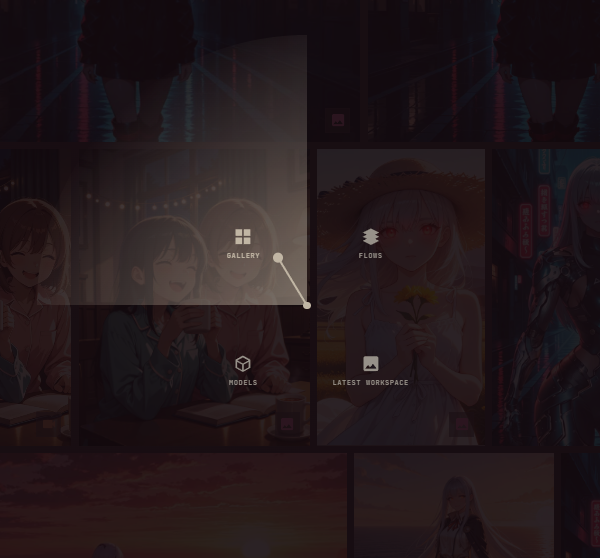
Tab no longer flips straight between the Gallery and your last card. Hold Tab instead: a radial menu opens, move the mouse toward the option you want, and let go. Letting go in the middle picks nothing. It works from the Gallery and from inside a card, including inside a Flow, the Flow Library, or the model picker.
Four destinations: Gallery, Models (opens the model picker), Flows (opens the Flow Library), and Latest Workspace, the last card you had open.
Hold Tab and move toward a quarter: the one you are heading for lights up, and letting go opens it.
Cubric Studio remembers that last card per project, and remembers it after you close the app, so Latest Workspace returns you to where you left off. If a project has no cards yet, Latest Workspace greys out. If you delete the card it was holding on to, Latest Workspace greys out rather than sending you somewhere you did not ask for.
Keyboard shortcuts
For keys not listed as Cmd in the macOS column, the Windows/Linux keys are identical on Mac unless noted.
Dialogue and overlay
Action
Windows / Linux
macOS
Accept
Enter
Enter
Close / cancel
Esc
Esc
Open context menu
Menu or Shift + F10
Menu or Shift + F10
Toggle fullscreen
F11
F11
Change UI size
Ctrl + + / -
Cmd + + / -
UI size is remembered between launches. Ctrl + mouse wheel no longer changes it — macOS delivers a two-finger trackpad pinch as a Ctrl+scroll, so pinching to zoom an image resized the whole interface. The keyboard shortcut above always did the same job and is unaffected. Mouse-wheel zoom on the canvas, held-space zoom, and the mask brush size are unchanged.
Workspace modes
Action
Windows / Linux
macOS
Toggle focus mode
F
F
Exit focus mode
Esc
Esc
Release memory
F5
F5
Release memory + cache
Ctrl + F5
Cmd + F5
Show memory monitor details (hold)
Ctrl
Ctrl
Agent
Action
Windows / Linux
macOS
Toggle the Agent panel
A
A
Image canvas and pointer interaction
Action
Windows / Linux
macOS
Zoom
Mouse Wheel
Mouse Wheel
Pan
Mouse Click + Drag
Mouse Click + Drag
Reset view
Double Click
Double Click
Zoom (while holding SPACE)
Mouse Wheel
Mouse Wheel
Pan (while holding SPACE)
Mouse Click + Drag
Mouse Click + Drag
Reset view (while holding SPACE)
Double Click
Double Click
Canvas tools
Action
Windows / Linux
macOS
Brush size
Mouse Wheel
Mouse Wheel
Paint brush
B
B
Eraser
E
E
Undo the last canvas edit
Ctrl + Z
Ctrl + Z
Redo the last undone canvas edit
Ctrl + Shift + Z
Ctrl + Shift + Z
Resize a shape without squashing it (hold)
Shift
Shift
Rotate a shape (hold, over a handle)
Alt
Alt
Undo applies to the canvas only.Ctrl + Z takes back a canvas edit — a brush stroke on the mask or on paint, a Clear, a committed detection, an applied Adjust — and Ctrl + Shift + Z puts it back. Nothing else in Cubric Studio has an undo. One history is shared by the mask and paint layers in the order you worked, so undo inside the Paint tool can walk back into a mask stroke. It follows you between tools and starts fresh when you open a different image.
Gallery
Action
Windows / Linux
macOS
Grid size
+ / -
+ / -
Toggle cue panel
Q
Q
Toggle card info mode
I
I
Multi-select items
Shift + Click
Shift + Click
Single select items
Ctrl + Click
Cmd + Click
Item context menu
Right + Click
Right + Click
Deselect all
Esc
Esc
Delete selected cards
Delete
Delete
Drag to prompt box
Mouse Click + Drag
Mouse Click + Drag
When exactly two cards are selected (not a stack), compare overlay is available.
History
Action
Windows / Linux
macOS
Multi-select entries
Shift + Click
Shift + Click
Single select entry
Ctrl + Click
Cmd + Click
Entry context menu
Right + Click
Right + Click
Deselect all or return to gallery
Esc
Esc
Delete selected entries
Delete
Delete
Generation
Action
Windows / Linux
macOS
Cue generation
Ctrl + Enter
Cmd + Enter
Stop current job
Ctrl + Alt + Enter
Cmd + Option + Enter
Toggle loop mode
Ctrl + L
Cmd + L
Blur text field (restore app hotkeys)
Esc
Esc
Dictation
Action
Windows / Linux
macOS
Dictate into the prompt box or the Agent panel (hold)
Ctrl + Space
Ctrl + Space
Hold, speak, and release to write out what was said. See Audio and Dictation.