Remote
Everything that runs on somebody else's computer: the language models that write prompts, describe images, and power the agent, and the RunPod remote engine that generates on a rented cloud GPU.
Open Remote from the top navigation, right beside Settings. It has two sections, in this order: Language models, then the RunPod remote engine.
Language models
Cubric uses a language model for the writing jobs around a generation: rewriting a short idea into a full prompt, describing an image you hand it, and the agent. Each job below chooses which machine runs it, and you always see the result before it is used.
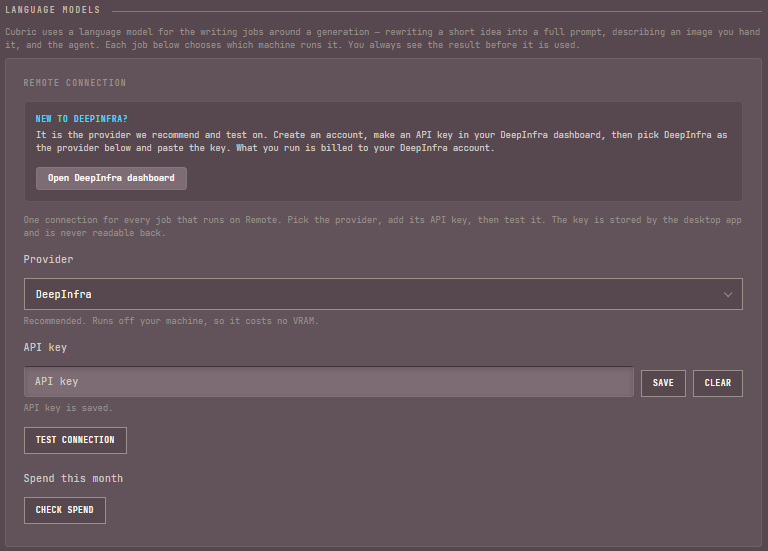
Remote connection
One connection serves every job below that runs on Remote. Pick a provider, add its API key, then test it. The key is stored by the desktop app and cannot be read back.
- Provider. DeepInfra (recommended, and the one Cubric Studio tests on), OpenRouter, OpenAI, your local Ollama through its /v1 endpoint, or Custom for any other OpenAI-compatible address (its base URL appears once you pick Custom).
- API key. Paste it and press Save; Clear removes it. Ollama needs no key.
- Test connection. Confirms the key works and reports how many models answered, without spending on a job.
- Spend this month. DeepInfra only. Reads what you have spent, your credit left, and your monthly limit, on request.
New to DeepInfra? Create an account, make an API key in your DeepInfra dashboard, then pick DeepInfra as the provider here and paste the key. What you run is billed to your DeepInfra account.
Where each job runs
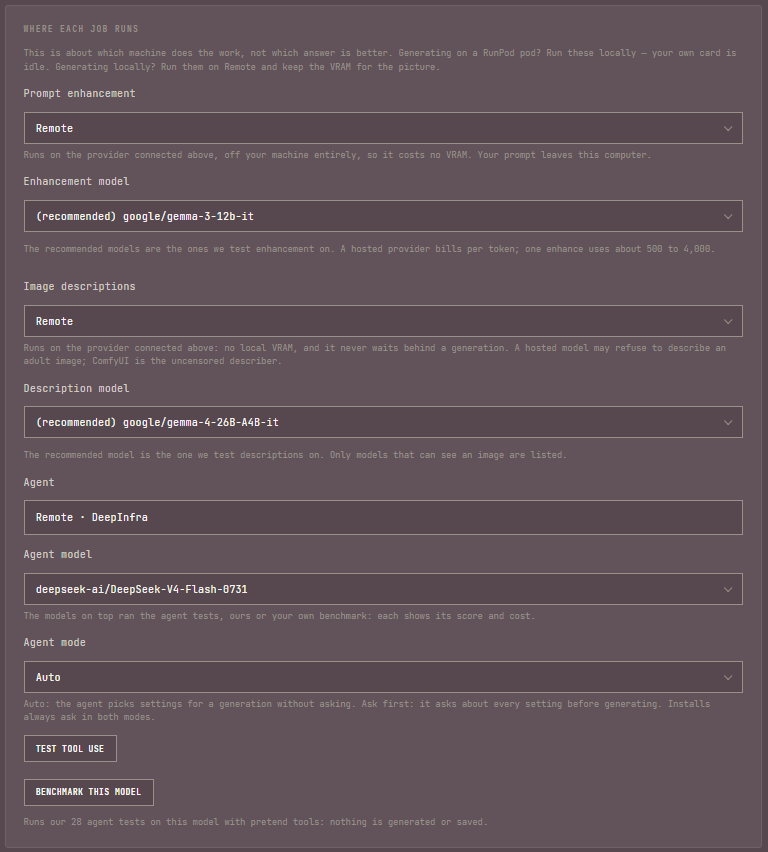
This is about which machine does the work, not which answer is better. Generating on a RunPod Pod? Run these locally, your own card is idle. Generating locally? Run them on Remote and keep the VRAM for the picture.
- Prompt enhancement. Remote (off your machine, no VRAM cost), Ollama (local) (its own runtime and its own VRAM), or ComfyUI (local) (reuses the engine already running; the default). The model to use appears under whichever backend you pick.
- Image descriptions. Remote or ComfyUI (local). Remote costs no VRAM and never waits behind a generation; a hosted model may refuse to describe an adult image, and ComfyUI's built-in describer is uncensored.
- Agent. Always runs on Remote. Pick its model and its mode here, Auto (picks settings and generates without asking) or Ask first (asks about every setting first; installs always ask either way). See Testing an agent model below for the two test buttons under it. Connect the agent to an app in Settings > Connect an agent, or see Agent for what it can do.
Testing an agent model
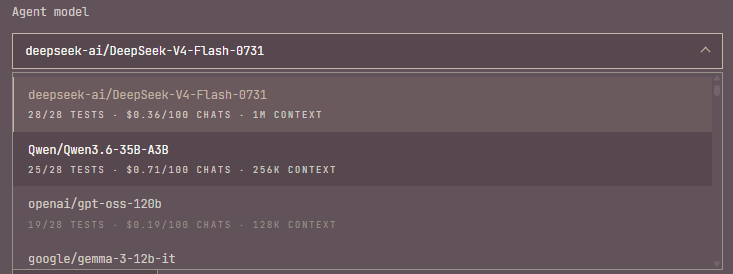
Not every language model can drive the agent well. The Agent model list puts the models that have run the agent's tests on top, each with its score, what 100 chats cost on it, and how much context it holds, for example 28/28 tests · $0.36/100 chats · 1M context. Scores on the current tests rank first, then the best pass rate, then the most runs.
The agent is updated often, and new tests are added as it learns new things, so the number of tests grows from one update to the next. A score from an earlier set of tests is marked (older tests), so you can tell it apart from one on the tests your app ships with.
- Test tool use. One small request that checks the picked model can call tools at all, before you rely on it.
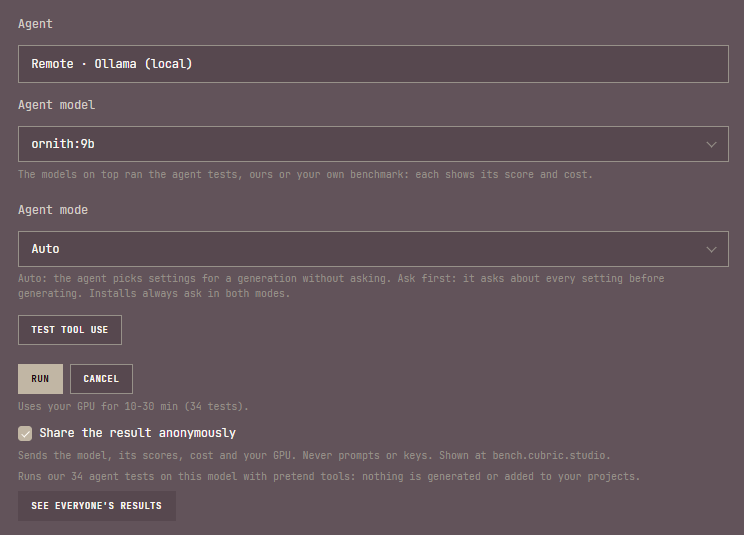
- Benchmark this model. Runs the agent's own tests on the picked model with pretend tools, so nothing is generated or added to your projects. It first shows an estimate with Run and Cancel: on a cloud provider such as DeepInfra, a price and about how many minutes (roughly half a minute a test); for a model on your own GPU, Uses your GPU for 10-30 min. On a cloud provider it does spend real calls on your key. Stop ends it after the current test, and a stopped run is not kept, nor is a run whose connection failed partway. A finished run puts the model in the scored group with your own result, which counts ahead of Cubric Studio's. You do not have to watch it: close the panel and carry on, and a toast tells you when the run ends, with the score and what it cost. A cloud model uses none of your GPU, so you can keep generating while it runs. A model on your own GPU, such as one through Ollama, will not start a benchmark while a generation is running on the card; start it once that generation finishes.
On DeepInfra, OpenRouter, OpenAI or Ollama (not Custom), the confirm step also offers Share the result anonymously. It is unticked the first time and remembered after that. A shared run sends the model, whether it passed each test, its cost per chat, how long a test took and your app version, plus your GPU's name and memory when the model runs on Ollama. Never your prompts, the model's replies, or your keys. It goes to the community scores at bench.cubric.studio, and See everyone's results opens that page. Only a whole run is shared: not a stopped run, and not one whose connection failed. When a run you asked to share did not go, its result line says why. Once a model has at least three shared runs, the list can show the community's median score, marked (community, N runs), for models neither you nor Cubric Studio has tested on the current tests.
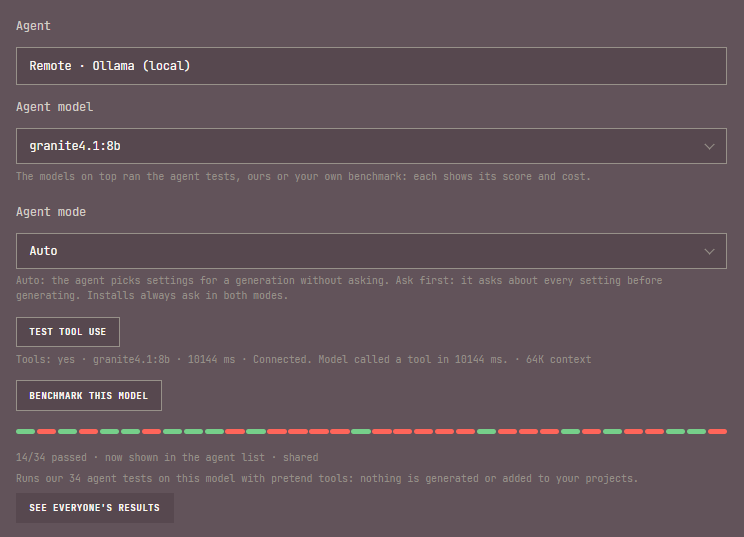
Share the poor results too. A model that fails half the tests is exactly what the next person wants to know before they spend the time, and on a paid provider the money, finding out for themselves. The run below is one: a small local model that passed 14 of 34.
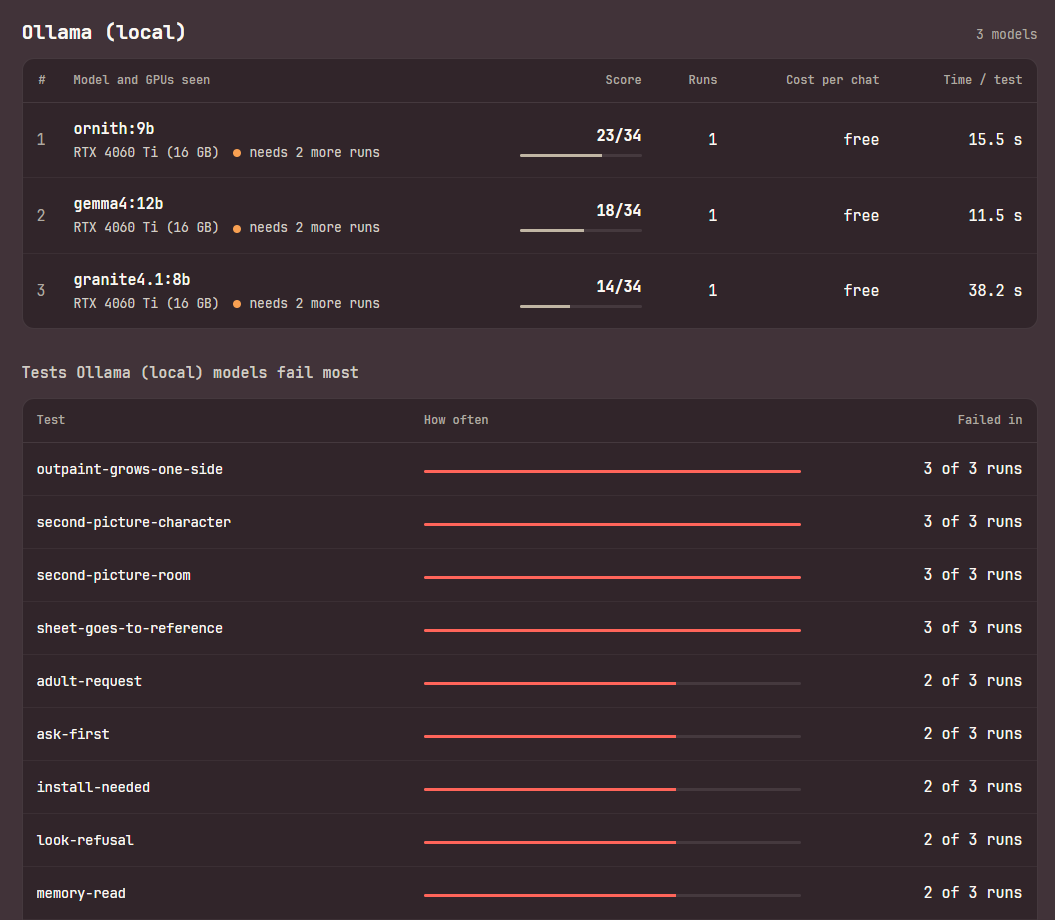
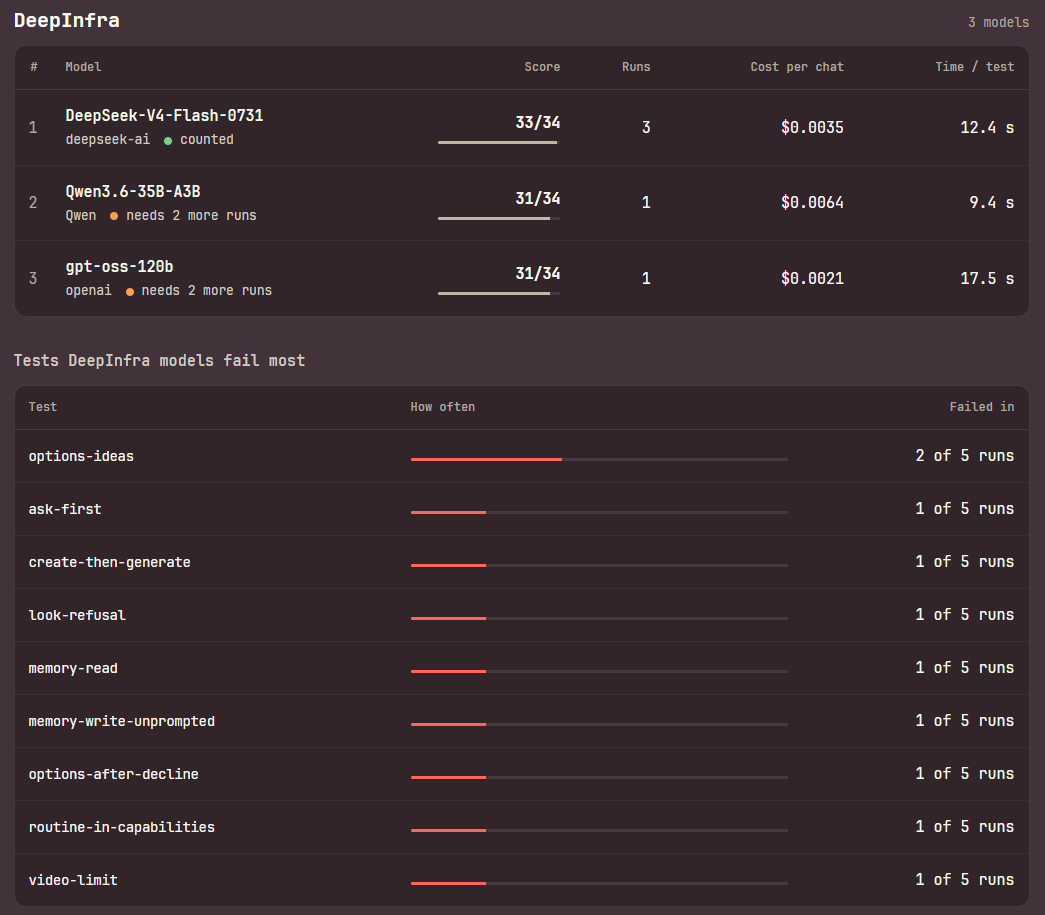
See everyone's results opens the community page. It has one table per provider. Each model shows its score on the current tests, how many runs were shared, its cost per chat, and how long a test took; for Ollama, also the GPUs it was run on. A model with three shared runs is marked counted: that is when its score can appear in everyone's Agent model list. Below three, it says how many more runs it needs. Counted models come first, then the best pass rate. Under each table is a list of the tests that provider's models fail most.
RunPod remote engine
The RunPod remote engine lets you run generation on a rented cloud GPU instead of your own hardware. It is optional. Cubric's remote engine runs on your own RunPod account: generation stays on your local engine until you Connect, and GPU and storage billing happen on your RunPod account, not Cubric's.
New to RunPod? The panel's Create RunPod account button opens sign-up through Cubric's referral link, which can include a first-time credit bonus. To unlock the rest of the controls, save a RunPod API key with read and write access.
RunPod can also replace the local engine entirely. On first launch, Remote only skips the ComfyUI install and Cubric runs on a cloud GPU instead, see Getting Started. Skip the local engine install, below, is where you turn the local engine back on if you change your mind.
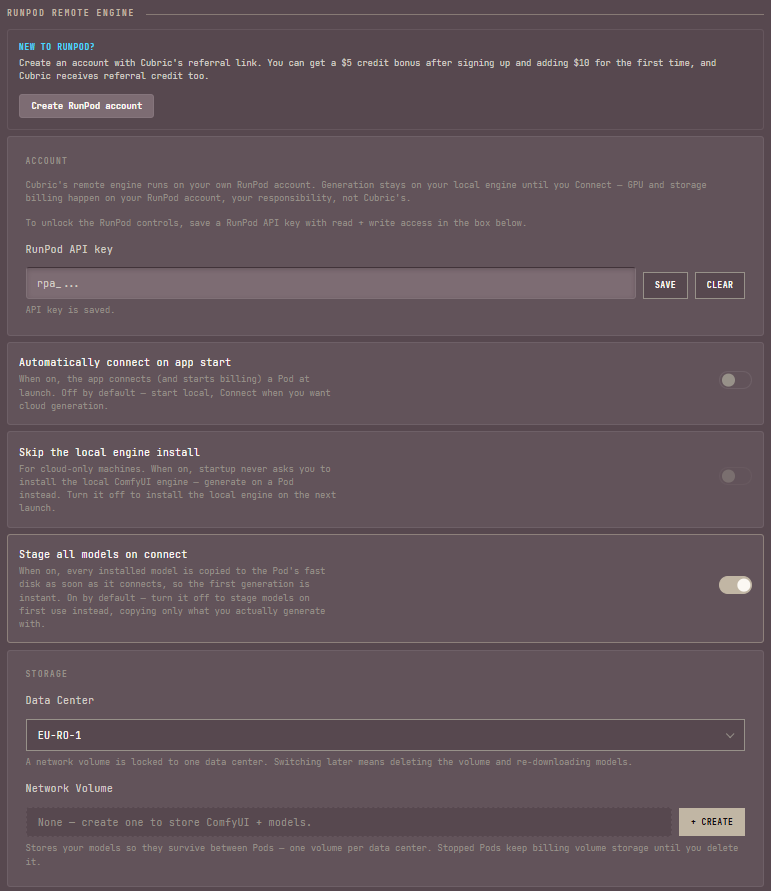
- Automatically connect on app start. When on, the app connects (and starts billing) a Pod at launch. Off by default: start local, and Connect when you want cloud generation.
- Skip the local engine install. For cloud-only machines. When on, startup never asks you to install the local ComfyUI engine, and you generate on a Pod instead. Choosing Remote only on first launch turns it on; turn it off to install the local engine on the next launch. It also clears itself automatically once a local engine is actually present, so an update can no longer leave you skipping an engine you already have.
- Stage all models on connect. On by default: every installed model is copied to the Pod's fast disk as soon as it connects, so the first generation is instant. Turn it off to copy each model on first use instead, only what you actually generate with.
Storage
- Data Center. A network volume is locked to one data center. Switching later means deleting the volume and re-downloading models. Any region (no volume) skips the volume: models download again for each session, and nothing bills for storage between sessions.
- Network Volume. Stores your models so they survive between Pods, one volume per data center; + Create makes one. Stopped Pods keep billing volume storage until you delete it.
Machine
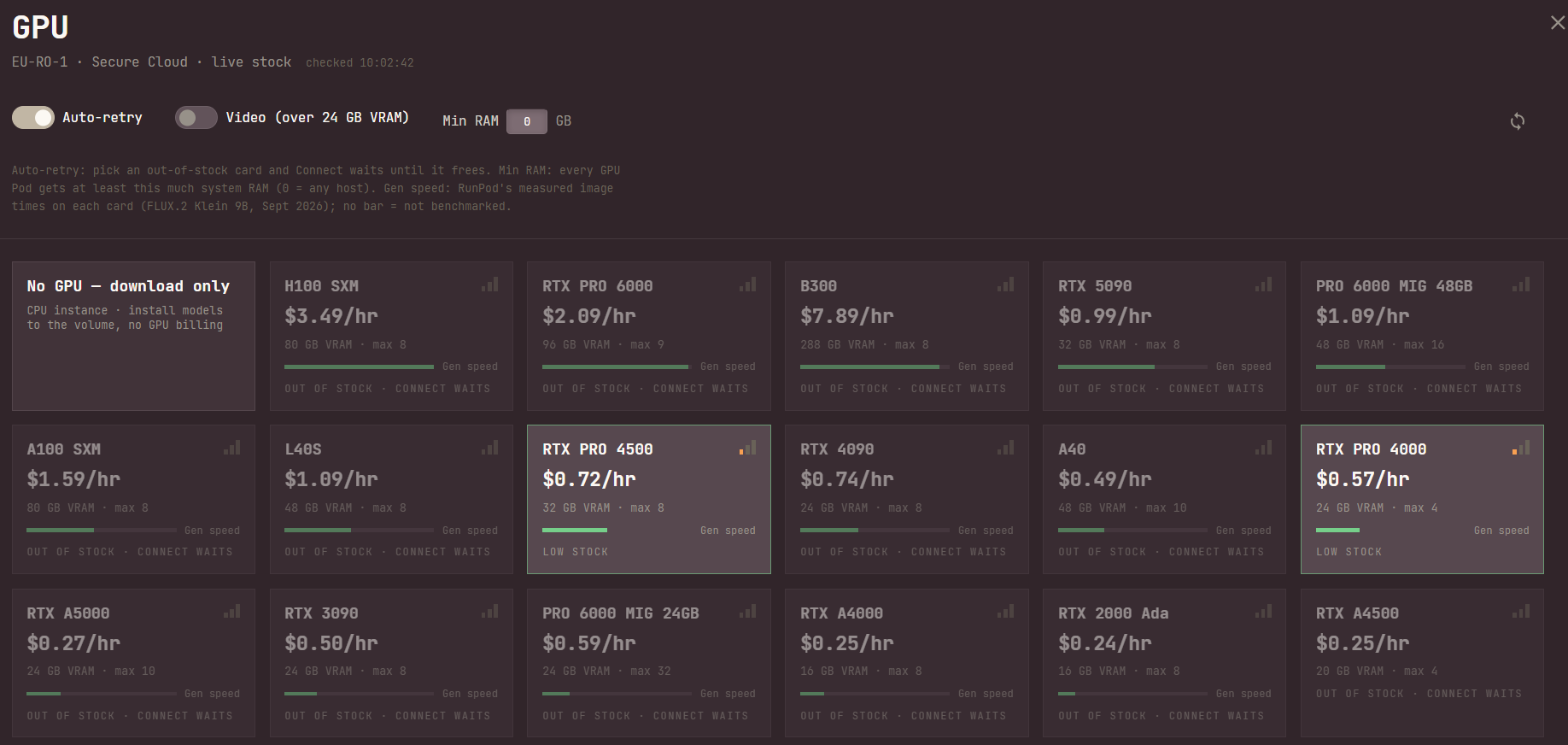
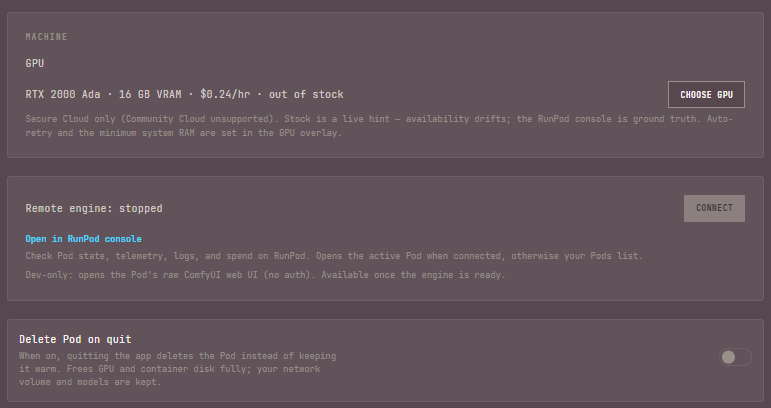
- GPU. Your pick in one line: the card, its VRAM, its price per hour, and its stock. Choose GPU opens the GPU picker, below. Secure Cloud only. Stock is a live hint that drifts; the RunPod console is the source of truth.
- Connect. Starts the remote engine. While it is greyed out, the line under it says why: no GPU chosen yet, or No GPU, download only picked in a data center with no network volume, where its downloads would have nowhere to go. Any real GPU still connects without a volume: Connect first asks, then makes a temporary Pod whose models download each session and are deleted when you stop or delete it. A Pod keeps the software it was made with, so the first Connect after an update that changes it (2.0 does) replaces your saved Pod with a fresh one: the models on your network volume stay, and only that Connect takes longer. Open in RunPod console checks Pod state, telemetry, logs, and spend on RunPod.
- Delete Pod on quit. When on, quitting the app deletes the Pod instead of keeping it warm. This frees GPU and container disk fully; your network volume and models are kept.
Choosing a GPU
Choose GPU opens a full-window picker with one tile per Secure Cloud card, with its stock in the data center you picked. Each tile shows the price per hour, the VRAM, the most GPUs one Pod can take, a three-bar stock meter, and a green Gen speed bar: how fast the card makes an image, from RunPod's own measured times on each card (FLUX.2 Klein 9B, September 2026), with the fastest card's bar full. Beside the bar, the measured time itself, in seconds per image (lower is faster), tells close cards apart. A card RunPod has not benchmarked has no bar. The times come from an image model, so the bar is a guide to image speed. After No GPU, tiles run fastest first; cards with no measurement come after every measured one, and ties go to the card with less VRAM, then the cheaper one. Click a tile to pick it; the picker closes. Stock is read when the picker opens and when you press its refresh button, never on its own, and the line at the top says when it was last checked.
- Auto-retry. Off, the picker shows only cards in stock. On, it shows every card, an out-of-stock one reads Out of stock · Connect waits, and Connect keeps checking in the background until the card you picked frees up, then connects; you can keep working locally while it waits. On by default for a new install since 2.0, because RunPod stock is thin enough that a card shown in stock is often gone by the time you press Connect; a setup from before 2.0 keeps whatever you had it set to.
- Video (over 24 GB VRAM). Shows only cards with more than 24 GB of VRAM.
- Min RAM. RunPod only places a GPU Pod on a host with at least this much system RAM; 0 means any host. Since 2.0 a new setup starts at 0 (1.5.0 started at 56 GB), because the hosts behind most smaller cards have less than that, and a floor turned Connect into a no-host message. A value saved on an earlier version is kept as it was, so check it if you set up RunPod before 2.0. Raise it only when you know your model needs a big host: heavy video models, such as MiniMax H3 at 768p or LTX at 2K, run better with more, because ComfyUI offloads weights to system RAM. A higher floor means fewer hosts: when no host with that much is available, Connect says so, and you can lower Min RAM, turn on Auto-retry to wait, or pick another data center. A wait for a GPU, whether from Auto-retry or from a Pod that connects at app start, keeps this floor too. Hidden for Any region, where RunPod has no data center to place against.
- No GPU, download only. Always the first tile: a CPU-only Pod with no GPU billing, for installing models onto your volume before you pick a card to generate with. If its CPU size is sold out, Cubric Studio tries the other CPU sizes instead of failing outright. Not offered for Any region, which has no volume to download onto.
The card you picked always shows, even when a filter would hide it or it has just gone out of stock.