
Audio and Dictation
Make sound effects, music and speech from the Prompt Box, play and trim audio cards, pick the speakers Cubric Studio plays through, and dictate prompts by voice with the mic or Ctrl+Space.
Where audio comes from
Audio cards come from two audio models in the Prompt Box, Stable Audio 3 and Chatterbox, and from the audio Flows: Song, Stems and Voice Changer. Add Foley is the exception: it scores a silent video clip and hands back the same clip with sound, not a separate audio card. See the Flow Library for what each Flow does and how to run it.
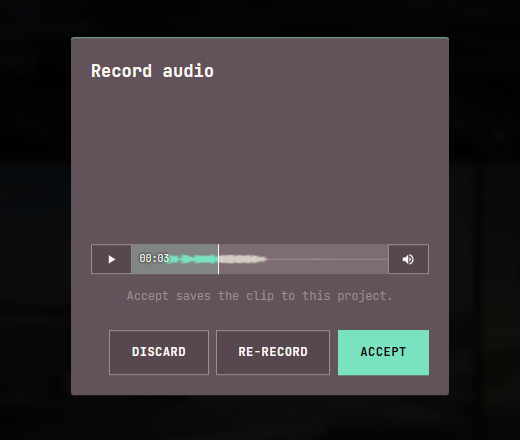
You can also record one yourself. Record, at the top of a project's Gallery beside Agent and Flows, records a clip from your microphone. Listen back, then Accept to save it to the project as an audio card, Re-record to try again, or Discard. The button shows in the Gallery only, not inside a card. It uses the microphone and input gain set in Settings > Audio.
Sound and speech from the Prompt Box
Two audio models sit under Audio in the model picker, and install from the Model Library like any other model. Neither enhances your prompt: what you type is what they get.
Stable Audio 3: Sound & Music
Describe a sound and Stable Audio 3 makes it: backing tracks and instrumentals, a single instrument, sound effects, or a one-shot hit. What is it picks the kind. Music and Instrument run the larger model, Sound effect and One-shot a smaller one built for them, and only the one you pick loads. Length is exact, not a ceiling: 1 to 190 seconds, 10 by default. Describe the sound itself, what it is made of and the room it is in; quality words such as "masterpiece" describe no sound. It takes no media, so there is no + button. Stable Audio 3 asks you to accept its licence before it downloads; see Models that ask you to accept a licence.
Chatterbox: Text to Speech
Type a line and Chatterbox speaks it in the voice you give it. On this model the Prompt Box's + button reads Add a voice: pick a voice from the voice library or a recording from your project, or record one there. Text to Speech stays greyed out until a voice is added. The line is spoken word for word, so type it exactly as it should be heard: "a cheerful woman saying hello" would be read out loud.
- Language. The language the line is written in, one of 23. English by default.
- Speed. Lower is slower and more deliberate; higher hurries the words.
- Exaggeration. How much emotion goes into the delivery. Higher is more dramatic.
Speed and Exaggeration both start at 0.5.
Song or Stable Audio 3?
Song is a Flow for a track with words, sung by a voice you cast. Stable Audio 3 is for everything without a singer: instrumentals, a single instrument, sound effects and one-shots, at a length you can rely on exactly.
Audio cards
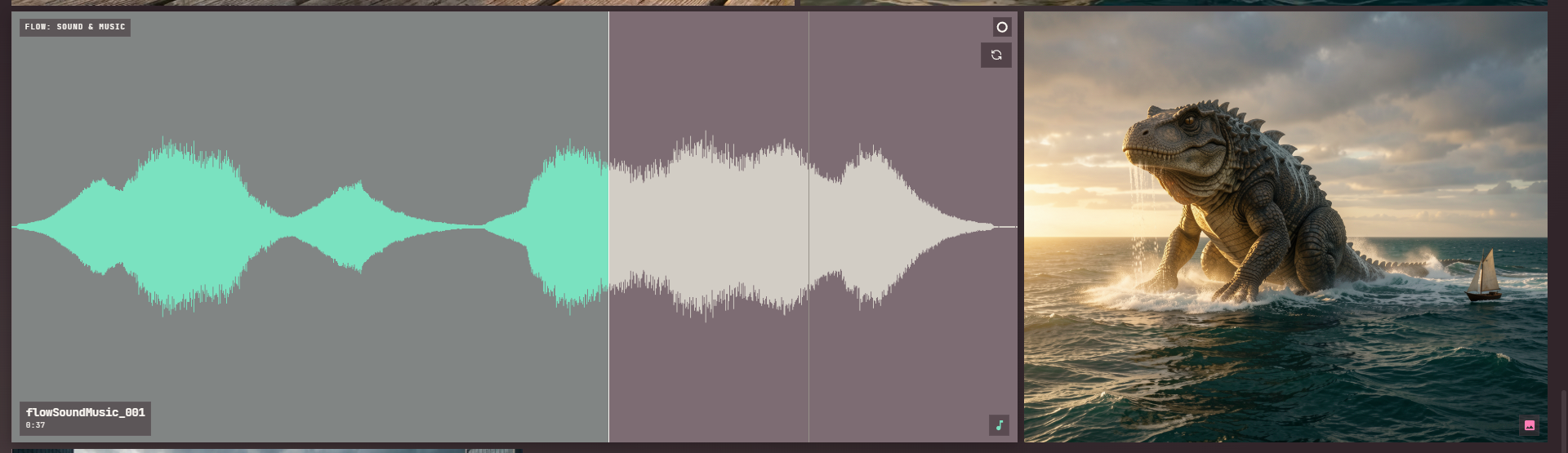
An audio card is a wide tile that draws the clip's own waveform instead of a picture. Hover it to play from the start (unless the volume slider next to the gallery is at zero); the played part of the wave fills in as it plays, so the fill itself is the progress bar. Click anywhere on the wave to seek there and keep playing, and move the pointer away to stop and rewind. A clip that finishes while you are still hovering holds its wave full instead of resetting to empty.
Use the kind filter above the grid to narrow the Gallery down to audio cards on their own. See Browse project media for the rest of the filter and sort controls, and Gallery layout controls for the hover-volume slider.
Trimming a video with sound
When a video clip has audio, its trim bar in Video Tools and History draws that audio's waveform behind the in and out handles, so you can see where the sound falls while you set the trim range. A silent clip shows a plain track, as before.
Choosing your speakers
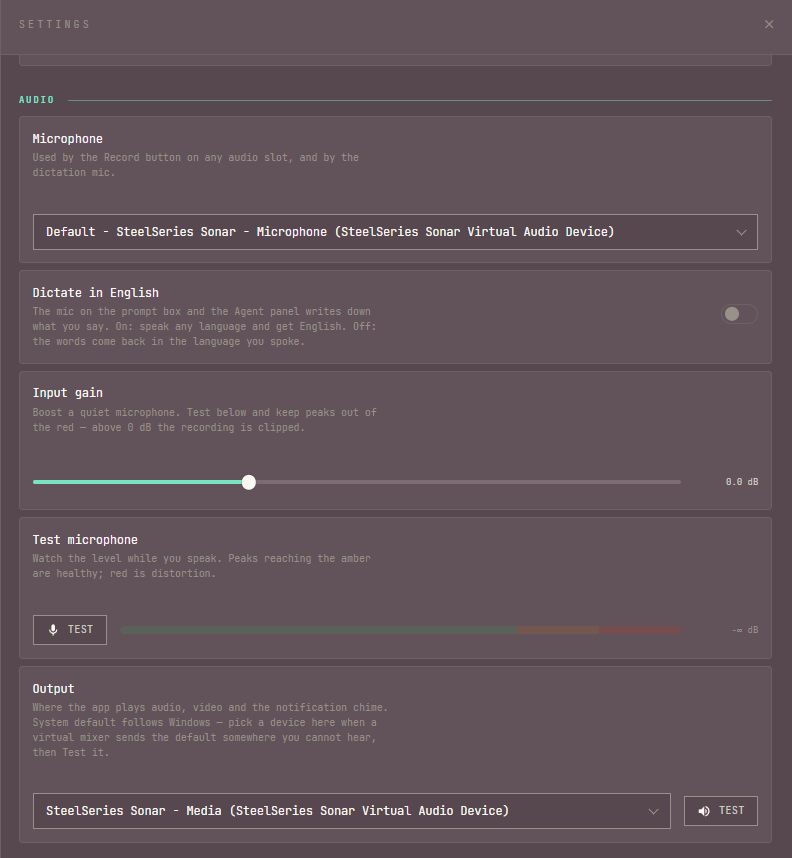
Cubric Studio's audio output lives in Settings > Audio, alongside microphone setup. The Output picker chooses where the app plays audio, video, and its own notification chime; leave it at System default to follow whatever Windows is set to, or pick a specific device when a virtual mixer sends the system default somewhere you cannot hear. Click Test next to it to play the notification chime on the selected device and confirm it took.
The same section's Microphone picker, input gain, and mic test are used by the Record button on any audio input slot, and by the dictation mic described below.
Dictation
A microphone button sits beside the Prompt Box's Enhance button, and beside the Agent panel's Send button. Speak into either one instead of typing:
- Click the mic, speak, and click it again to stop.
- Or hold Ctrl+Space, speak, and release. This fills whichever box is focused, or the last one you had focused, or any dictation box on screen if neither applies.
The words land at the caret, exactly as if typed, and nothing is ever sent on your behalf: you still read it over and press Enter yourself. A take shorter than a third of a second is dropped rather than sent.
Dictation needs a DeepInfra key. Without one the mic stays visible but greyed out, and it explains why. It costs about $0.0002 per minute of audio sent.
Dictate in English, in Settings > Audio, translates whatever language you speak into English text instead of transcribing it as-is. It runs a different model to do the translation, priced at roughly $0.00045 per minute, a little more than plain dictation.
