Settings
Every Cubric Studio option in one place: how the app starts, what it notifies you about, how media is displayed, audio and dictation, what Reuse Prompt copies, where your models live, and connecting an AI agent. Language models and the RunPod remote engine live in their own Remote panel, covered on the Remote page.
Open Settings from the top navigation on the Projects screen. Remote sits right beside it. Every option is a single row: its control sits on the right, a plain-language description on the left, and related options are grouped into titled sections.
Update
Cubric Studio checks for a new version at launch. When one is available, Settings opens with an Update section at the very top: A new version is available, naming your current version and the new one, with an Update to v<version> button. Pressing it closes the app, updates, and reopens it.
The boot popup's Don't ask again checkbox only mutes that popup. The update stays due, and this section keeps offering it every time you open Settings until you install it. See Updating Cubric Studio for how the update itself runs.
Engine health
If part of the local engine did not install, Settings opens with an Engine health section reading Part of the engine did not install, with a Repair engine button beside it. Some models will fail to generate until it is repaired.
Repairing reinstalls the missing part and restarts the engine. It takes a few minutes, and your models are untouched. When the repair succeeds, the section goes away. On a healthy engine it is not there at all, so not seeing it is the normal state.
Reporting a problem
When something goes wrong, the error window gives you two ways to get the details to us:
- Show log file. Opens the app log in your file manager, so you can attach it.
- Report on GitHub. Opens a prefilled bug report in your browser. Attach the log file to it there.
App behavior
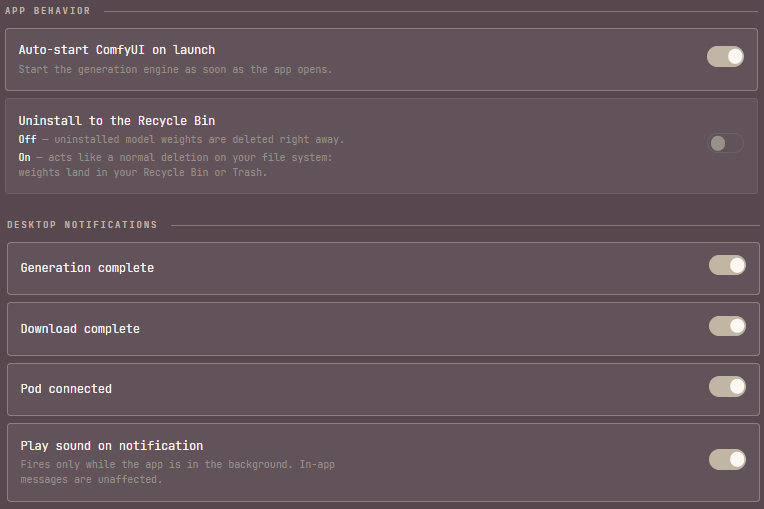
- Auto-start ComfyUI on launch. Starts the local generation engine as soon as the app opens. Leave it off if you prefer Cubric Studio to wait; the first operation that needs the engine starts it once, then it keeps running in the background.
- Uninstall to the Recycle Bin. Off by default: uninstalled model weights are deleted right away. On: acts like a normal deletion on your file system, and the weights land in your Recycle Bin or Trash instead.
Hover audio is no longer set from here. It is a volume slider in the Gallery, beside the card-size slider, and sliding it to zero is the mute.
Desktop notifications
Desktop notifications fire only while the app is in the background. In-app messages are unaffected, and a self-triggered action you are watching stays silent.
- Generation complete. Notify when a generation finishes while you are in another app.
- Download complete. Notify when a model download finishes.
- Pod connected. Notify when a RunPod GPU finishes connecting while you are away.
- Play sound on notification. Play a sound once when something you were not watching finishes. A whole queue plays it a single time.
Display
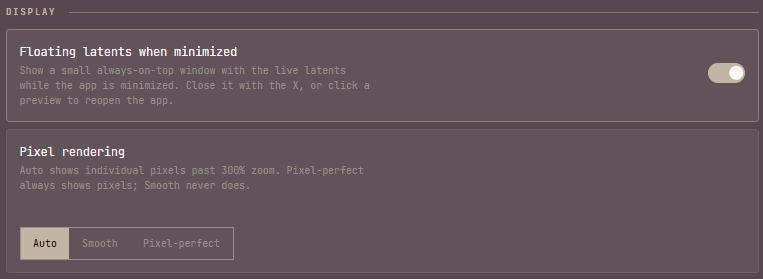
- Floating latents when minimized. Shows a small always-on-top window with the live latents while the app is minimized. Local and remote generations each get a tile, finished previews stay with a Done badge, and the window remembers its size and position. Close it with the X, or click a preview to reopen the app.
- Pixel rendering. Changes only how media is displayed in the viewer. Smooth blends pixels like a normal viewer. Pixel-perfect always shows the actual pixels, useful for precise edits. Auto stays smooth at fit-to-screen and switches to visible pixels past 300% zoom.
Audio
The microphone and playback device Cubric Studio uses. See Audio for how dictation itself works.
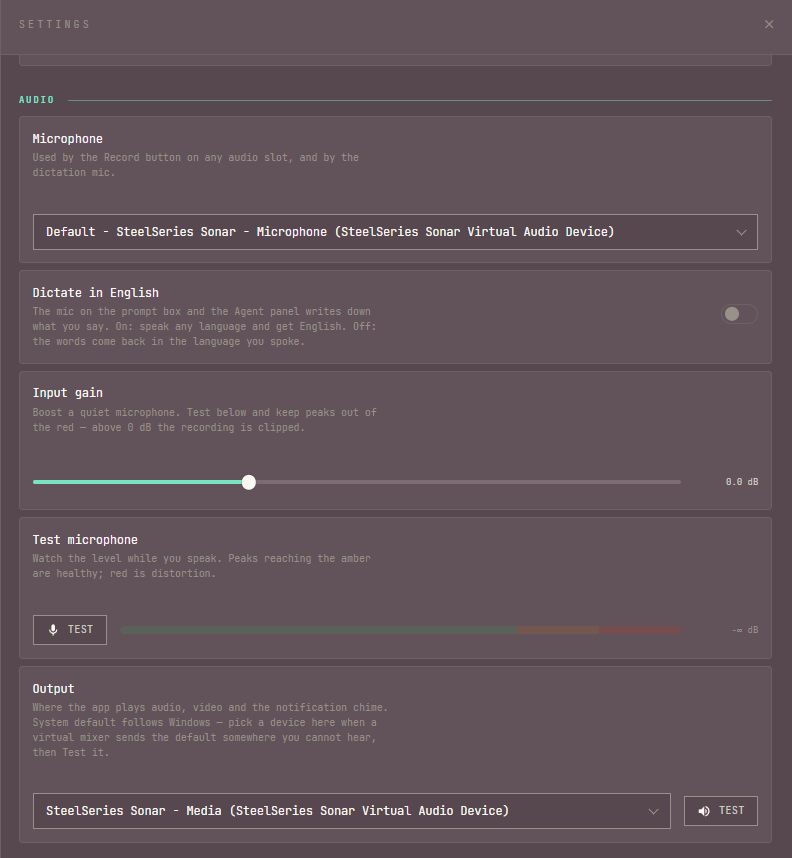
- Microphone. Used by the Record button on any audio slot, and by the dictation mic.
- Dictate in English. The mic on the prompt box and the Agent panel writes down what you say. On: speak any language and get English. Off: the words come back in the language you spoke.
- Input gain. Boosts a quiet microphone. Test it below and keep peaks out of the red: above 0 dB the recording is clipped.
- Test microphone. Watch the level while you speak. Peaks reaching the amber are healthy; red is distortion.
- Output. Where the app plays audio, video and the notification chime. Left on System default it follows Windows; pick a device here when a virtual mixer sends the default somewhere you cannot hear, then press Test to confirm.
Reuse Prompt
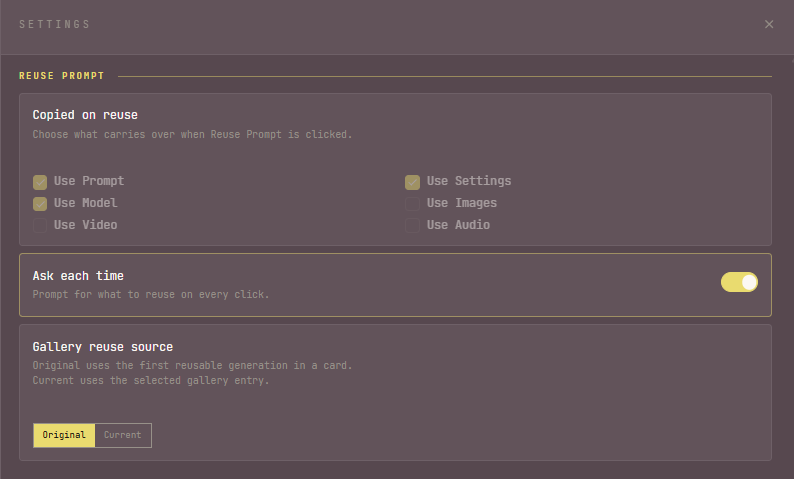
Reuse Prompt pulls the details from an existing result back into the Prompt Box. These options decide what comes along.
- Copied on reuse. Toggle which parts carry over: Prompt, Settings, Model, Images, Video, and Audio.
- Ask each time. Show a choice dialog on every reuse instead of using the fixed selection above.
- Gallery reuse source. Applies to Gallery cards that hold more than one entry. Original reuses the first reusable generation in the card; Current reuses the selected entry.
External connections
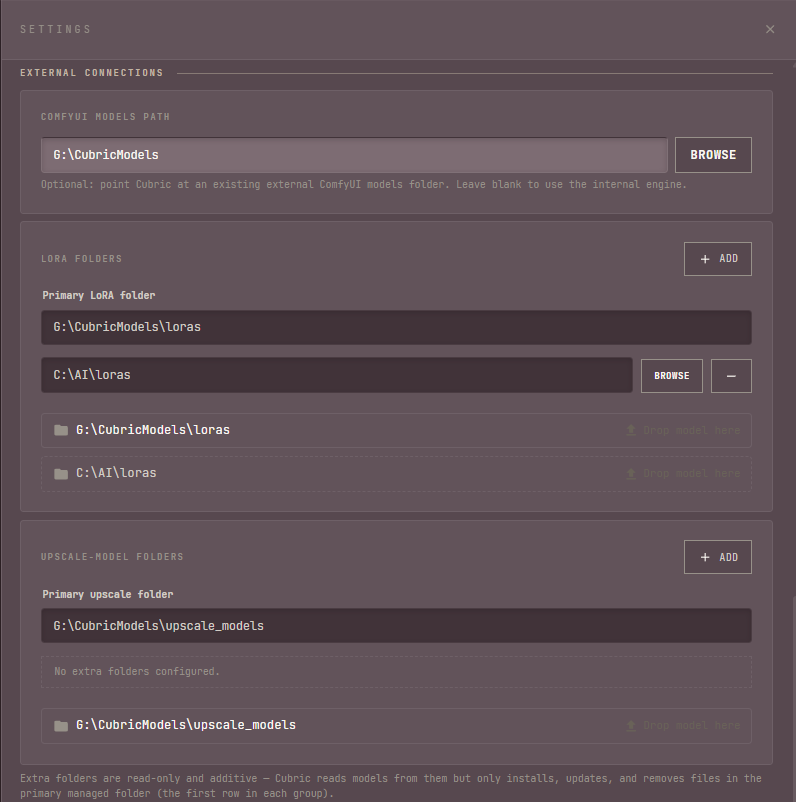
External Connections is where Cubric Studio reads models from disk. You can point it at an existing engine and add your own LoRA and upscale models.
- ComfyUI models path. Optional. Point Cubric at an existing external ComfyUI models folder, or leave it blank to use the internal engine.
- LoRA folders. One primary managed folder, plus any number of extra read-only folders you add with + Add. To bring your own LoRA, drag a
.safetensorsfile onto the primary folder row and Cubric copies it in. - Upscale-model folders. The same layout for upscale models. Drag a
.safetensorsor.pthfile onto the primary folder to add it.
Extra folders are read-only and additive: Cubric reads models from them, but only installs, updates, and removes files in the primary managed folder (the first row in each group).
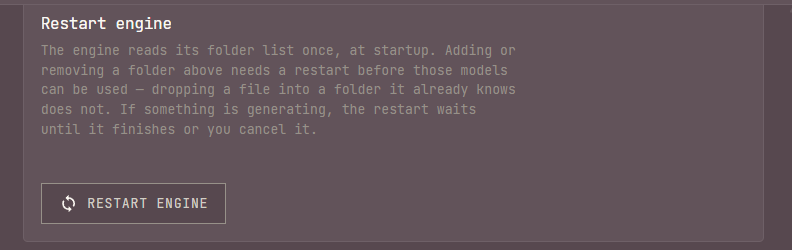
Restart engine, at the end of this section, is new in 2.0. The engine reads its folder list once, at startup, so adding or removing a folder above needs a restart before those models can be used (dropping a file into a folder it already knows does not). If something is generating, the restart waits until it finishes, or until you cancel it.
Connect an agent
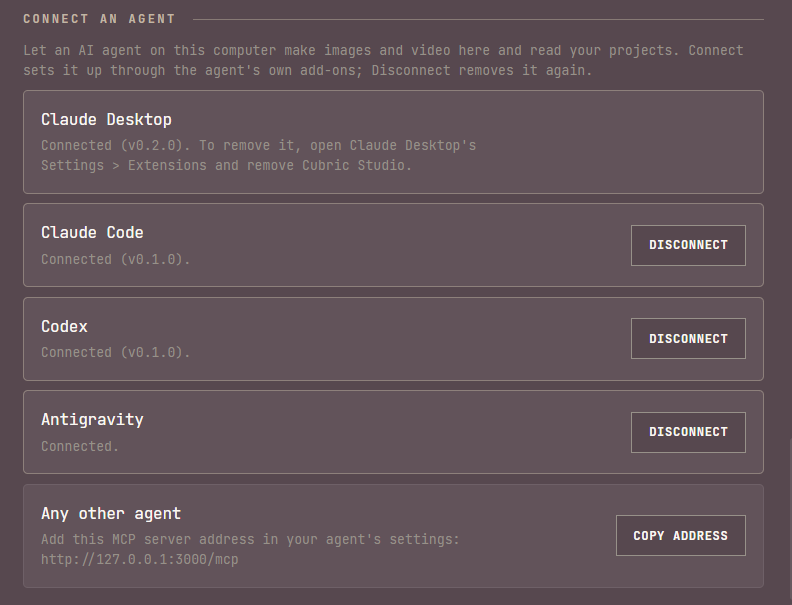
Let an AI agent on this computer make images and video in Cubric Studio and read your projects. Cubric Studio detects Claude Desktop, Claude Code, Codex and Antigravity on your machine; press Connect on any of them and it sets itself up through that agent's own add-ons. Disconnect removes it again where Cubric Studio can do that from here; otherwise the row names where to remove it in that app's own settings.
For any other agent, copy the MCP server address shown at the bottom of the list with Copy address and add it in that agent's own settings.
See Agent for what a connected agent can do.
Remote: language models and RunPod
Language models (prompt enhancement, image descriptions, and the agent) and the RunPod remote engine are not in Settings. They have their own Remote panel, next to Settings in the top navigation. See Remote.