Models
Browse and install image and video models from the Model Library, understand what each one supports, and see where they show up in the app.
A "model" in Cubric is more than a safetensors file. Each model ships with structural context describing the operations it can run, so the UI only exposes what the model can actually do.
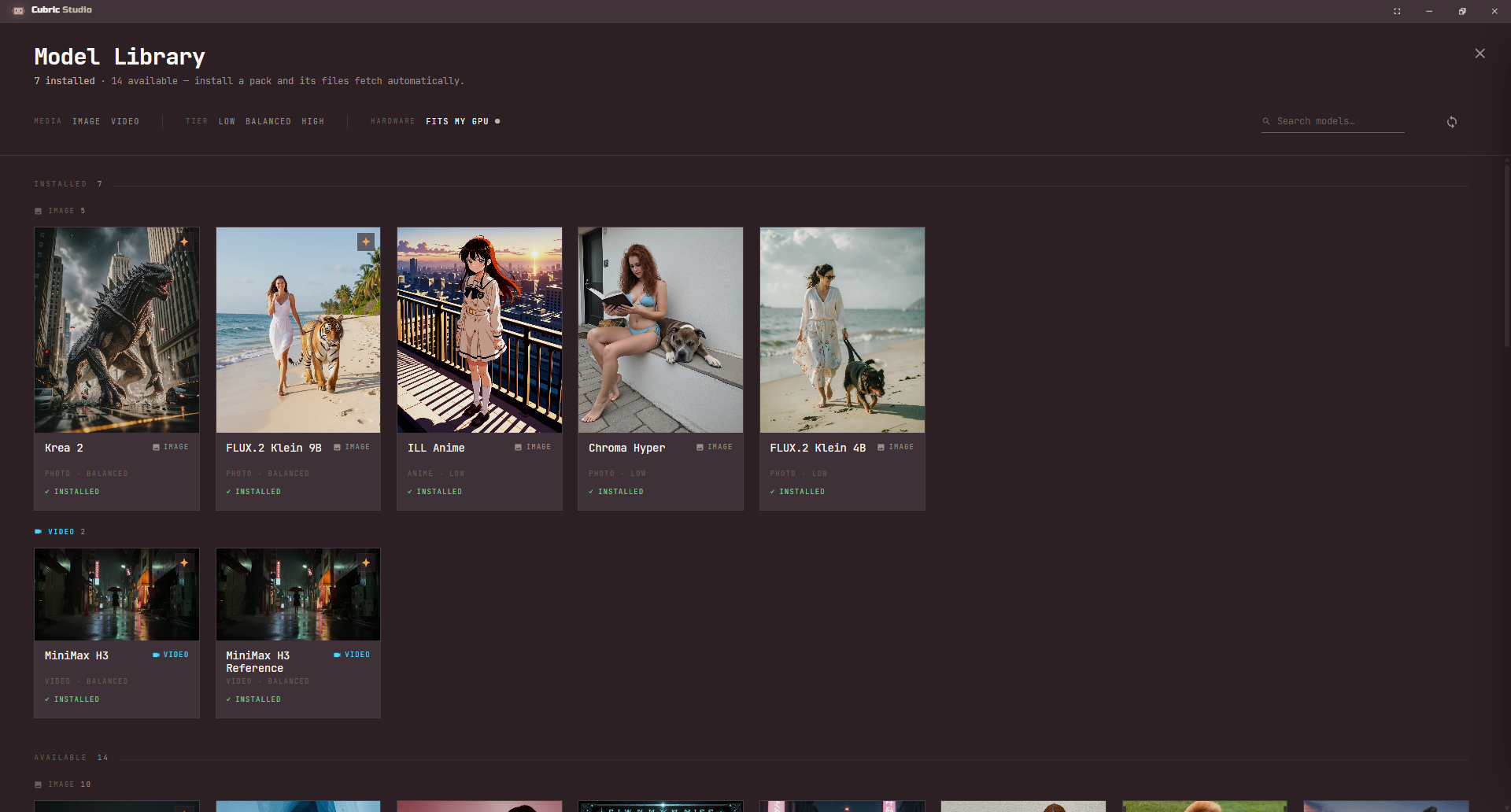
The Model Library
Open the Model Library from the top navigation on the Projects screen. It is a full-page grid split into Installed and Available, each further grouped into Image, Video and Audio. Below them sit Plugins, add-ons such as the Image Describer and the LTX Video upscaler that install and uninstall from their own row, and then DeepInfra models. Filter by media, by size tier, by whether a model fits your GPU, or by search; click any card to open its detail panel.
That is for installing and managing what is on disk. To quickly change which model you are generating with, you do not need the Library at all: click the model name beside the Prompt Box, or hold Tab and choose Models from the radial menu. That picker only lists models you already have installed.
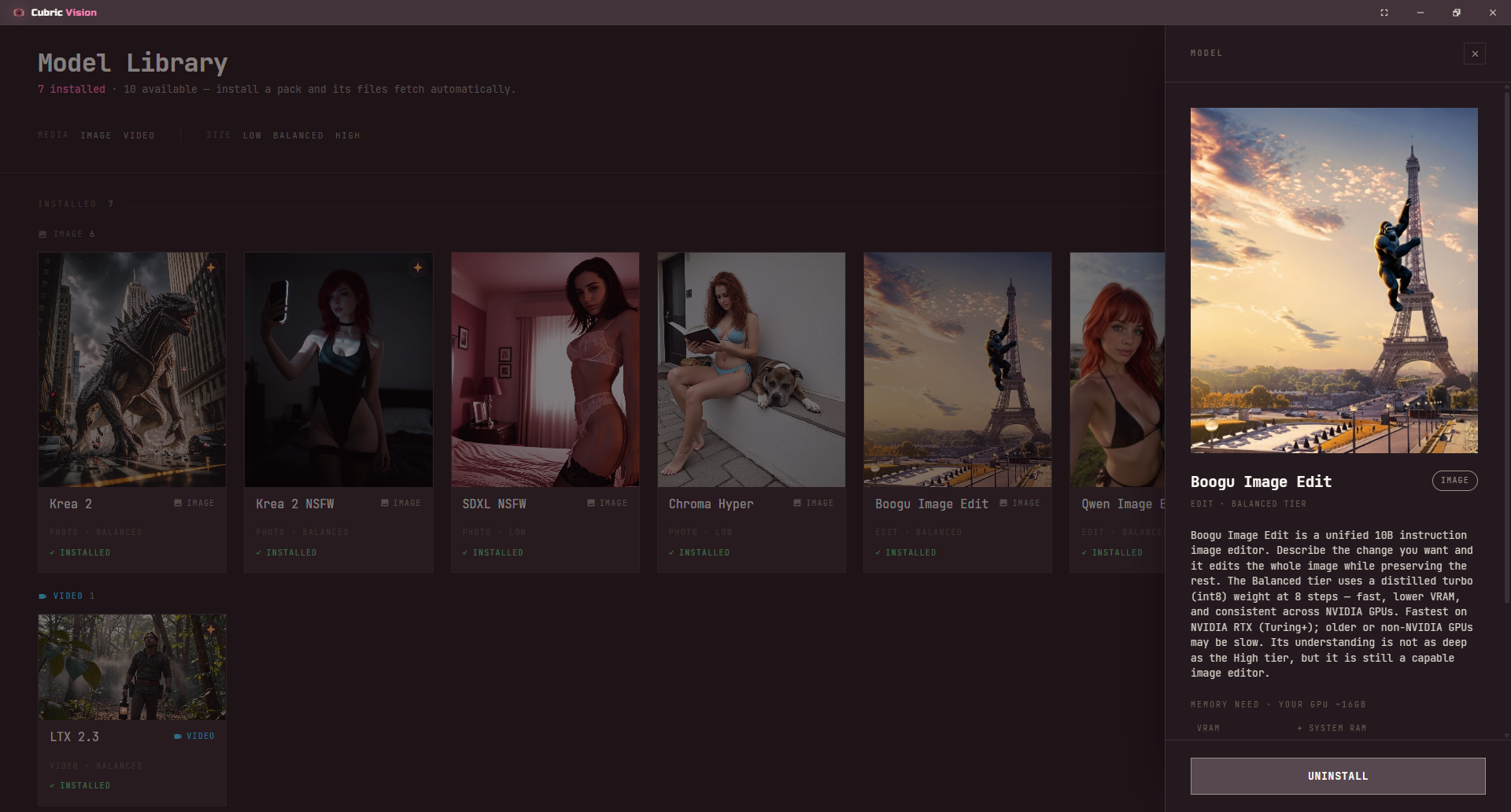
Selecting a card opens a detail panel with the model's preview, description, a memory-need readout for your GPU, and its operations. Video models play fullscreen previews.
Size tiers and memory
Each model carries a size tier — Low, Balanced, or High — shown as a badge. Hover the tier to see a VRAM and system-RAM table with your own GPU row highlighted, so you can tell before installing whether a model fits your machine. Some models ship the same base at more than one tier as separate cards. Turn on the Fits my GPU filter in the Library's header to hide anything that would not.
Installing models
Installing several models at once queues them one at a time. Each waiting model shows a cancellable Queued state and starts on its own when the one ahead finishes. An interrupted download — a dropped connection or quitting mid-install — resumes from what it already had rather than restarting.
A model can show as partially installed when it shares required files with another installed model. It reads as 98% ON DISK beside the Install and Installed labels, rather than as a filling bar — a moving bar in the Model Library means one thing only: something is downloading this second. Installing it later only downloads what is missing, and Cubric Studio enables each operation once the files that operation needs are present.
Most model files have a second download route. If the usual host is blocked — an ISP filter, a school or office network, antivirus web protection — the download retries the same file from Hugging Face automatically and keeps whatever is already on disk. A handful of files still have a single route: the three small preview decoders and a few of the largest model files, served straight from the host that publishes them. If both routes fail you get an explanation rather than a bare error code.
A stall no longer throws the download away: a router blip on a 25GB model retries on its own and picks up where it left off. It still stops promptly and tells you what to do when the network is genuinely blocking the connection.
Uninstalling
Uninstalling a model keeps files another installed model still needs. Since 1.4 it also clears out weights that no installed model needs any more — files that used to be left behind owned by nothing, invisible in the app because a model you do not have installed offers no Uninstall button. The confirmation now counts only files that were actually there and actually deleted.
This works on a cloud Pod's storage volume too, where it matters more: that volume outlives the Pod and you pay for its size every month.
Models install as one unit
A model installs as a single download. Every operation listed for it in the Model reference table below comes with that one install: there is no per-operation toggle to shrink the download. Once the install finishes, every operation the model ships with is ready to use in the Prompt Box.
Operations by media type
Which operations a model exposes depends on the model. These are the common ones.
Image models
Image operations are documented in Image Tools:
- Text to Image (T2I). Base generation from a prompt.
- Image to Image (I2I). Reshape an input image; the Denoise slider controls how much it changes.
- Control. Copy the structure of a reference image and paint your prompt into that shape. See Control below.
- Edit. Instruction editing — change only what you describe. Mask first for a localised edit at full resolution.
- Detail. Faces, hands, and masked region refinement.
- Inpaint. Regenerate a masked area from a prompt, or erase what is under the mask by naming it. See Inpaint.
- Upscale. Raise resolution, with each model's native upscale.
Video models
Video operations are documented in Video Tools:
- Text to Video (T2V). Base generation from a prompt. On LTX 2.3, MiniMax H3, and Wan 2.2 5B.
- Image to Video (I2V). Animate a still image — as the first frame, the last frame, or both. See Prompt Box.
- Reference to Video. MiniMax H3 Reference, and the Seedance 2.0 and Wan 3.0 cloud models: generate from references rather than from a frame.
- Audio. LTX 2.3 and both MiniMax H3 models generate a synchronized audio track with the picture.
Audio models
Audio operations are documented in Audio:
- Sound & Music. Stable Audio 3: music, a single instrument, a sound effect or a one-shot hit, at exactly the length you ask for.
- Text to Speech. Chatterbox: your line, spoken in the voice you give it, in one of 23 languages.
Model reference
The version tag on a model is the release it shipped in. Size is the model's tier badge in the Library.
| Model | Kind | Size | Operations |
|---|---|---|---|
| FLUX.2 Klein 4B (1.3) | Photo | Low | T2I, I2I, Control, Edit, Inpaint, Detail, Upscale |
| FLUX.2 Klein 9B (1.5) | Photo | Balanced | T2I, I2I, Control, Edit, Inpaint, Detail, Upscale |
| SDXL Realistic | Photo | Low | T2I, I2I, Control, Inpaint, Detail, Upscale |
| SDXL NSFW | Photo | Low | T2I, I2I, Control, Inpaint, Detail, Upscale |
| ILL Anime Beauty | Anime | Low | T2I, I2I, Control, Inpaint, Detail, Upscale |
| ILL Anime | Anime | Low | T2I, I2I, Control, Inpaint, Detail, Upscale |
| PONY Mix | Stylized | Low | T2I, I2I, Control, Inpaint, Detail, Upscale |
| Chroma Flash (1.1) | Photo (NSFW) | Balanced | T2I, I2I, Control, Detail, Upscale |
| Chroma Hyper (1.1) | Photo (NSFW) | Low | T2I, I2I, Control, Detail, Upscale |
| Krea 2 (1.1) | Photo | Balanced | T2I, I2I, Control, Edit, Inpaint, Detail, Upscale |
| Krea 2 NSFW (1.1) | Photo (NSFW) | Balanced | T2I, I2I, Control, Edit, Inpaint, Detail, Upscale |
| Qwen Image Edit (1.1) | Edit | Balanced | Edit (up to 3 references), Control |
| Boogu Image Edit (1.1) | Edit | High & Balanced | Edit |
| NVIDIA PiD Upscaler (1.1) | Upscale | Low | Generative 4x upscale |
| Wan 2.2 Smooth | Video | Balanced | I2V |
| Wan 2.2 5B (1.1) | Video | Low | T2V, I2V |
| LTX 2.3 (1.1) | Video (with sound) | High & Balanced | T2V, I2V |
| MiniMax H3 (1.4) | Video (with sound) | Balanced | T2V, I2V |
| MiniMax H3 Reference (1.4) | Video (with sound) | Balanced | Reference to Video |
| Stable Audio 3 (2.0) | Audio | Balanced | Sound & Music |
| Chatterbox (2.0) | Speech | Low | Text to Speech |
Since 1.5, Inpaint is on both FLUX.2 Klein cards, both Krea 2 cards, and the SDXL, ILL Anime, and PONY models. Chroma, Qwen Image Edit, Boogu Image Edit, and NVIDIA PiD Upscaler do not offer it. Only Krea 2, FLUX.2 Klein, Qwen Image Edit, and Boogu Image Edit take a mask on Edit.
Paid cloud models
The Library also has a DeepInfra models section: models that run at DeepInfra on your own key instead of on your machine. Nothing to install, no GPU needed, and DeepInfra bills you directly for what you use. Image: Seedream 4, Seedream 4.5, Seedream 5.0 Pro, FLUX 2 Dev, FLUX 2 Pro, FLUX 2 Max, FLUX.2 Klein 9B (Cloud), Nano Banana 2 Lite, Nano Banana 2, and Nano Banana Pro. Video: Seedance 1.5 Pro, Seedance 2.0, Wan 3.0, Veo 3.1 Fast, and Veo 3.1. See Cloud models for pricing, setup, and what each one is good at.
Control — copy the structure of an image
Control takes a picture, reads the structure out of it, and paints your prompt into that shape. The input is a skeleton: none of its colour, style, or identity comes across.
A Control Type picker chooses which structure:
- Depth. Volume and framing — the result sits at the same distance in the same space.
- Pose. Body skeleton only — limbs, stance, head angle. Build and framing stay free.
- Scribble. Loose outlines — the shapes are kept, the detail inside them is not.
- Canny. Hard edges — the most literal; the result traces the original closely.
A model only offers the types its graph can actually run, and the picker is hidden when there is only one:
| Model | Control types |
|---|---|
| SDXL Realistic, SDXL NSFW, ILL Anime Beauty, ILL Anime, PONY Mix | Depth, Pose, Scribble, Canny |
| Qwen Image Edit | Depth, Pose |
| Krea 2, Krea 2 NSFW, FLUX.2 Klein 4B, FLUX.2 Klein 9B, Chroma Flash, Chroma Hyper | Depth only — no picker |
Describe the subject and the scene, not the pose. Words spent on what the control map already gives you are words not spent on the subject.
Control replaces the old Depth operation everywhere. Krea 2 and FLUX.2 Klein still do depth — they do it under the new name, with no picker to choose from.
Control Strength
Krea 2, FLUX.2 Klein, Chroma, and the SDXL family carry a Control Strength slider for how hard the control map pulls. At full strength the composition is locked to the source; easing it off lets the model reinterpret the framing while keeping the pose. Qwen Image Edit has no strength control.
Models that ask you to accept a licence
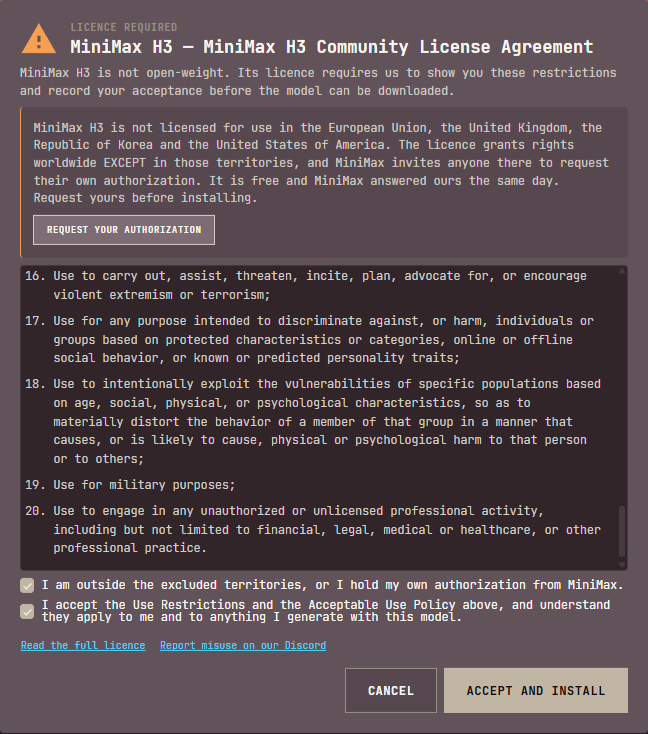
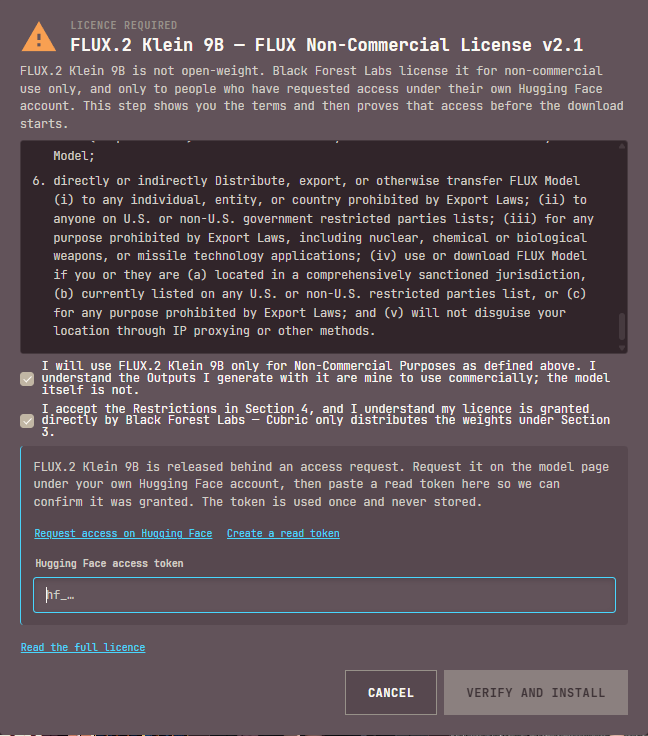
Some models come with a licence their makers require you to accept before you download them. Their card in the Library reads Licence required instead of Install, and the model's panel names the licence with a link to the full text, before and after you install it. Most models have no such step.
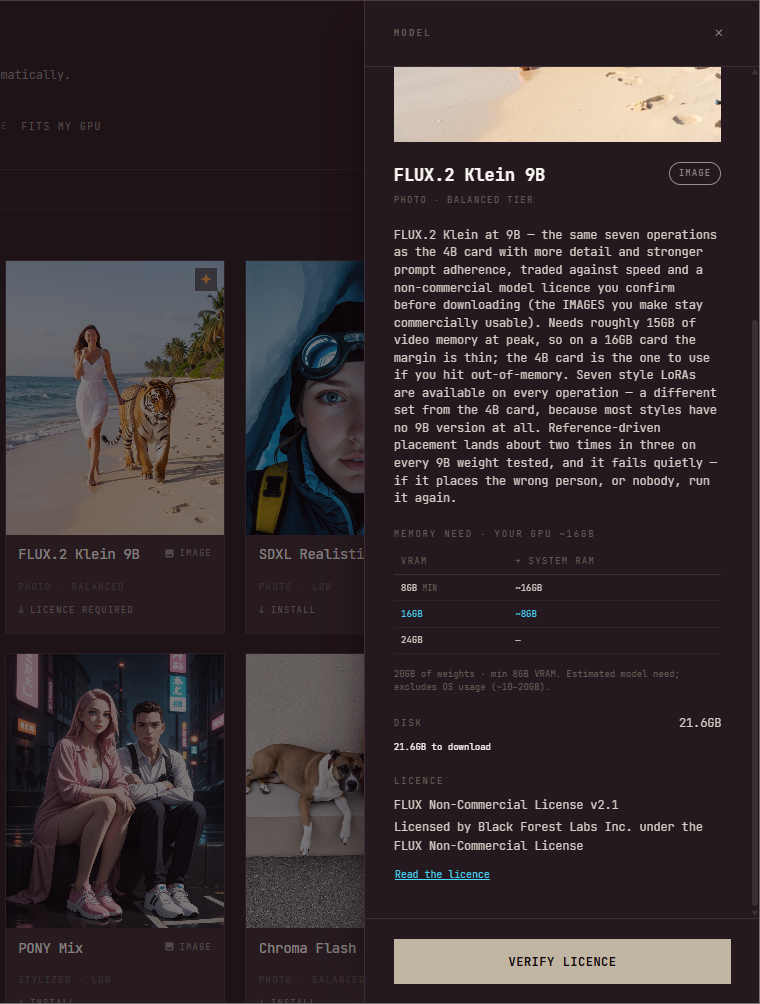
Press the panel's button and the licence opens. Read the restrictions, tick the boxes to confirm you accept them, and press the install button at the bottom. Some licences ask for one more thing first:
- Where you are. A licence may exclude some countries or regions. The dialog says which, and links to the model maker's page where you can request your own authorization. Tick that box only if you are outside them, or have that authorization.
- An access request. Some makers only grant a model to people who asked for it on its Hugging Face page. The dialog links to that page and to creating a Hugging Face read token. Once your access is granted, paste the token in, and Cubric Studio checks the grant before the download starts. The token is used for that one check and never stored. If access has not come through yet, it says so, and you can try again later.
Read what the licence says about the things you make, too: a model can be licensed for non-commercial use only while its outputs are still yours to use commercially.
FLUX.2 Klein 4B and 9B
FLUX.2 Klein comes as two cards with the same full set of operations: generate from text, reshape an existing image, copy the structure of a reference with Control, edit with up to three reference images, inpaint, clean up detail, and upscale. Both carry their size in the name, so it is clear which one you are picking and which styles belong to it. Each card's styles are available on every one of those operations, not just the generative ones.
Since 2.0, Inpaint on both cards samples with your mask as a real constraint and can see the picture underneath it, so the result sits in the light, style and perspective of everything around it. Name what you want gone, "remove the tattoo" rather than an empty prompt, which now does nothing. Both cards also generate with fewer errors, like extra limbs, than before.
- FLUX.2 Klein 4B (1.3). The fastest image model in Cubric Studio, with eight styles. Quality is modest next to Krea 2: reach for it when you want an answer now, and for Krea 2 when you want the finished piece. It is a Low tier model, so it runs where the larger models will not. Its 72 MB outpaint LoRA is gone as of 2.0; Cubric Studio clears it off your disk if you had it installed.
- FLUX.2 Klein 9B (1.5). The same operations with more detail and stronger prompt adherence, traded against speed. It is a Balanced tier model that needs roughly 15GB of video memory at peak, so the margin on a 16GB card is thin; if you run out of memory, use the 4B card. It has seven styles of its own, a different set from the 4B's — see Prompt Box. Placing a person from a reference image lands about two times in three, and it fails quietly: if it places the wrong person, or nobody, run it again. Since 2.0 it also asks you to accept a licence before it downloads.
Control takes a second image
Klein's Control operation accepts more than one image, and uses both when you give it two:
- Image 1 supplies the pose — the structure being copied.
- Image 2 supplies who is in it — the subject placed into that pose.
So you can put your own character into a pose you found without describing either of them. Krea 2 does the same with two images; SDXL and Chroma take exactly one. Control and Edit take their output shape from the input image, so the ratio picker is hidden on those two operations.
Depth is the only control type on both Klein cards, so neither shows a Control Type picker. Klein 4B also bites softer than Krea 2 on Control Strength, so it wants a lower setting for the same effect.
What changed for existing models in 2.0
- Klein inpaints properly now. Both the 4B and 9B cards sample with your mask as a real constraint and can see the picture underneath it, so the result sits in the light, style and perspective of everything around it. Name what you want gone. An empty prompt no longer erases anything. See Inpaint.
- FLUX.2 Klein 4B is one weight lighter. Its 72 MB outpaint LoRA is gone, and Cubric Studio clears it off your disk if you had it.
- The FLUX.2 Klein models generate with fewer errors, like extra limbs, and better overall quality.
- FLUX.2 Klein 9B now asks you to accept a licence before it downloads, like MiniMax H3. See Models that ask you to accept a licence.
- Krea 2 Inpaint is a lot better, and slower. It now reads your whole picture as a reference, so what comes back sits in the scene properly. Krea 2 and Krea 2 NSFW.
- Krea 2 Image to Image now works on your whole picture, not a square cut from the middle. Krea 2 and Krea 2 NSFW.
- MiniMax H3's Turbo mode is faster and cleaner. The full-quality 25-step mode is unchanged.
- MiniMax H3 Reference has its own Turbo weight now, tuned specifically for reference-driven generations.
- NVIDIA PiD Upscaler is staying. Its Library tile carries no deprecation warning.
- Models install as a single unit now. See Models install as one unit.
- The Model Library filters by whether a model fits your GPU, alongside media and size tier.
Paid cloud models are new in 2.0 too. See Paid cloud models above.
New in 1.5
- FLUX.2 Klein 9B. A larger, stronger sibling of the Klein already in the app, with its own seven styles. The original card is now named FLUX.2 Klein 4B. See FLUX.2 Klein 4B and 9B.
- Inpaint on seven more models. SDXL Realistic, SDXL NSFW, ILL Anime Beauty, ILL Anime, PONY Mix, Krea 2, and Krea 2 NSFW gain Inpaint, which used to be FLUX.2 Klein's alone. On Krea 2 the Turbo toggle applies here too, so a quick fix stays quick.
- Sharper MiniMax H3. H3 now renders every quality level in two stages: a first pass at half the size, then an upscaling stage that rebuilds detail as it doubles it. Every size used to be sampled straight out at full size, and the difference shows most at 2K and 4K. Turbo also moves to a stronger fast model.
- MiniMax H3 quality names moved down a step. H3's native size, which was High, is now Medium; High is a new, larger size; and the old smallest size is gone. Very High, 2K, and 4K are unchanged. A project saved on an earlier version keeps its quality setting by name, so it can reopen at a different size — check the quality before you run it.
New models in 1.4
- MiniMax H3. A video model that generates the picture and synchronized stereo audio in a single pass, so the sound belongs to the scene because it was made with it. Text to Video and Image to Video, with first-frame, last-frame, or both. Resolutions run up to 4K, but the sizes above its native canvas are final-render territory rather than somewhere to iterate: twice the pixels costs a little over three times the time. It is a big model — 50GB of weights, a slow generator, and a 12GB graphics card at the minimum — and it asks you to accept its licence before it downloads.
- MiniMax H3 Reference. The same character, place, or voice in every clip, with no training. It works from references rather than a first frame: give it a face, a character sheet, a location, a clip whose camera move you want, or a voice, and it generates a new video that keeps them. Up to nine images, three videos, and three audio clips at once. Nothing you give it appears in the output as-is — these are references, not frames, so the model is free to put your character somewhere new. See Prompt Box for how to point at a specific one. It installs alongside MiniMax H3 and shares its text encoder and both VAEs, so it is one extra model file rather than a second full model.
If what you want is one clip, reach for MiniMax H3. If you want the same character, place, or voice across several, reach for MiniMax H3 Reference.
What changed for existing models in 1.4
- Wan 2.2 Smooth is image-to-video only. Its Text to Video operation is retired — LTX 2.3 does that job better, and Wan's text-to-video weights were a 27GB download that served nothing else. Image to Video is untouched: same model, same speed, same results. Text to video lives on LTX 2.3, MiniMax H3, and Wan 2.2 5B.
- LTX 2.3's Balanced tier is one file for every card. The two GPU-specific options (RTX 50 Series / RTX 40 & Older) are gone, replaced by a single 20GB file with better detail and sound. If you already have LTX Balanced installed, the new file downloads once and the old one is cleaned up. Text to Video and Image to Video also share one workflow, so which one you get follows from whether you supply a frame.
- Chroma gains Control and four styles. Both Chroma models can now follow the depth and composition of an input image, and a style rack — B&W Sketch, Lenovo, Brushwork, and Anime — is available on every operation, Detail and Upscale included.
- Krea 2 and Chroma keep your source dimensions. On Krea 2, every operation except Text to Image and Image to Image follows the input image's shape instead of the ratio picker. On Chroma it applies to Control, Detail, and Upscale.
- Krea 2 and Chroma styles reach Detail and Upscale. Every operation on these models runs one workflow, so the style you picked stays applied through the finishing passes instead of being dropped by them.
- Krea 2 Control takes a second image. Image 1 supplies the pose and composition, image 2 supplies who is posed into it — the same pairing FLUX.2 Klein offers.
- The Qwen Image Edit tier is one setting for the model. Quality / Turbo / Hyper used to be remembered per operation, so switching between Edit and Control changed the tier underneath you.
New models in 1.1
- Krea 2 and Krea 2 NSFW. A high-quality image model with a distinctive photographic look. Ten built-in styles picked from a strip of preview cards (plus a None card), an in-prompt enhancer, 1K/2K output, a depth-guided Control operation, and an Edit operation that changes only what you ask. One install covers two speeds via a Turbo toggle. Since 1.3 the quality speed produces far more natural images — lighting reads like a photograph, skin and fabric hold texture, backgrounds resolve instead of going soft, and it sticks more literally to your prompt rather than adding flattering details you never asked for. The fast setting is unchanged. Krea 2 NSFW is the uncensored Lustify-Krea variant (int8 weights, fastest on NVIDIA RTX 20-series and newer). See Krea 2 identity edit for how to order reference images.
- Qwen Image Edit. An instruction image editor that takes up to three reference images at once and excels at combining them — refer to them by number ("place the person from image 2 into the scene from image 1"). Seven built-in styles and a per-run Quality / Turbo / Hyper speed tier. Output keeps the source image's dimensions.
- Boogu Image Edit. A unified 10B instruction image editor (Apache-2.0). Describe a change and it edits the whole image while preserving the rest, in two separately installed tiers: High (best quality, most VRAM) and Balanced (fast int8 turbo, lower VRAM).
- Chroma Flash and Chroma Hyper. Flux-family photographic image models with exceptionally realistic skin (NSFW). Flash is the higher-detail tier with matching upscale and detail passes; Hyper is a lighter, low-VRAM sibling (a smaller download) for the same family.
- LTX 2.3. A video model that generates with synchronized sound — produce an audio track or drive it from your own clip. Text-to-video and image-to-video with first/last-frame guidance, up to 2K and 4K. It is a high-quality model, not a fast one: it generates more slowly than Wan.
- NVIDIA PiD Upscaler. A generative 4x image upscaler that adds real detail. Pick a look (Flux, SD3, Qwen, or SDXL), an output size (1K/2K/4K), and how much new detail to invent, at any aspect ratio. Reuse the prompt that made the image, or describe it, for the best result.
- Wan 2.2 5B. A fast low-tier video model (text-to-video and image-to-video) in one compact 720p download, with a 4-step Turbo mode.
Krea 2 identity edit
The Krea 2 and Krea 2 NSFW Edit operation can take two reference images. How you order them changes the result, and there is one case the model cannot do in a single pass.
Rebuilt in 1.3
The edit path now runs on the newer Krea 2 edit engine, and your reference image is fitted to the shape of the picture you are making. Asking for a new setting gives you a new setting instead of quietly keeping pieces of the original background, restaging someone into a new pose, outfit, or scene lands closer to what you asked for, likeness is better, and a reference whose shape does not match your output no longer comes out stretched or soft.
The more of your reference frame the character fills, the better the likeness. Crop your reference to the person before using it.
Reference order: scene first, subject second
The two reference images are not interchangeable:
- Image 1 is the scene.
- Image 2 is the subject — the person whose identity you want to keep.
This matches the order the identity-edit model was trained on. Putting the person first and describing the scene in prompt text is the off-order configuration: it silently degrades the result — there is no error, just worse output. The reference chips in the Prompt Box are numbered and can be dragged, so set the scene as image 1 and the subject as image 2.
Two people in one edit
Putting two people through a single identity edit loses facial identity for both. This is a documented limitation of the identity-edit model, not a Cubric issue — single-reference edits work well on the same setup.
Workaround: chain single-reference inserts. Place person A, then run a second Edit pass that adds person B from their reference. Each pass stays in the one-scene, one-subject order that works. The cost is two full generations per result.
Caveat: a second edit pass can alter regions outside the intended edit and shift the color grade, so person A's face may drift during pass 2. The manual chain is a workaround, not a guarantee.