
Flows
Use the Flow Library: whole jobs such as Draw It In, Outpaint, Extend Video, Voice Changer, Song, and Stems that ask for what they need and install their own models.
What is a flow?
The Prompt Box runs one operation at a time: you pick a model, an operation such as edit or upscale, and set the controls yourself. A flow is different. It is a whole job packaged into one place: it walks you through only the inputs that job needs, a step at a time, brings along whatever model or weights it needs (installing them for you if you do not already have them), and hands back a finished result with nothing left to assemble.
Draw It In, for example, is a single flow that takes your photo, a rough drawing of what to add, and a short caption, and returns the finished composite. Doing the same thing from the Prompt Box would mean picking an edit model, masking, and writing the whole instruction yourself. A flow knows its own recipe; you only supply what it cannot guess.
Flows appear in the Flow Library, and running one opens the Flow overlay, a step carousel over your current project. Cubric Studio ships 11 built-in flows. Flows made outside the app, such as Head Swap and DramaBox, are packages you add yourself: see Third-party Flows below.
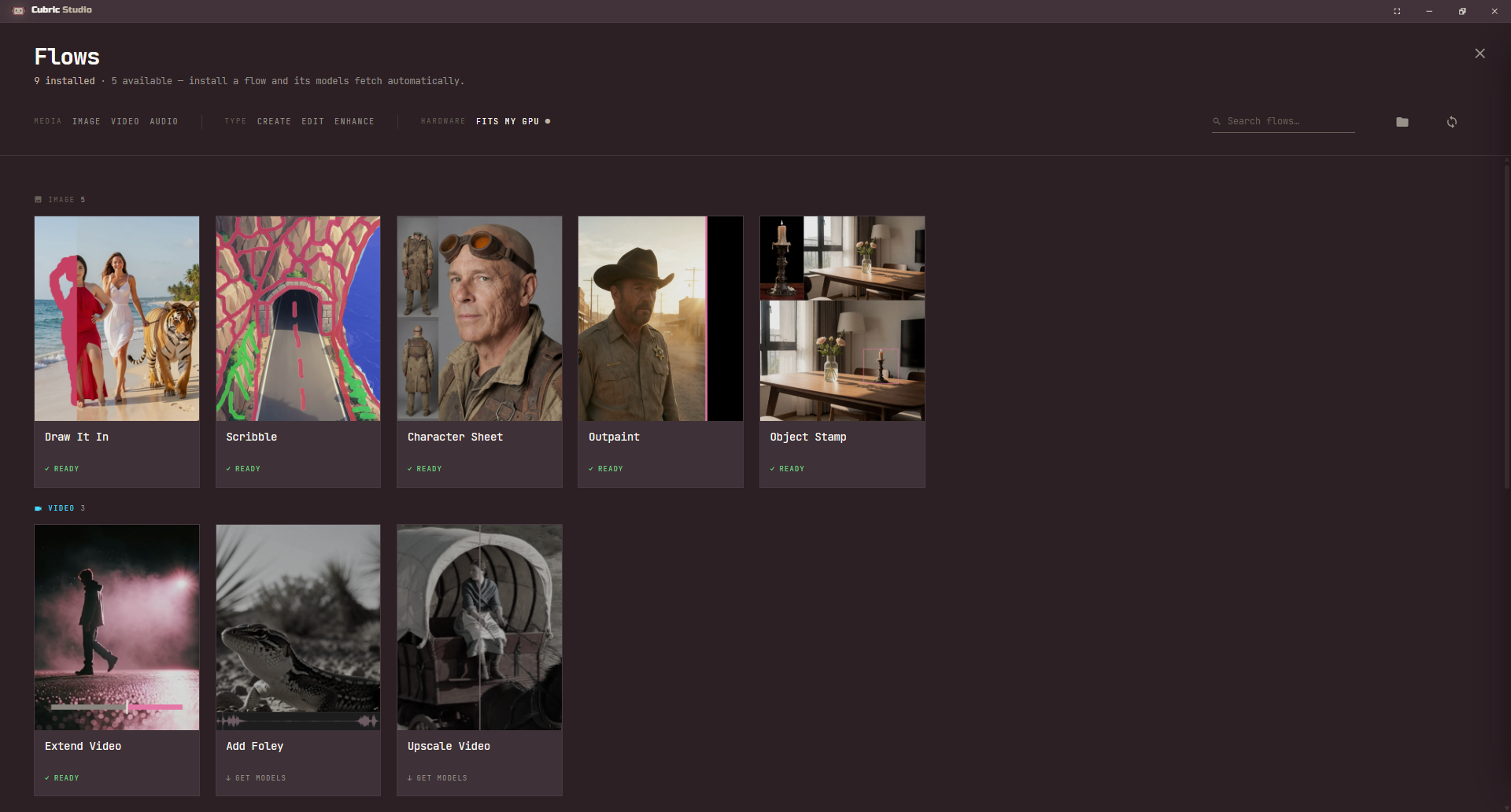
The Flow Library
Opening the Flow Library
There are three ways in:
- The Flows button at the top of the Gallery, between Agent and Record.
- The Flows link in the Landing page's top navigation.
- In the Gallery or History, hold Tab to open the radial menu, then pick Flows and let go.
You can browse and install flows from the Landing page, but running one needs an open project: outside a project's Gallery the Open button in a flow's detail panel is disabled, and picking a Ready tile shows a reminder instead of opening it.
Filters, search and count
The header above the grid shows how many of all your flows are already installed, and reminds you that installing a flow fetches its own models automatically. Three filters narrow the grid: Media (Image, Video, Audio), Type (Create, Edit, Enhance), and Fits my GPU, which hides any flow whose model would not fit your card. A search box matches a flow's title and description. Filters and search only narrow what you see; the count above them always covers every flow you have.
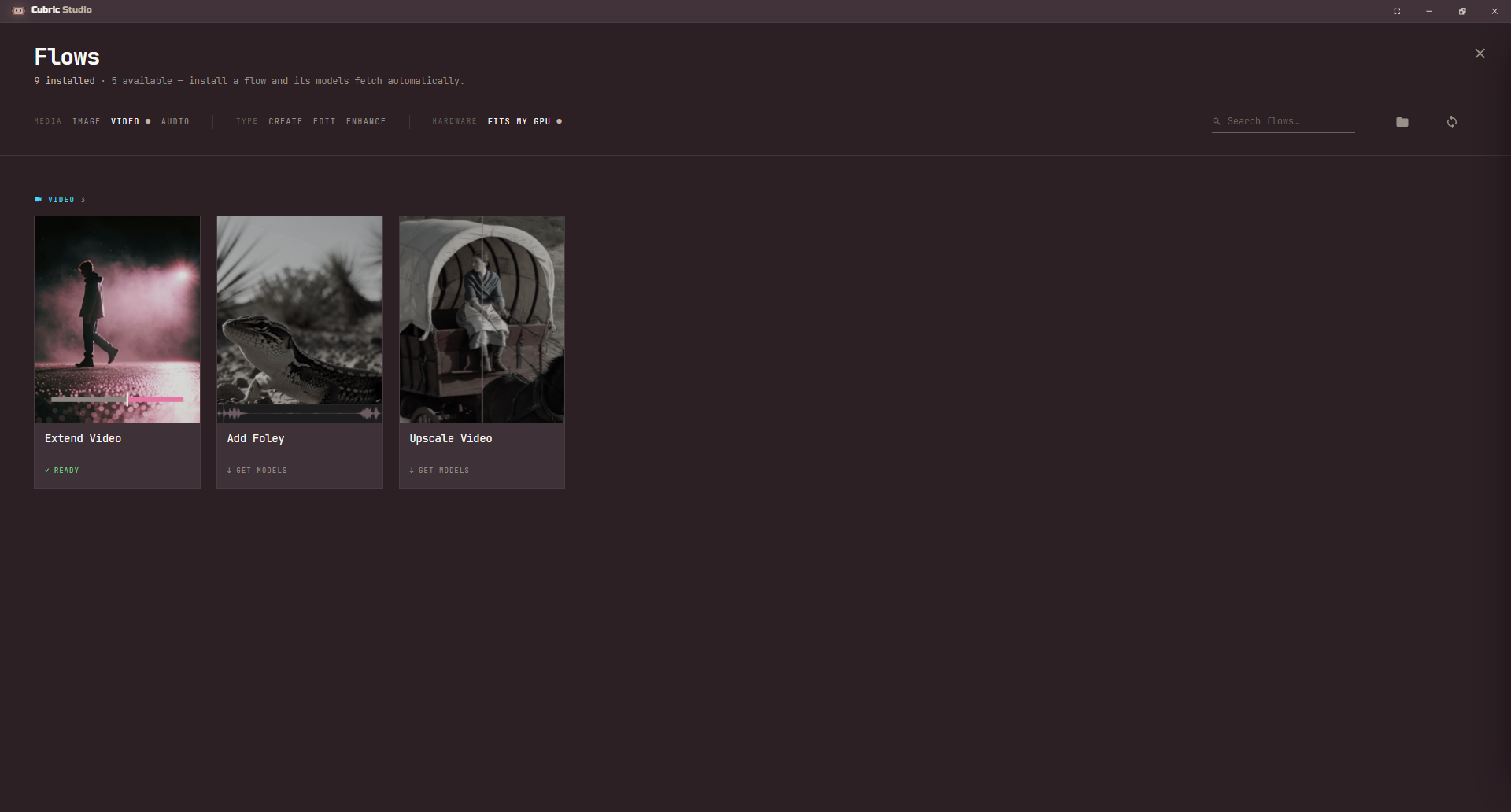
Tile states
Each tile carries a badge:
- Ready (every model and extra weight the flow needs is already installed). Click the tile (while a project is open) to jump straight into the flow; the detail panel is skipped.
- Get models (something is missing). Clicking the tile opens a detail panel listing what is needed and an Install button.
- Licence required: installing this flow's model involves an extra step first, such as a Hugging Face access request or acknowledging a territory restriction, before the download can start.
- Unavailable: a flow package that failed validation. It is listed but cannot run; the reason is shown in its detail panel.
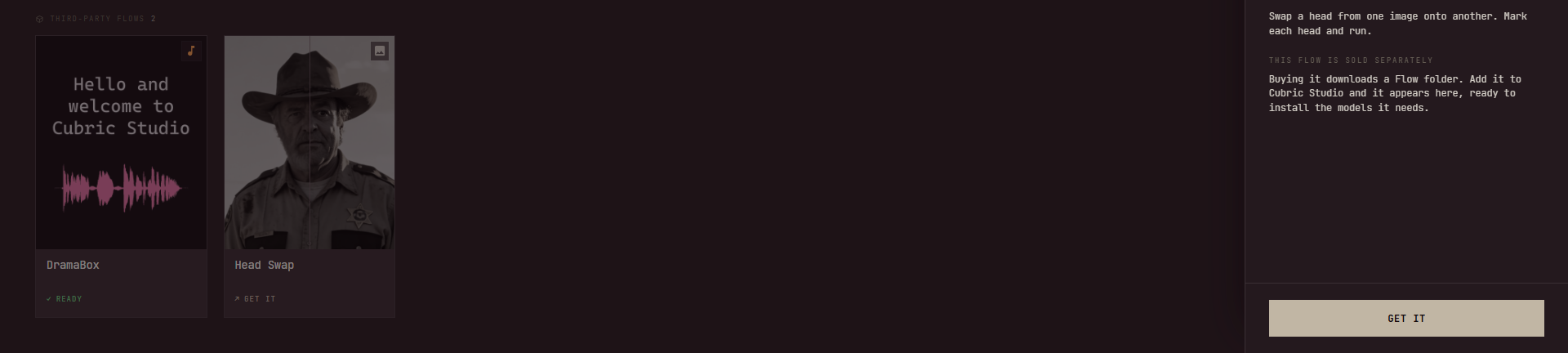
- Get it: a paid flow you have not bought yet. See Third-party Flows.
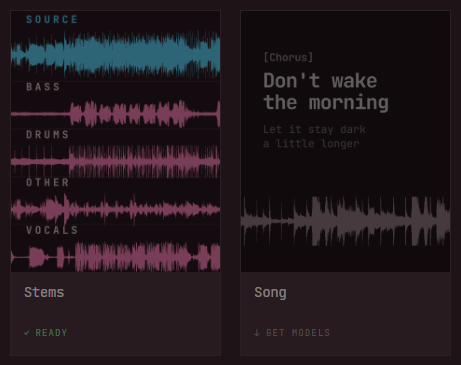
Installing a flow's models
Open a tile that is not yet Ready to see its detail panel: a description, the required model or models, and any extra weights the flow needs on top of them. If a flow lets you pick between more than one model for a role, such as Extend Video's choice between LTX 2.3 and MiniMax H3, a dropdown lets you pick before you install; the recommended one is marked. Press Install models (or Verify licence / Review licence when a licence step is outstanding) and everything missing downloads together, with one combined progress bar and a single Cancel for the whole job.
If you already have every model a flow needs installed, its tile shows Ready immediately, at no extra cost. A few flows also carry a small amount of their own extra weights (a LoRA, a node pack) that no model install brings along, shown as one "Extra dependencies" line in the detail panel; that line still has to download once even if you already own the flow's model. A flow whose whole footprint is its own weights, such as Song or Stems, shows an Uninstall button in its detail panel once installed, to free that disk again.
Rendering on a cloud model
Scribble and Draw It In can render on a paid cloud model instead of your own GPU: FLUX.2 Klein 9B (Cloud) on both, and Nano Banana 2 Lite on Scribble too. Once a DeepInfra key is saved, they join the flow's model choice with the price of one run beside the name, and a run saves what it cost on its card. Only the render goes to the cloud; the rest of the flow still runs on your engine, local or on a Pod. A Klein you have installed is always used unless you pick the cloud one; with no local Klein installed, the flow uses the cloud model on its own. A cloud pick runs without LoRAs. The in-app agent asks you before each paid run.
Running a flow
Every flow is the same shape: a step carousel with an implicit first step, any steps the flow itself declares, and an implicit last step.
- Inputs. Drop in whatever media the flow asks for (a photo, a clip, a track) beside a short explainer of what the flow does. Or click a slot to open the same Choose media picker the Prompt Box uses: your project's cards, plus Upload file for a file from disk, and Record on an audio slot. Click a filled slot to swap what is in it.
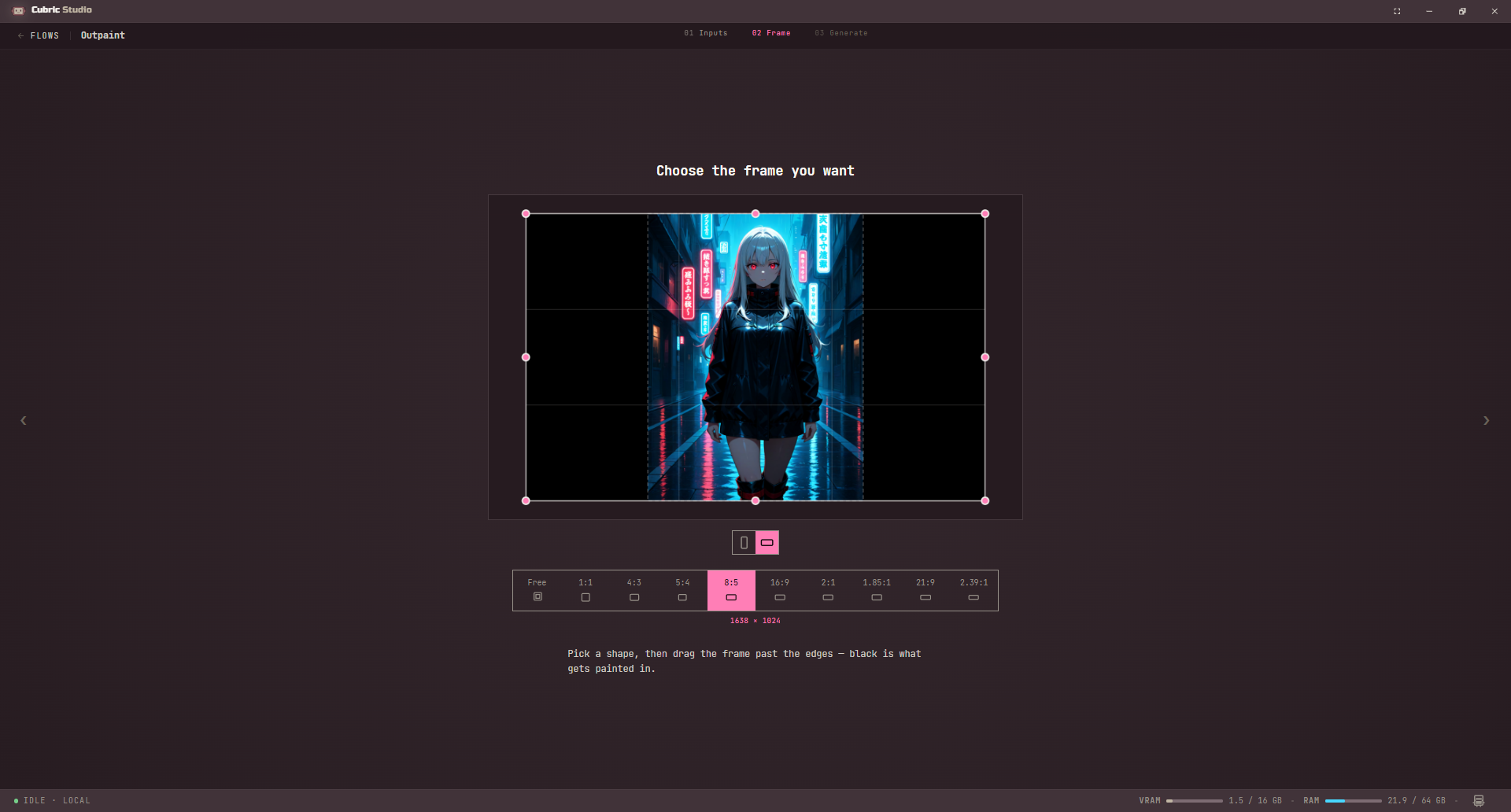
- The flow's own steps, if it has any. One focused screen at a time: draw on a photo, crop a frame, box an area, preview a clip while you write what happens next. Each step has its own hint text and, where it needs one, a single row of controls under the canvas.
- Generate. The flow's prompts, sliders and toggles for this run, with a Cue button (it reads Cue x2 and so on when jobs are already queued). Press it, or press Ctrl+Enter, the same shortcut the Prompt Box uses. A flow has no Loop button.
A flow with no middle steps of its own is just these two: Inputs, then Generate.
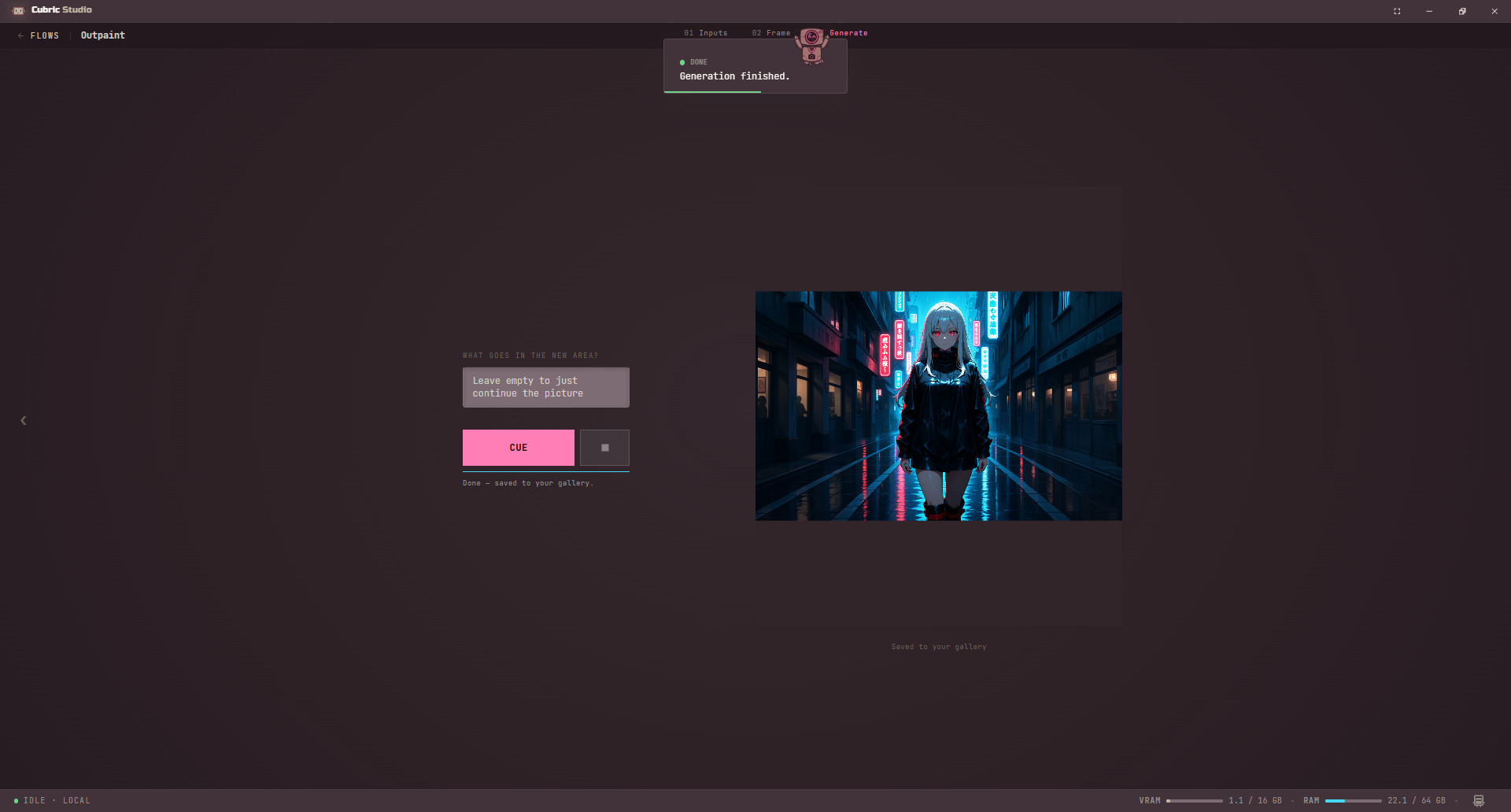
A finished result saves itself: there is no separate Apply step. It lands as a card (or, for a flow like Stems, several cards) in the current project's Gallery, through the same in-app queue every other generation joins, and it also stays visible in the flow's own result pane while the flow is still open. A flow that improves media you supplied, such as Upscale Video, shows the result against your source on a draggable before/after bar instead of a plain picture.
A flow-made gallery card carries a Reuse control, the same as any other card. Using it reopens that flow with every input restored, not the Prompt Box. Your inputs and the last result for each flow are also kept for as long as the app stays open: leaving the Flow Library, letting Tab park an open flow behind the Gallery, or closing and reopening the flow all bring you back to exactly where you left off. That memory clears on restart; from then on, Reuse on the saved card is what brings a flow's exact settings back.
Flow reference
All 11 built-in flows, grouped the way the Library groups them.
| Flow | You give it | You get | Model(s) needed |
|---|---|---|---|
| Draw It In | Your photo, a rough drawing on it, a caption, a box around the blend area | The drawn object rendered into the scene, lit and shadowed to match | FLUX.2 Klein 9B, or a cloud model |
| Scribble | A drawing (blank canvas, or one you bring in), a caption | A fully rendered image built from the sketch | FLUX.2 Klein 9B or 4B, or a cloud model |
| Character Sheet | A character description | A 3-panel reference sheet: a large portrait, full body front and back | Krea 2 or Krea 2 NSFW |
| Outpaint | An image, a frame dragged past its edges, an optional prompt | The same picture inside a bigger frame, the new edges filled in | FLUX.2 Klein 9B |
| Object Stamp | A scene photo, an object photo | The object composited into the scene, lit and shadowed to match | FLUX.2 Klein 9B |
| Extend Video | A video clip, a description of what happens next | The clip continued past its last frame, with matching audio | LTX 2.3 (Balanced tier) or MiniMax H3 |
| Add Foley | A video clip, a description of what it should sound like | The same clip with a generated soundtrack across the whole thing | LTX 2.3 (Balanced tier) |
| Upscale Video | A video clip, an optional prompt | The clip at 2x resolution with rebuilt detail, audio untouched | LTX 2.3 (Balanced tier) |
| Voice Changer | A recording of your own performance, a target voice | Your performance, in the target voice | None (installs its own weights) |
| Stems | A track, one you made here or brought in | Bass, drums, vocals and everything else, as separate files (or one combined file) | None (installs its own weights) |
| Song | A brief, a style, lyrics, a cast of voices | A sung track: written and performed for you | None (installs its own weights) |
Image flows
Draw It In paints something you draw directly onto your own photo into the scene, matching the light and casting a shadow. Draw roughly where it goes and how big it is; the flow crops in around your drawing, so there is no minimum size. The caption names what you drew; the drawing supplies its placement and pose. Uses your model's own LoRAs if you have any installed for it.
Scribble renders a drawing from scratch: draw on a blank canvas (pick a size: Square, Portrait, Landscape, Tall or Wide) or bring in a drawing you made elsewhere. Colour matters here: the model reads what you paint, so a blue patch reads as water. Nothing you draw survives into the finished picture. In both drawing steps, here and in Draw It In, Pick beside the colour takes a colour straight off the screen, such as off the photo under your drawing.
Character Sheet takes a text description (an Enhance button rewrites it into a fuller phrase you can edit) and returns a reference sheet built for feeding into a video model: a large 3/4 portrait plus full-body front and back views on a plain grey backdrop. The front body is headless by default, so a video model can only take the face from the portrait; there is a toggle to turn that off. Four style presets (Photoreal, 3D animation, Anime, Cartoon) and a choice of 1K or 2K output (2K takes about twice as long).
Outpaint extends an image past its edges. Choose a frame shape and drag it out over the sides you want filled. FLUX.2 Klein 9B repaints the whole picture into the new frame, so what comes back is about 1 megapixel and your original pixels are redrawn, not pasted back. A frame that adds more than a third of the picture on a side fills in several passes, each building on the one before. The prompt is optional: leave it empty to just continue the picture.
Object Stamp takes an object out of one photo and puts it into another. Two steps: clean the object up (remove its background, erase what is left behind), then place it: drag, scale and rotate it in Auto mode, or draw a box and describe the object and angle in Manual mode.
Video flows
Extend Video continues a clip past its last frame: describe what happens next and the model generates the new seconds, with matching audio, onto the end (1 to 10 seconds, default 4). Some controls only show up for one of the two models: MiniMax H3 adds a choice of how much of the clip it sees before continuing (1.6 to 5.9 seconds) and a Turbo toggle, while LTX 2.3 is the only one of the two with an Avoid (negative prompt) box.
Add Foley gives a silent (or any) clip a soundtrack: describe what it should sound like and LTX 2.3 generates matching foley across the whole clip. The picture itself comes back untouched. There is no duration, resolution or seed control: it always scores the whole clip.
Upscale Video doubles a clip's resolution and rebuilds its detail with LTX 2.3; the audio passes through untouched and the result compares against your source. The prompt is optional and only does anything once you write one. Cost grows with clip length, so try a short clip first: a long one can exhaust the GPU.
Audio flows
Voice Changer records your own performance and keeps every bit of its delivery (timing, breath, even a laugh or a cough) while swapping the voice itself for a target you pick, either your own recording or one from the shipped voice library. Pick a target that sounds nothing like your own voice: similar voices make the conversion barely audible.
Stems pulls a track apart into bass, drums, vocals and everything else, as up to four separate files (each its own gallery card) or combined into one, ready for a DAW. Turning a stem off saves no GPU time, since separation always runs in full (it only means fewer files to save), and at least one stem has to stay on. Output is always FLAC.
Song writes and sings a whole track: describe it, pick one of 18 style presets (or write your own), write lyrics with section tags such as [Verse] and [Chorus] (type @ in the lyrics box to insert one), and cast the voices that sing it (Any, Female, Male, Child, Duet, Choir) with notes on who sings where. A tempo control (0 lets the model choose, up to 250 BPM) and a length control that is a ceiling, not a target: real songs have measured about 33 to 90 seconds and simply end there, the slider (30 to 360s, default 300s) only cuts off a track that runs long.
Looking for Text to Speech or Sound & Music? They are not Flows: they run from the Prompt Box, on the Chatterbox and Stable Audio 3 models.
Third-party Flows
The 11 built-in flows are part of Cubric Studio. Everything in the Library's Third-party Flows section is a Flow package instead: a flow made outside the app, as a folder holding a manifest, a ComfyUI graph and preview pictures, with no code in it. Anyone can make one; the format is public in the Cubric Studio repository.
Head Swap and DramaBox are the first two. They are made by Mad Pony Interactive, the studio behind Cubric Studio, and sold separately rather than shipping with the app. Until you own one, it shows up in the Third-party Flows section with a Get it badge. Clicking its tile opens a panel saying the Flow is sold separately, and its Get it button opens the product's Gumroad page in your browser.
After buying, download the Flow's folder or its .zip and drop it onto the Flow Library window. Cubric Studio validates it and lists it next to the built-in flows right away, no restart needed; from there it installs its own models the same way a built-in flow does. If a package with the same id is already installed, you are asked before it is replaced.
The folder icon in the Library's header opens the folder these packages live in directly, and the refresh icon re-scans it, which is useful if you add or remove a package folder by hand instead of dropping it.
Share or sell your own Flow
Community Flows are listed in the public Cubric Flows Registry. Submit yours there as a pull request, and Mad Pony Interactive reviews it before it is listed. A free Flow is hosted in the registry itself. A paid one is listed there and sold from your own store, and its entry carries a fingerprint (SHA-256) of the exact zip that was reviewed, so a buyer can check that what they downloaded is the same file.
The Flow Library does not read the registry: to use a Flow listed there, download its package and drop it on the Flow Library like any other.