Queue
Cue is Cubric Studio's in-app generation queue. It holds the jobs you have not reached yet, so you can keep composing the next one while they wait.
Open Cue
Press Q from the Gallery to open the Cue side panel. Press Q again, press Escape, or use the close control to dismiss it.
The panel is for reviewing queued work. Cue itself is still created from the Prompt Box: set the prompt, model, operation, media inputs, and controls, then press Cue.
Clicking away closes most panels now, Settings, Hotkeys, and About among them, but the Cue panel stays open on purpose, so it can sit next to whatever you are doing while you keep prompting.
Read the queue
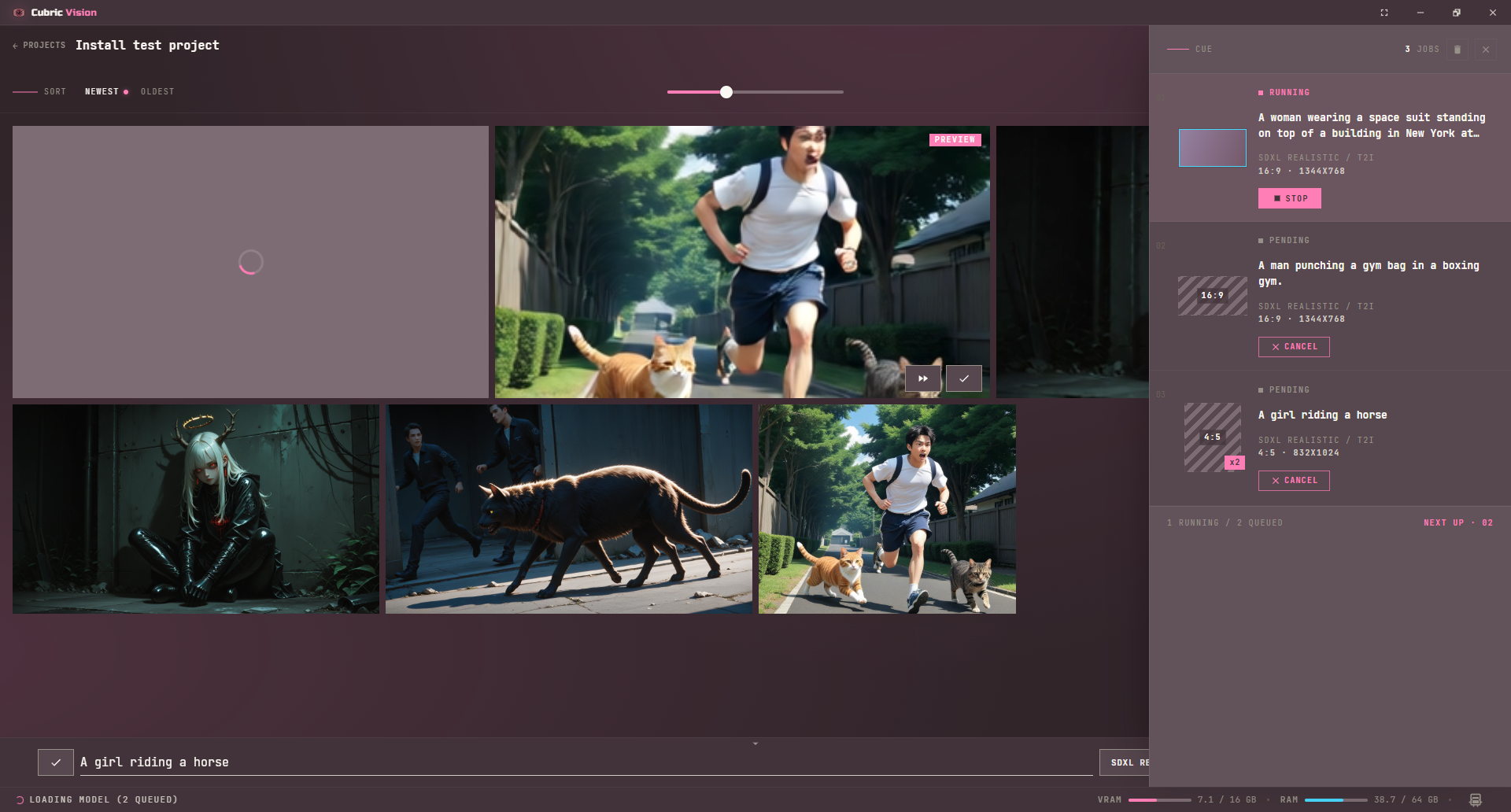
Each queue item shows its status, prompt excerpt when available, operation, model, output ratio or dimensions, and a thumbnail or placeholder. Batch jobs show an xN badge so you can see how many outputs one queued item will create.
A Stack run collapses into a single row instead of one row per card: it shows how many of its cards are done out of the total, with one Cancel all button that removes what has not started and stops what is running.
Loop jobs are marked separately from normal Cue jobs. Resumable video final-stage jobs are labeled as stage-two work when they are waiting or running.
Cancel, stop, and clear
Cancel removes a pending queue item before it starts. Stop interrupts a running job, and only that job: with more than one lane running at once (see How Cue runs jobs), Stop on one row never touches what is running in another lane.
Stopping a paid cloud run does not always get your money back. Before Cubric Studio sends the request, Stop cancels it and nothing is charged. Once the request is sent, the provider bills it regardless, so Stop lets that run finish and its result still lands as a card: you stopped the job, not the charge.
The trash control clears pending jobs from Cubric Studio's in-app queue, but it does not interrupt the job already running.
How Cue runs jobs
Cue dispatches into three lanes: your local engine, a rented cloud GPU (Pod), and paid cloud models. Each lane runs at most one job at a time, but the lanes run concurrently: a local job no longer waits behind a running cloud job, and a Pod job runs alongside either. Pending jobs wait inside Cubric Studio, then move into their lane the moment it frees up.
This also means you can keep composing the next prompt while a job runs. Each Cue captures the Prompt Box state at the moment you add it, so later prompt edits only affect future Cues or Loop refires.
A generation that finishes after you switch projects still lands in the project you started it in, and is there when you switch back to it. Its spinner does not follow you to whichever project happens to be open when it completes.